
Xdrukker XP-360B
XP-360B Termiese Etiket Streepkode Drukker Gebruikershandleiding
Model: XP-360B | Handelsmerk: Xprinter
1. Inleiding
This manual provides comprehensive instructions for the setup, operation, and maintenance of your Xprinter XP-360B Thermal Label Barcode Printer. Please read this manual thoroughly before using the printer to ensure proper functionality and to prevent damage.
The XP-360B is a high-speed thermal label printer designed for various applications, including barcode printing, shipping labels, and receipt printing. It supports label widths from 20mm to 80mm and offers a maximum print speed of 200mm per second.

Figure 1.1: Xprinter XP-360B Thermal Label Barcode Printer. This image shows the printer from a front-right angle, with labels being fed out of the front slot.
2. Veiligheidsinligting
To ensure safe operation and prolong the life of your printer, please observe the following safety precautions:
- Moenie die drukker aan water of oormatige humiditeit blootstel nie.
- Vermy die plasing van die drukker in direkte sonlig of naby hittebronne.
- Gebruik slegs die kragadapter wat saam met die drukker voorsien word.
- Moenie probeer om die drukker self uitmekaar te haal of te herstel nie. Raadpleeg gekwalifiseerde dienspersoneel.
- Hou die drukker weg van stof en puin.
- Ensure the printer is placed on a stable, flat surface.
- Unplug the printer from the power outlet before cleaning or when not in use for extended periods.
3. Pakketinhoud
Verifieer dat alle items in die pakket teenwoordig is:
- Xprinter XP-360B Thermal Label Barcode Printer
- Kragadapter
- USB kabel
- Gebruikershandleiding (hierdie dokument)
- Drywer-CD (of skakel om drywers af te laai)
4. Produk verbyview
4.1. Voorkant View

Figuur 4.1: Voorkant view of the XP-360B printer, showing the label output slot and control buttons.
- Etiketuitvoergleuf: Where printed labels exit the printer.
- Beheerknoppies:
- KRAG: Krag aanwyser.
- FOUT: Error indicator.
- POUSE: Onderbreek of hervat drukwerk.
- VOER: Feeds a blank label.
4.2. Sy View
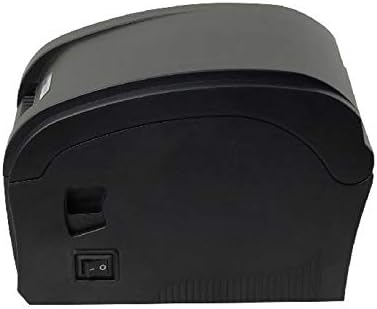
Figuur 4.2: Kant view of the XP-360B printer, highlighting the power switch.
- Krag skakelaar: Skakel die drukker aan of af.
4.3. Intern View (Cover Open)

Figuur 4.3: Intern view of the XP-360B printer with the top cover open, showing the label roll compartment and print head assembly.
- Print Head Assembly: Contains the thermal print head.
- Label Roll Compartment: Area for loading the label roll.
- Adjustable Paper Guides: Guides to align the label roll.
5. Opstelling
5.1. Uitpak en Plasing
- Verwyder die drukker en alle bykomstighede versigtig uit die verpakking.
- Plaas die drukker op 'n stabiele, plat oppervlak met voldoende ventilasie.
- Ensure there is enough space around the printer for proper operation and maintenance.
5.2. Koppel die drukker
- Koppel die kragadapter aan die drukker se kragtoevoerpoort.
- Steek die kragadapter in 'n geskikte elektriese aansluiting.
- Koppel die een kant van die USB-kabel aan die drukker se USB-poort.
- Koppel die ander kant van die USB-kabel aan 'n beskikbare USB-poort op jou rekenaar.
5.3. Laai etikette
- Maak seker dat die drukker afgeskakel is.
- Maak die boonste deksel van die drukker oop.
- Place the label roll into the label compartment, ensuring the labels feed from the bottom of the roll towards the front of the printer.
- Adjust the movable paper guides to fit the width of your label roll snugly, without being too tight.
- Pull a few labels out past the print head and through the label output slot.
- Maak die boonste deksel stewig toe totdat dit in plek klik.

Figure 5.1: Loading a roll of thermal labels into the XP-360B printer's internal compartment.
5.4. Bestuurder Installasie
Before using the printer, you must install the appropriate drivers on your computer. Drivers are typically provided on a CD or can be downloaded from the manufacturer's official webwebwerf.
- Insert the driver CD into your computer's CD-ROM drive, or navigate to the official Xprinter support website to download the XP-360B drivers.
- Volg die instruksies op die skerm om die bestuurderinstallasie te voltooi.
- After installation, it is recommended to restart your computer.
6. Bedryfsinstruksies
6.1. Skakel aan/af
- To turn on the printer, flip the power switch located on the side of the printer to the 'ON' position. The POWER indicator light will illuminate.
- To turn off the printer, flip the power switch to the 'OFF' position.
6.2. Basiese Drukwerk
- Maak seker dat die drukker aan jou rekenaar gekoppel is en aangeskakel is.
- Open the document or application from which you wish to print labels (e.g., label design software, shipping platform).
- Go to the print settings (File > Druk).
- Select "Xprinter XP-360B" as your printer.
- Adjust the paper size and orientation settings to match your labels (e.g., 4x6 inch, portrait/landscape).
- Click "Print". The printer will automatically detect the label gaps and print accordingly.
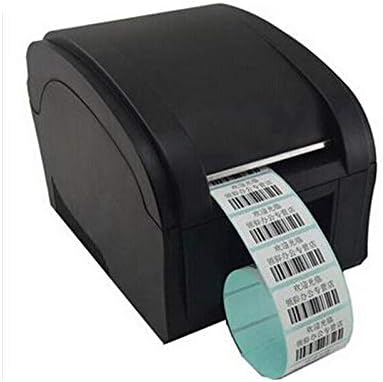
Figure 6.1: The XP-360B printer in operation, feeding out a continuous roll of printed labels.
6.3. Using Control Buttons
- VOER-knoppie: Press this button once to feed a single blank label. This is useful for testing label alignment or advancing to the next label.
- POUSE-knoppie: Press this button to temporarily pause a print job. Press it again to resume printing.
7. Onderhoud
Gereelde onderhoud verseker optimale werkverrigting en verleng die lewensduur van jou drukker.
7.1. Skoonmaak van die drukkop
The print head should be cleaned regularly, especially if print quality degrades or after printing a large volume of labels.
- Skakel die drukker af en trek die stekker uit die stopcontact.
- Maak die boonste deksel van die drukker oop.
- Wag 'n paar minute totdat die drukkop afkoel as die drukker onlangs gebruik is.
- Gently wipe the thermal print head surface with an alcohol swab or a lint-free cloth lightly dampgeëindig met isopropylalkohol.
- Laat die drukkop heeltemal droog word voordat u die deksel toemaak en die drukker aanskakel.
7.2. Cleaning the Platen Roller
The platen roller helps feed the labels smoothly. Clean it if you notice feeding issues.
- Follow steps 1-3 from "Cleaning the Print Head".
- Rotate the platen roller manually and wipe its surface with an alcohol swab or a lint-free cloth lightly dampgeëindig met isopropylalkohol.
- Allow it to dry completely before closing the cover.
8. Probleemoplossing
This section addresses common issues you might encounter with your XP-360B printer.
| Probleem | Moontlike oorsaak | Oplossing |
|---|---|---|
| Drukker skakel nie aan nie | Kragkabel los; Kragaansluiting foutief; Drukkerfout | Check power cable connection; Try a different outlet; Contact support if problem persists. |
| No printing / Printer offline | USB cable loose; Driver not installed; Printer offline in OS | Check USB connection; Install drivers; Check printer status in computer settings. |
| Swak drukkwaliteit / Verbleikte afdrukke | Dirty print head; Low quality labels; Incorrect print density settings | Clean the print head (see Section 7.1); Use high-quality thermal labels; Adjust print density in driver settings. |
| Etikette word nie korrek ingevoer nie | Labels loaded incorrectly; Paper guides not adjusted; Dirty platen roller | Re-load labels correctly; Adjust paper guides; Clean platen roller (see Section 7.2). |
| FOUT-liggie is aan | Paper jam; Cover open; Print head overheating | Clear any paper jams; Ensure cover is closed properly; Turn off printer and let it cool down. |
9. Spesifikasies
| Kenmerk | Beskrywing |
|---|---|
| Model | XP-360B |
| Drukmetode | Direkte termiese |
| Koppelvlak | USB |
| Druk spoed | Tot 200 mm/sekonde |
| Max Paper Width | 80mm (adjustable from 20mm) |
| Papiertoevoermodus | Outomatiese |
| Netwerk drukwerk | Bedraad |
| Dupleks druk | Nee |
| Afmetings | 25 x 22 x 21 cm |
| Gewig | 2 kg |
10. Waarborg en Ondersteuning
Xprinter products are designed for reliability and performance. For specific warranty terms and conditions, please refer to the warranty card included with your product or visit the official Xprinter webwebwerf.
If you encounter any issues that cannot be resolved using the troubleshooting guide, or if you require technical assistance, please contact Xprinter customer support through their official webwebwerf of die kontakinligting wat in u produkdokumentasie verskaf word.
Please have your model number (XP-360B) and purchase information ready when contacting support.
Ask a question about this manual
Ask about setup, troubleshooting, compatibility, parts, safety, or missing instructions. Manuals+ will review the question and use this page’s manual context to help answer it.