
1. oorview
The Wacom Cintiq Pro 32 is a professional-grade creative pen and touch display designed for digital artists and designers. It features a large 31.5-inch 4K screen, offering exceptional detail and color accuracy for an immersive creative experience. The included Wacom Pro Pen 2 provides precise control with advanced pressure sensitivity and tilt recognition, mimicking traditional art tools.
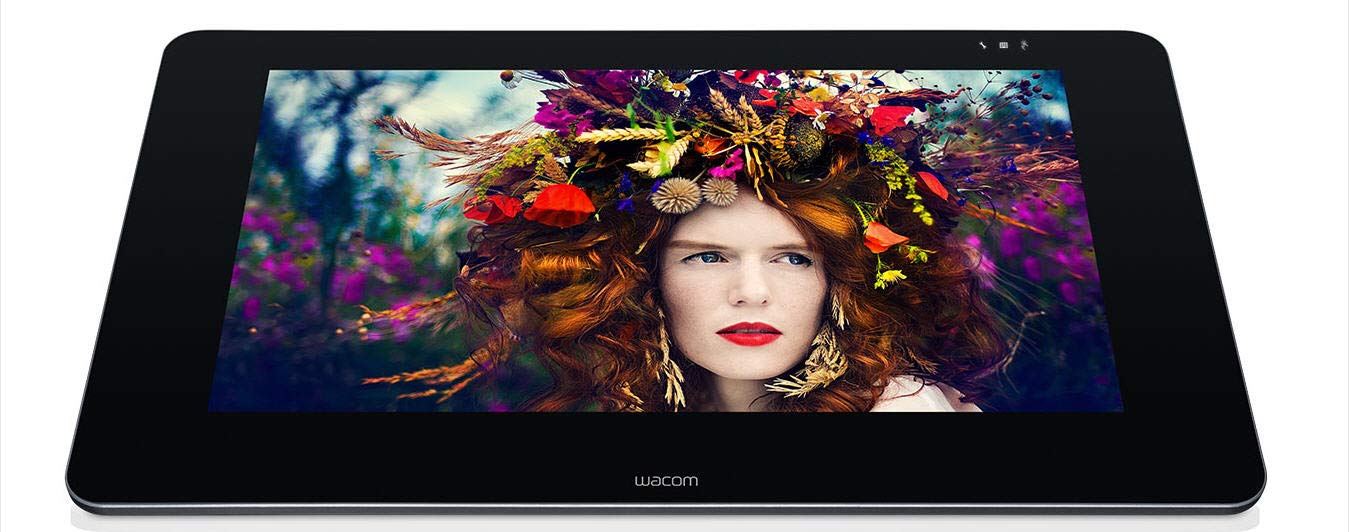
Figure 1: Wacom Cintiq Pro 32 Creative Pen Display.
Sleutel kenmerke:
- 31.5-duim 4K UHD-skerm: Experience stunning visual clarity with a resolution of 3840x2160 pixels.
- Etched Glass Screen: Provides a natural, tactile drawing experience while minimizing glare and reflections.
- Exceptional Color Performance: Achieves 99% Adobe RGB and 97% sRGB color accuracy with 1.07 billion colors (10-bit color depth).
- Wacom Pro Pen 2: Features 8,192 levels of pressure sensitivity and tilt recognition for precise and natural pen input. Optical bonding reduces parallax for a pen-on-paper feel.
- Multi-Touch Gestures: Navigate and interact with your artwork using intuitive multi-touch gestures.
- ExpressKey Remote: A customizable remote for one-touch shortcuts, enhancing workflow efficiency.
- Veelsydige verbindings: Supports USB-C, HDMI, and Mini/DisplayPort connections for compatibility with various systems.
2. Wat is in die boks
Upon unboxing your Wacom Cintiq Pro 32, ensure all the following components are present:
- Wacom Cintiq Pro 32 Creative Pen and Touch Display
- Wacom Pro Pen 2
- ExpressKey Remote
- USB-C kabel
- HDMI kabel
- Mini/DisplayPort cable
- WS-adapter en kragkabel
- Pen stand with replacement nibs and nib removal tool
- Vinnige Begingids

Figure 2: Wacom Cintiq Pro 32 with various connection cables.
3. Opstelling
Follow these steps to set up your Wacom Cintiq Pro 32:
- Pak die toestel uit: Carefully remove the Cintiq Pro 32 and all accessories from the packaging.
- Position the Display: Place the Cintiq Pro 32 on a stable, sturdy desk. Consider using an optional ergonomic stand (sold separately) for optimal viewhoeke en gemak.
- Koppel aan krag: Connect the AC adapter to the Cintiq Pro 32 and plug the power cable into an electrical outlet.
- Koppel aan rekenaar: Kies een van die volgende verbindingsmetodes:
- USB-C: Connect one end of the USB-C cable to the Cintiq Pro 32 and the other end to a compatible USB-C port on your computer. This single cable can transmit video, data, and power.
- HDMI or Mini/DisplayPort + USB-A: Connect the HDMI or Mini/DisplayPort cable for video, and then connect the USB-A cable for pen and touch functionality.
- Installeer drywers: Visit the official Wacom website to download and install the latest drivers for your operating system (Mac OS X 10.11 or later, Windows 7 or later). Restart your computer after installation.
- Calibrate the Pen: After driver installation, open the Wacom Desktop Center and follow the on-screen instructions to calibrate your Wacom Pro Pen 2 for optimal accuracy.

Figure 3: Wacom Cintiq Pro 32 in use with the Wacom Pro Pen 2.
4. Operating the Cintiq Pro 32
Using the Wacom Pro Pen 2
The Wacom Pro Pen 2 is your primary tool for interaction. It offers:
- Drukgevoeligheid: Apply varying pressure to create lines of different thickness and opacity, just like traditional art tools.
- Kantelherkenning: The pen detects the angle at which you hold it, allowing for natural brush strokes and shading effects.
- Programmable Side Switches: The two side switches on the pen can be customized in the Wacom Desktop Center to perform various functions, such as right-click, scroll, or specific application commands.
- Uitveër: The eraser on the back of the pen functions as a digital eraser in compatible software.

Figuur 4: Gedetailleerd view of a hand interacting with the Cintiq Pro 32 using the Wacom Pro Pen 2.
Multi-touch gebare
The Cintiq Pro 32 supports multi-touch input, allowing for intuitive navigation and manipulation of your canvas:
- pan: Use two fingers to drag the canvas.
- Zoem: Knyp in of uit met twee vingers om te zoem.
- Draai: Place two fingers on the screen and rotate them to rotate the canvas.
- Gepasmaakte gebare: Configure additional gestures in the Wacom Desktop Center for personalized shortcuts.
ExpressKey Remote
The ExpressKey Remote provides 17 customizable buttons and a Touch Ring for quick access to frequently used functions. Keep it within reach for an efficient workflow.
- Pasmaak: Assign specific keystrokes, mouse clicks, or application-specific functions to each button and the Touch Ring using the Wacom Desktop Center.
- Plasing: The remote can be placed anywhere on or around your Cintiq Pro 32 for convenient access.

Figure 5: Wacom Cintiq Pro 32 shown with the ExpressKey Remote for quick access to shortcuts.
5. Onderhoud
Proper maintenance ensures the longevity and optimal performance of your Cintiq Pro 32:
- Skoonmaak van die skerm: Use a soft, lint-free cloth (microfiber is recommended) to gently wipe the screen. For stubborn smudges, slightly dampMaak die lap skoon met water of 'n skermveilige skoonmaakmiddel. Moenie harde chemikalieë of skuurmateriaal gebruik nie.
- Cleaning the Pen: Wipe the Wacom Pro Pen 2 with a dry, soft cloth. Avoid exposing it to excessive moisture.
- Vervangingspunte: If the pen nib becomes worn, use the nib removal tool (found in the pen stand) to carefully pull out the old nib and insert a new one. Ensure the new nib is fully seated.
- Kabelbestuur: Hou kabels georganiseerd en vry van kinkels of oormatige spanning om skade te voorkom.
- Berging: When not in use, store the Cintiq Pro 32 in a clean, dry environment, away from direct sunlight and extreme temperatures.
6. Probleemoplossing
Hier is oplossings vir algemene probleme wat jy mag teëkom:
| Probleem | Moontlike Oplossing |
|---|---|
| No display on Cintiq Pro 32 |
|
| Pen not responding or inaccurate |
|
| Touch gestures not working |
|
| Color inaccuracy |
|
7. Spesifikasies
| Kenmerk | Detail |
|---|---|
| Modelnommer | DTH3220K0 |
| Skerm grootte | 31.5 duim |
| Resolusie | 3840 x 2160 (4K UHD) |
| Kleurprestasie | 99% Adobe RGB, 97% sRGB, 1.07 billion colors (10-bit) |
| Pen Tegnologie | Wacom Pro Pen 2 |
| Drukgevoeligheid | 8192 vlakke |
| Kantelherkenning | Ondersteun |
| Multi-Touch | Ondersteun |
| Konnektiwiteit | USB-C, HDMI, Mini/DisplayPort |
| Bedryfstelselversoenbaarheid | OS X 10.11 or later, Windows 7 or later |
| Item gewig | 42.4 pond |
| Produkafmetings (LxBxH) | 33.62 x 19.92 x 2.1 duim |
| Kleur | Swart |
| Batterye | 1 Litium-ioon batterye (ingesluit) |
8. Waarborg en ondersteuning
For detailed warranty information, please refer to the warranty card included with your product or visit the official Wacom website. Wacom provides comprehensive support resources, including:
- Aanlyn kennisbasis: Access articles, FAQs, and tutorials.
- Drywer aflaaie: Ensure you have the latest drivers for optimal performance.
- Kliëntediens: Contact Wacom support for technical assistance or service requests.
Besoek gerus www.wacom.com/support for the most up-to-date support information and resources.