
360 S6
360 Robot Vacuum and Mop Cleaner User Manual
Model: S6
Inleiding
Thank you for choosing the 360 Robot Vacuum and Mop Cleaner. This intelligent cleaning device is designed to provide efficient and thorough cleaning for your home, featuring advanced laser navigation, powerful suction, and smart app control. This manual will guide you through the setup, operation, and maintenance of your new robot vacuum to ensure optimal performance and longevity.

The 360 Robot Vacuum and Mop Cleaner, Model S6, shown with its companion mobile application interface.
Veiligheidsinligting
- Lees alle instruksies sorgvuldig deur voordat u die toestel gebruik.
- Do not allow children to operate the robot vacuum. Supervise children and pets when the robot is operating.
- Ensure the charging dock is placed on a flat surface against a wall, with clear space around it.
- Do not use the robot vacuum in wet environments or near liquids.
- Verwyder enige los kabels, klein voorwerpe of brose items van die vloer af voor skoonmaak om verstrengeling of skade te voorkom.
- Do not use the robot vacuum to pick up large debris, sharp objects, or burning/smoking materials.
- Only use the original charger and battery provided by the manufacturer.
- Voer gereelde onderhoud uit soos in hierdie handleiding beskryf om veilige en doeltreffende werking te verseker.
Pakketinhoud
Verifieer dat alle komponente in die pakket teenwoordig is:
- 360 Robot Vacuum and Mop Cleaner (S6)
- Laaidok
- Kragadapter
- Watertenk
- Mop-lap
- Syborsels (2 paar)
- Skoonmaak gereedskap
- Gebruikershandleiding
- Battery (vooraf geïnstalleer)
- Filter (pre-installed)
Produk verbyview
Familiarize yourself with the main components of your 360 Robot Vacuum and Mop Cleaner.

verbyview of the robot vacuum's intelligent features including anti-collision, anti-drop sensors, long-lasting battery, LDS laser navigation, and SLAM algorithm for mapping.
Top View:
- LDS Laser Navigasie Sensor: For accurate mapping and navigation.
- Krag/skoonmaak-knoppie: Press to start/pause cleaning, long press to turn on/off.
- Recharge Button: Press to send the robot back to the charging dock.
- Dustbin Compartment: Located under the top cover.
Onderkant View:
- Hoofborsel: Vir die diep skoonmaak van matte en harde vloere.
- Syborsels: To sweep debris from edges and corners.
- Dryfwiele: Vir beweging oor verskeie oppervlaktes.
- Omni-directional Wheel: For steering.
- Laai kontakte: To connect with the charging dock.
- Klifsensors: To prevent falling down stairs.
- Wall Sensor: To sweep along walls and corners effectively.
Opstelling
1. Charging the Robot Vacuum
- Place the charging dock on a hard, level surface against a wall. Ensure there is at least 0.5 meters (1.6 feet) of clear space on both sides and 1.5 meters (4.9 feet) in front of the dock.
- Connect the power adapter to the charging dock and plug the other end into a power outlet.
- Place the robot vacuum onto the charging dock, ensuring the charging contacts align. The robot will announce that it is charging. For first use, fully charge the robot before operation.
2. Connecting to the 360 Robot App
- Download the "360 Robot" app from the App Store (iOS) or Google Play Store (Android).
- Maak die toepassing oop en skep 'n rekening of meld aan.
- Follow the in-app instructions to add your device. This typically involves selecting your robot model, connecting to its Wi-Fi hotspot, and then connecting the robot to your home Wi-Fi network (2.4GHz only).
- Sodra jy gekoppel is, kan jy die robot beheer, view cleaning maps, set schedules, and access advanced features through the app.
Bedryf
Begin van 'n skoonmaaksiklus
- Via Robot-knoppie: Press the Power/Clean button on the robot once to start a cleaning cycle. Press again to pause.
- Via App: Open the 360 Robot app and tap the "Clean" button. You can also select specific cleaning modes (e.g., Spot cleaning, Proximity cleaning) or set schedules.
- Via Voice Command (Alexa): If integrated with Alexa, you can use voice commands like "Alexa, ask 360 Robot to start cleaning."
Skoonmaakmodusse

The robot vacuum is capable of both sweeping (vacuuming) and mopping, utilizing its main brush, side brushes, and mop cloth.
- Outomatiese Skoonmaak: The robot intelligently maps your home and cleans systematically. It identifies carpet and automatically switches to Max Mode with 1800Pa suction power for deep cleaning.
- Skoonmaak: Gee die robot opdrag om 'n spesifieke klein area intensief skoon te maak.
- Proximity Cleaning: Cleans a designated area around the robot.
- Mopmodus: Attach the water tank with a damp mop cloth. The robot will mop hard floors. Note: The mopping function is designed for light mopping and not for heavy stains.
Gevorderde toepassingskenmerke
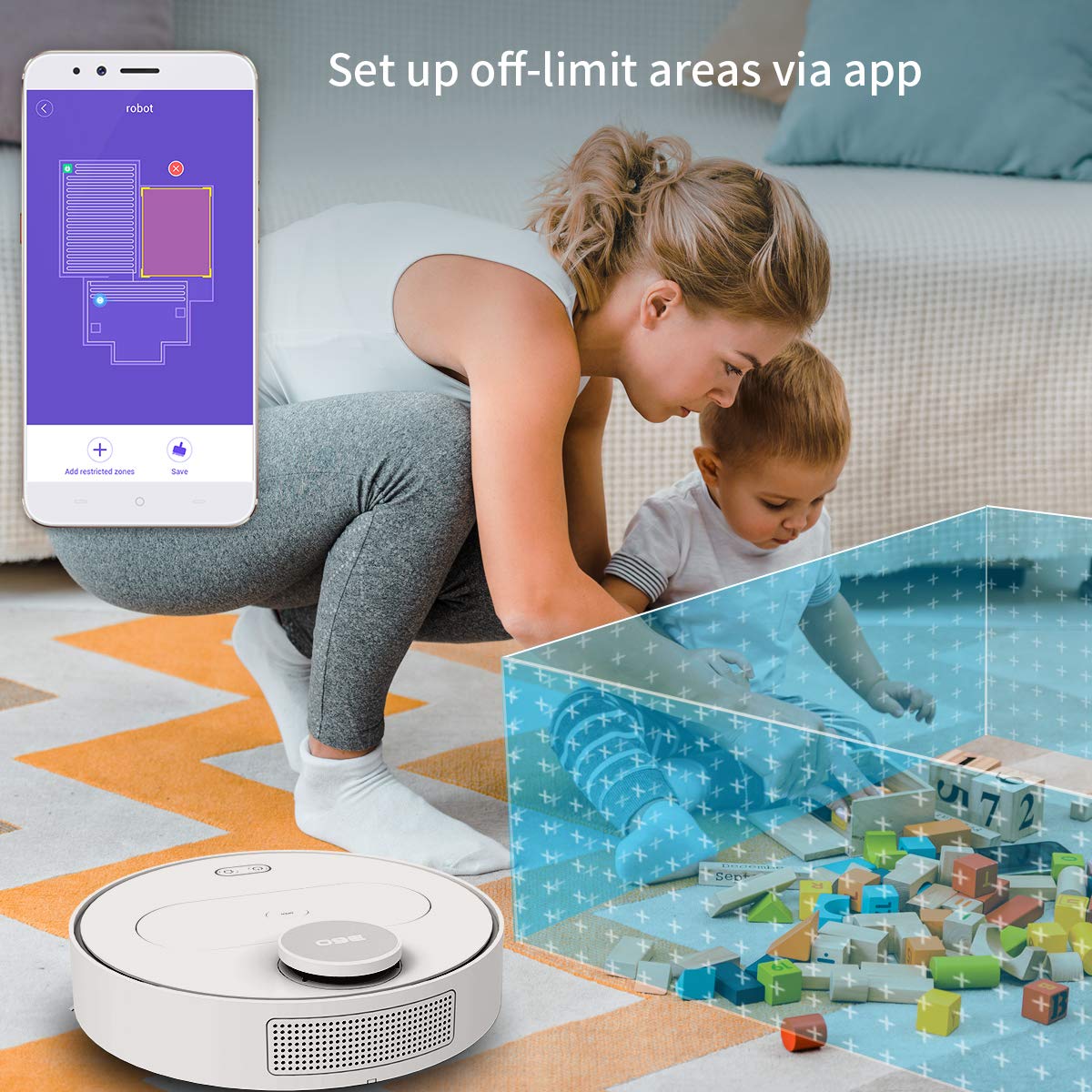
The 360 Robot app allows users to define and set up off-limit areas on the cleaning map, preventing the robot from entering specific zones.
- Multi-map Management: Save and manage multiple floor plans for different levels of your home.
- Off-limit Area: Draw virtual boundaries or no-go zones on the map to prevent the robot from entering specific areas.
- Skeduleer: Stel spesifieke tye in vir die robot om outomaties te begin skoonmaak.
- Afstandbeheer: Manually control the robot's movement using the app.
- Baan skoonmaak: Monitor the robot's real-time cleaning path and progress on the map.
- Suigvlakke: Adjust suction power (Quiet, Normal, Powerful, Max) according to your cleaning needs.
Automatic Recharge and Breakpoint Resume
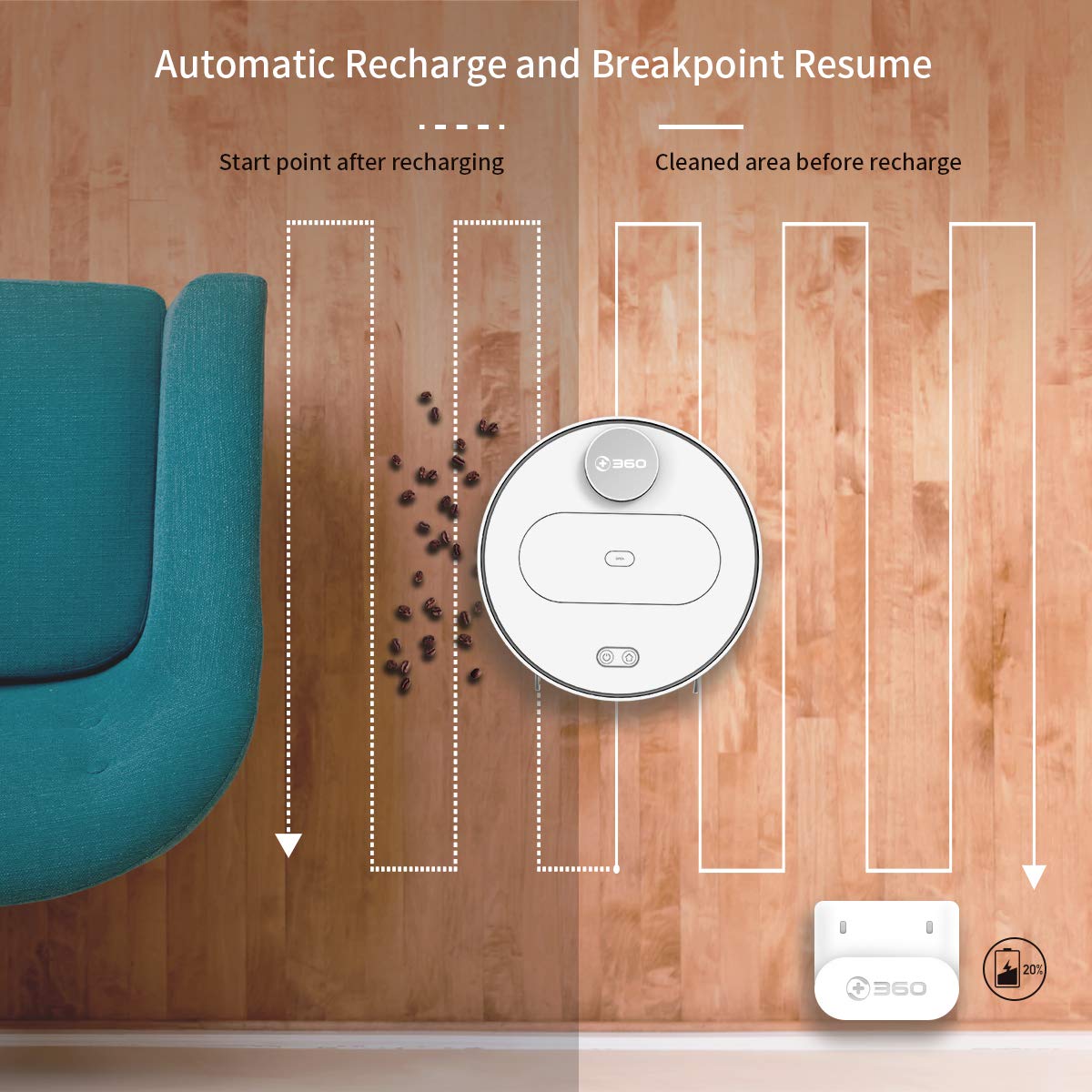
The robot automatically returns to its charging dock when the battery is low and resumes cleaning from the last uncleaned spot after recharging.
When the battery level is low during a cleaning cycle, the robot will automatically return to its charging dock. Once fully recharged, it will resume cleaning from where it left off, ensuring complete coverage of your home.
Onderhoud
Regular maintenance is crucial for optimal performance and longevity of your robot vacuum.
1. Leegmaak van die vullisdrom
- Maak die boonste deksel van die robot oop en verwyder die asblik.
- Maak die deksel van die asblik oop en gooi die inhoud daarvan in 'n asblik.
- It is recommended to empty the dustbin after each cleaning cycle.
2. Maak die filter skoon

The 360 Robot Vacuum features a washable HEPA filter, which helps maintain high filtration efficiency and contributes to cleaner indoor air.
- Verwyder die filter uit die stofblik.
- Tap the filter gently to remove loose dirt.
- Rinse the filter under running water. Ensure it is completely dry before reinserting it into the dustbin. Do not use a brush or other tools to clean the filter, as this may damage it.
- It is recommended to clean the filter weekly and replace it every 3-6 months, depending on usage.
3. Skoonmaakborsels
- Hoofborsel: Remove the main brush cover and then the main brush. Use the provided cleaning tool to remove hair and debris tangled around the brush. Reinstall the brush and cover. Clean weekly.
- Syborsels: Check side brushes for tangled hair or debris. If necessary, remove them (they can be pulled off) and clean. Reinstall, ensuring they click into place. Replace if worn or damaged. Clean monthly.
4. Skoonmaak van sensors en laaikontakte
- Wipe the cliff sensors (on the bottom of the robot), wall sensor (on the side), and charging contacts (on the robot and charging dock) with a clean, dry cloth. This ensures proper navigation and charging. Clean monthly.
5. Water Tank and Mop Cloth Maintenance
- After mopping, remove the water tank and empty any remaining water.
- Remove the mop cloth and wash it thoroughly. Allow it to air dry completely before reattaching or storing.
- Do not leave water in the tank when the robot is not in use for extended periods.
Probleemoplossing
| Probleem | Moontlike oorsaak | Oplossing |
|---|---|---|
| Robot skakel nie aan nie. | Battery is laag of uitgeput. | Plaas die robot op die laaistasie en maak seker dat dit laai. |
| Robot kan nie aan Wi-Fi koppel nie. | Verkeerde Wi-Fi-wagwoord; 5GHz-netwerk; robot te ver van router. | Ensure correct 2.4GHz Wi-Fi password. Move robot closer to router. Restart robot and router. |
| Die robot sit gereeld vas. | Obstacles on the floor; narrow spaces. | Clear obstacles. Use the app to set off-limit areas for problematic zones. |
| Swak skoonmaakprestasie. | Vullisdrom vol; filter verstop; borsels verstrengel. | Maak die stofhouer leeg. Maak die filter skoon of vervang dit. Maak die hoof- en syborsels skoon. |
| Robot keer nie terug na die laaibank nie. | Charging dock obstructed; charging contacts dirty. | Ensure clear space around the dock. Clean charging contacts on both robot and dock. |
Spesifikasies
| Kenmerk | Detail |
|---|---|
| Handelsmerk | 360 |
| Model Naam | S6 |
| Spesiale kenmerke | Anti-Collision, Anti-Fall, Washable Filter |
| Kleur | Veelkleurig |
| Filter tipe | Doek |
| Batterylewe | 110 minute |
| Kragbron | Battery aangedrewe |
| Beheer metode | Toep |
| Versoenbare toestelle | Alexa |
| Item gewig | 3 kg 490 g |
| Itemafmetings (LxBxH) | 35 x 35 x 10 sentimeter |
Waarborg en Ondersteuning
For warranty information and technical support, please refer to the warranty card included in your product packaging or visit the official 360 SmartAI website. You can also contact customer service through the 360 Robot app for assistance.
For additional resources and FAQs, please visit the 360 Store on Amazon.