
A4tech G3-200N
A4 Tech G3-200N Wireless Optical Mouse User Manual
Model: G3-200N
1. Inleiding
This manual provides comprehensive instructions for the setup, operation, and maintenance of your A4 Tech G3-200N Wireless Optical Mouse. Please read this manual thoroughly before using the product to ensure optimal performance and longevity.
'n Top-down view of the A4 Tech G3-200N wireless mouse, showing its black body with blue accents and the scroll wheel.
2. Pakketinhoud
Kontroleer asseblief die inhoud van die pakket om seker te maak dat alle items teenwoordig is:
- A4 Tech G3-200N Wireless Optical Mouse
- USB-ontvanger
- Gebruikershandleiding (hierdie dokument)
3. Opstelling
3.1 Installeer battery
Locate the battery compartment on the underside of the mouse. Open the compartment cover and insert one AA battery, ensuring correct polarity (+/-). Close the battery compartment cover securely. Let wel: The AA battery is not included.
3.2 Connect USB Receiver
Plug the USB receiver into an available USB port on your computer. The operating system will automatically detect and install the necessary drivers. This process may take a few moments.
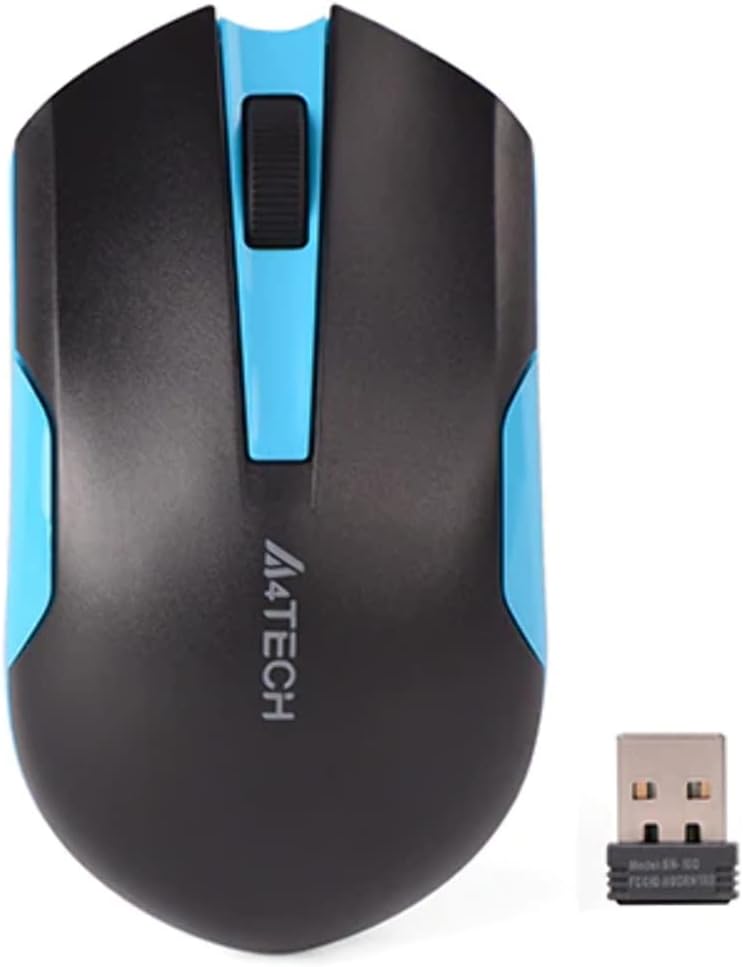
'n Top-down view of the A4 Tech G3-200N wireless mouse alongside its compact USB receiver, highlighting the black and blue design.
3.3 Power On the Mouse
If your mouse has a power switch (typically on the underside), slide it to the "ON" position. The mouse should now be ready for use.
4. Operasie
4.1 Basiese Funksies
- Linker knoppie: Primary click function, typically used for selecting items or opening links.
- Regter knoppie: Secondary click function, typically used to open context menus.
- Rolwiel: Blaai op of af deur dokumente en web pages. The scroll wheel can also function as a middle button when pressed.

An angled top view of the A4 Tech G3-200N wireless mouse, emphasizing its contoured design and the A4TECH logo, with visible buttons.
4.2 Optical Tracking
The A4 Tech G3-200N uses optical tracking technology for precise cursor movement. For best performance, use the mouse on a non-reflective, opaque surface. Avoid using it on glass or highly reflective surfaces.
4.3 Draadlose reikwydte
The mouse operates wirelessly via the 2.4 GHz frequency band. Ensure the USB receiver is within a reasonable range (typically up to 10 meters) for uninterrupted connectivity.
5. Onderhoud
5.1 Die skoonmaak van die muis
To clean your mouse, gently wipe its surface with a soft, slightly damp cloth. Avoid using harsh chemicals, solvents, or abrasive cleaners, as these can damage the finish or internal components. Ensure no liquid enters the mouse.
5.2 Batteryvervanging
When the mouse performance degrades, the cursor becomes erratic, or the mouse stops responding, it may be time to replace the AA battery. Follow the battery installation steps outlined in Section 3.1.
6. Probleemoplossing
| Probleem | Moontlike Oplossing |
|---|---|
| Muis reageer nie |
|
| Onreëlmatige beweging van die wyser |
|
| Poor wireless connection |
|
7. Spesifikasies
- Handelsmerk: A4tech
- Model: G3-200N
- Verbinding: Wireless (2.4 GHz USB Receiver)
- Bewegingsopsporing: Opties
- Aantal knoppies: 3 (Links, Regs, Blaaiwiel/Middelste Knoppie)
- Hand oriëntasie: Ambidekstrous
- Kragbron: 1 x AA-battery (nie ingesluit nie)
- Kleur: Swart/blou
8. Waarborg en Ondersteuning
For detailed warranty information and technical support, please refer to the documentation provided with your purchase or visit the official A4tech webwebwerf. Bewaar u bewys van aankoop vir enige waarborgeise.
9. Kontak ondersteuning
If you encounter issues not covered in this manual or require further assistance, please contact A4tech customer support through their official webwebwerf of die kontakinligting wat saam met u produkverpakking verskaf word.