
Bytech BYTECH Wireless Optical Mouse
BYTECH Draadlose Optiese Muis Gebruikershandleiding
Model: BYTECH Wireless Optical Mouse
Inleiding
This manual provides detailed instructions for the setup, operation, maintenance, and troubleshooting of your BYTECH Wireless Optical Mouse. Please read this manual thoroughly before using the device to ensure optimal performance and longevity.
Produk verbyview
The BYTECH Wireless Optical Mouse is designed for comfortable and efficient navigation. It features a precise optical sensor, a scroll wheel, and a DPI adjustment button for customizable sensitivity. Its ergonomic design and wireless connectivity provide a clutter-free workspace.

Figuur 1: Bo-na-onder view of the BYTECH Wireless Optical Mouse. The mouse is black with a silver stripe along its sides. A scroll wheel and a DPI button are visible on the top surface.
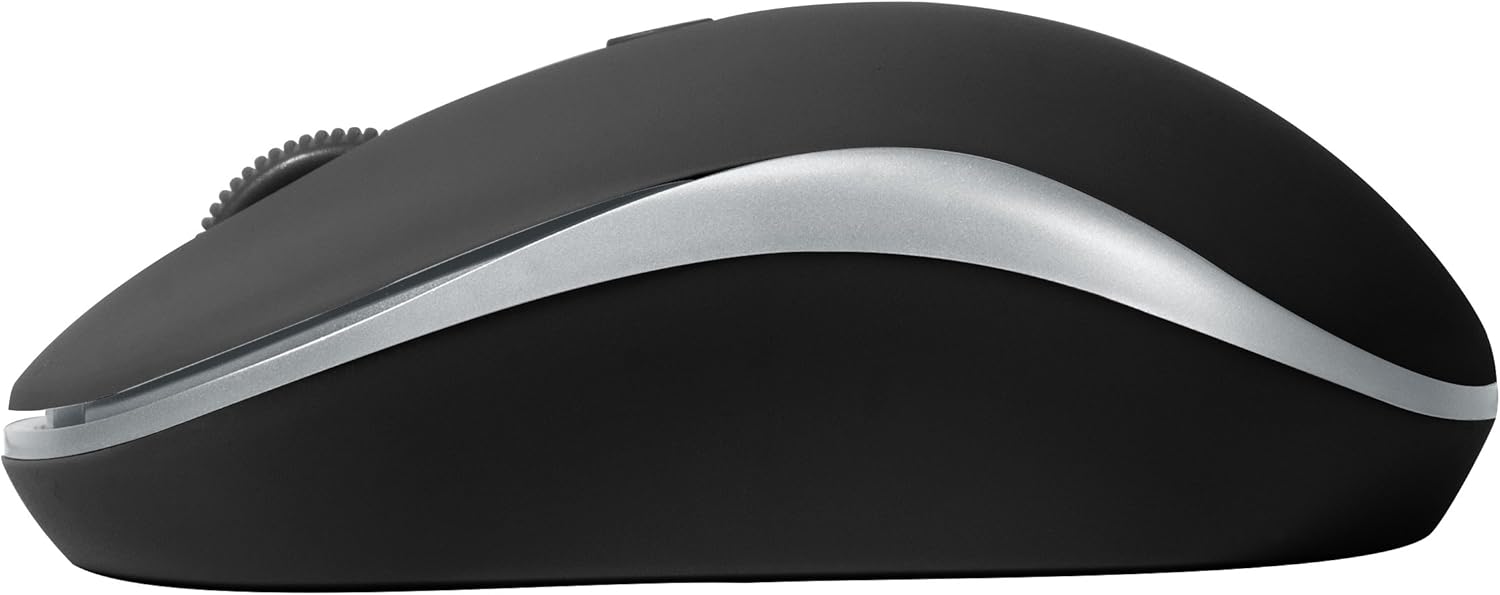
Figuur 2: Kant view of the BYTECH Wireless Optical Mouse. This angle highlights the ergonomic curve and the silver accent line that runs along the side of the mouse.
Opstelling
1. Battery Installasie
- Vind die batterykompartement aan die onderkant van die muis.
- Maak die batteryvakdeksel oop.
- Insert one AA battery (not included) into the compartment, ensuring the correct polarity (+/-) as indicated inside.
- Maak die batterykompartement se deksel stewig toe.
2. USB Receiver Connection
- Remove the USB receiver from its storage slot, usually located inside the battery compartment or near it.
- Koppel die USB-ontvanger in 'n beskikbare USB-poort op jou rekenaar of skootrekenaar.
- Jou bedryfstelsel behoort outomaties die nodige drywers op te spoor en te installeer. Dit kan 'n paar oomblikke neem.
3. Aanskakel
- Locate the On/Off switch on the underside of the mouse.
- Slide the switch to the "On" position. The mouse should now be ready for use.
Bedryfsinstruksies
Basiese funksies
- Links klik: Druk die linkerknoppie om items te kies, skakels oop te maak of funksies te aktiveer.
- Regs klik: Druk die regterknoppie om kontekskieslyste oop te maak of toegang tot bykomende opsies te verkry.
- Rolwiel: Rol die wiel op of af om deur dokumente te blaai of web pages. Press the scroll wheel for middle-click functionality (e.g., opening links in new tabs).
DPI aanpassing
The mouse features a DPI (Dots Per Inch) button, typically located behind the scroll wheel. Press this button to cycle through different sensitivity settings. Each press will change the cursor speed, allowing you to find the optimal setting for your task.
- Druk die DPI knoppie once to switch to the next sensitivity level.
- Repeat until you find your preferred cursor speed.
Kragbesparingsmodus
To conserve battery life, the BYTECH Wireless Optical Mouse is designed to automatically enter a sleep mode after a period of inactivity. To wake the mouse, simply move it or click any button.
Onderhoud
Skoonmaak
- Maak seker dat die muis afgeskakel is voordat jy dit skoonmaak.
- Gebruik 'n sagte, pluisvrye lap effens dampeindig met water of 'n ligte skoonmaakoplossing.
- Wipe the surface of the mouse gently. Avoid excessive moisture.
- Vir die optiese sensor, gebruik 'n droë wattestokkie om enige stof of puin versigtig te verwyder.
- Do not use abrasive cleaners, alcohol, or solvents, as these may damage the surface.
Battery vervanging
When the mouse performance degrades or the cursor becomes erratic, it may be time to replace the battery. Follow the battery installation steps outlined in the "Setup" section.
Berging
When not in use for an extended period, it is recommended to turn off the mouse to conserve battery life. The USB receiver can be stored in its dedicated slot on the mouse's underside to prevent loss.
Probleemoplossing
- Muis reageer nie:
- Maak seker dat die muis aangeskakel is.
- Gaan die batteryvlak na en vervang indien nodig.
- Verifieer dat die USB-ontvanger stewig in 'n werkende USB-poort ingeprop is. Probeer 'n ander USB-poort.
- Herbegin jou rekenaar.
- Cursor erratic or jumping:
- Maak die optiese sensor aan die onderkant van die muis skoon.
- Maak seker dat jy die muis op 'n geskikte oppervlak gebruik (nie-reflektief, nie-deursigtig). 'n Muismat word aanbeveel.
- Kontroleer vir sterk elektromagnetiese interferensie van ander toestelle.
- Konnektiwiteitsprobleme:
- Verminder die afstand tussen die muis en die USB-ontvanger.
- Remove any large metal objects or electronic devices that might be obstructing the wireless signal.
- If using a USB hub, try connecting the receiver directly to the computer.
Spesifikasies
| Kenmerk | Detail |
|---|---|
| Handelsmerk | Bytech |
| Model | BYTECH Wireless Optical Mouse |
| Verbindingstegnologie | Draadloos (USB-ontvanger) |
| Bewegingsopsporingstegnologie | Opties |
| Kleur | Swart |
| Kragbron | Battery-aangedrewe (1x AA, nie ingesluit nie) |
| Bedryfstelselversoenbaarheid | macOS, Android (and generally Windows) |
| Item gewig | 3.56 onse |
| Produkafmetings (LxBxH) | 1 x 1 x 1 duim (Ongeveer) |
Opmerking: Spesifikasies kan sonder kennisgewing verander word.
Waarborg en Ondersteuning
Bytech products are manufactured to the highest quality standards. For information regarding warranty coverage, technical support, or service, please refer to the warranty card included with your product or visit the official Bytech webwebwerf. Bewaar u aankoopbewys as bewys van aankoop vir waarborgeise.
For further assistance, please contact Bytech customer support through their official channels.