
1. Inleiding
This manual provides essential information for the installation, operation, maintenance, and troubleshooting of your Juniper Networks EX3400-48P Ethernet Switch. The EX3400-48P is designed to deliver a high-performance, flexible, and cost-effective solution for demanding data, voice, and video enterprise access environments. It supports Juniper Networks Virtual Chassis technology for simplified network operations.
2. Veiligheidsinligting
Please read and understand all safety instructions before installing or operating the device. Failure to follow these guidelines may result in injury or damage to the equipment.
- Verseker behoorlike aarding van die toerusting.
- Moenie die skakelaar in nat of droë toestand gebruik nie.amp voorwaardes.
- Use only the power supply provided or approved by Juniper Networks.
- Vermy die blokkering van ventilasie-openinge om oorverhitting te voorkom.
- Refer to qualified service personnel for any servicing not described in this manual.
3. Produk verbyview
The Juniper Networks EX3400-48P is a 48-port Power over Ethernet (PoE+) capable Ethernet switch. It features a compact design suitable for rack mounting and offers various connectivity options.
3.1. Fisiese Komponente
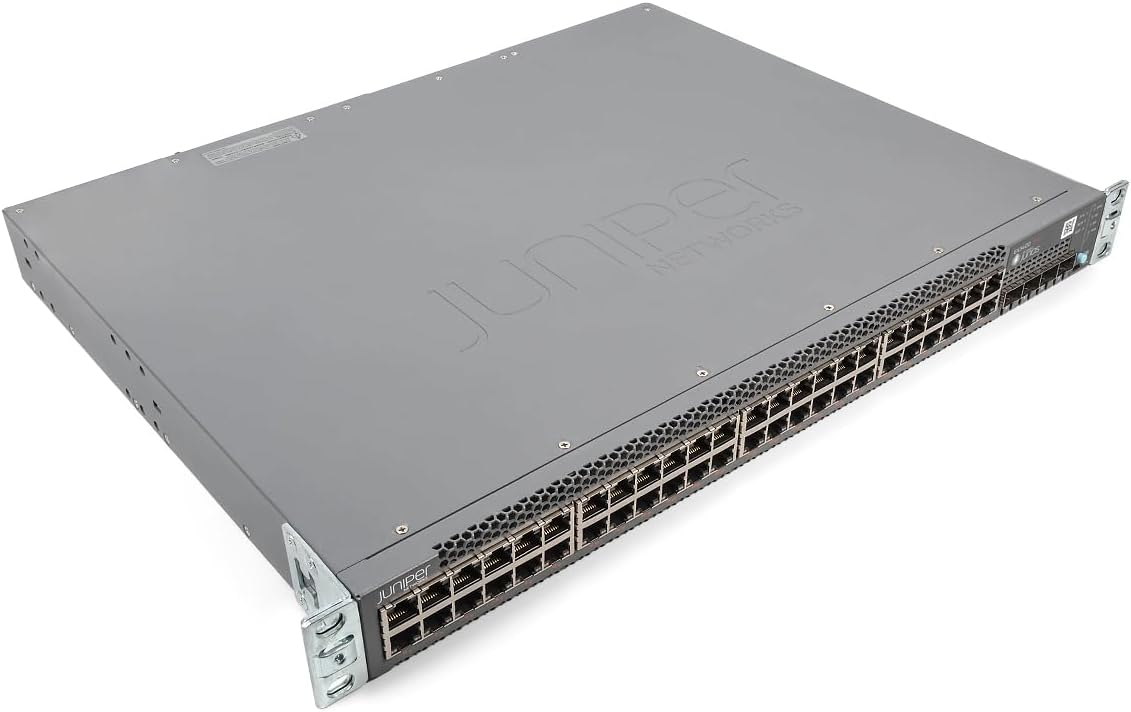
Figuur 1: Hoekig view of the Juniper EX3400-48P Ethernet Switch, showing the top and front panels with the Juniper Networks logo.

Figuur 2: Voorkant view of the EX3400-48P switch, highlighting the 48 Ethernet ports, uplink ports, and status LEDs.

Figuur 3: Agter view of the EX3400-48P, displaying the modular power supply bay, fan modules, management (MGMT) port, and console (CON) port.

Figuur 4: Skuins agterkant view of the EX3400-48P, showing the power supply unit partially extracted, illustrating its modular design.
3.2. Kenmerke van die voorpaneel
- 48 x 10/100/1000BASE-T Ethernet-poorte: For connecting network devices.
- Uplink-poorte: SFP/SFP+ ports for high-speed connections to other switches or routers.
- Status LED's: Indicators for system status, port activity, and PoE status.
3.3. Kenmerke van die agterpaneel
- Power Supply Bay: Houses the modular power supply unit.
- Fan Modules: Provide cooling for the system.
- Management (MGMT) Port: An out-of-band Ethernet port for device management.
- Console (CON) Port: For local serial console access.
4. Opstelling
4.1. Uitpak en inspeksie
Carefully remove the switch from its packaging. Inspect the device for any signs of physical damage. Report any damage to your supplier immediately.
4.2. Rakmontering
The EX3400-48P is designed for standard 19-inch rack installation. Use the provided rack-mount brackets and screws to secure the switch in the rack. Ensure adequate space for airflow around the unit.
4.3. Kragverbinding
- Maak seker dat die kragskakelaar op die agterpaneel in die AF-posisie is.
- Connect the power cord to the power supply unit on the rear of the switch.
- Steek die ander kant van die kragkabel in 'n geaarde WS-kragaansluiting.
- Flip the power switch to the ON position. The system status LED should illuminate.
4.4. Aanvanklike konfigurasie
For initial configuration, connect a console cable from your computer to the console port on the rear of the switch. Use a terminal emulation program (e.g., PuTTY, Tera Term) with the following settings:
- Baud tarief: 9600
- Data stukkies: 8
- Pariteit: Geen
- Stop stukkies: 1
- Vloeibeheer: Geen
Follow the on-screen prompts to set up basic network parameters such as IP address, subnet mask, and default gateway.
5. Bedryf
5.1. Skakel aan/af
- Krag aan: After connecting the power cord, press the power switch to the ON position. The switch will perform a power-on self-test (POST).
- Skakel af: To power off, press the power switch to the OFF position. For a controlled shutdown, it is recommended to save the configuration and issue a shutdown command via the command-line interface (CLI) before physically powering off.
5.2. LED-aanwysers
The front panel LEDs provide visual status of the switch's operation:
- SYS LED: Dui die algehele stelselstatus aan (bv. groen vir normale werking, oranje vir waarskuwing, rooi vir kritieke fout).
- ALM LED: Dui alarmstatus aan.
- PoE LED: Indicates Power over Ethernet status.
- Poort LED's: Indicate link status and activity for each Ethernet port.
5.3. Netwerkopstelling
The EX3400-48P can be configured via its command-line interface (CLI) or a web-based graphical user interface (GUI) if enabled. Common configurations include:
- VLAN creation and assignment.
- Port security settings.
- Routing protocols.
- Quality of Service (QoS) settings.
- Spanning Tree Protocol (STP) configuration.
Refer to the Juniper Networks documentation for detailed configuration guides specific to Junos OS.
6. Onderhoud
6.1. Firmware-opdaterings
Gaan gereeld die Juniper Networks-ondersteuning na website for the latest Junos OS firmware updates. Keeping the firmware up-to-date ensures optimal performance, security, and access to new features. Follow the instructions provided with the firmware package for the update procedure.
6.2. Skoonmaak
Keep the switch clean and free of dust. Use a soft, dry cloth to wipe the exterior. For ventilation openings, use compressed air to remove dust buildup. Ensure the switch is powered off before cleaning.
6.3. Modular Component Replacement
The EX3400-48P features modular power supplies and fan trays. If a component fails, it can be replaced without powering down the entire switch (hot-swappable). Refer to the Juniper Networks hardware guide for specific replacement procedures.
7. Probleemoplossing
Hierdie afdeling bied oplossings vir algemene probleme wat u mag teëkom.
7.1. Geen krag
- Maak seker dat die kragkabel stewig aan beide die skakelaar en die kragaansluiting gekoppel is.
- Kyk of die kragaansluiting funksioneel is.
- Maak seker dat die kragskakelaar op die agterpaneel in die AAN-posisie is.
- Inspect the power supply unit for any fault indicators.
7.2. Geen skakel op poort nie
- Kontroleer die Ethernet-kabelverbinding aan beide kante.
- Maak seker dat die gekoppelde toestel aangeskakel is en korrek funksioneer.
- Try a different port on the switch.
- Verify the cable is not damaged and meets specifications (e.g., Cat5e or higher).
7.3. Netwerkverbindingsprobleme
- Verify IP address, subnet mask, and gateway settings on the switch and connected devices.
- Check VLAN configurations if applicable.
- Use diagnostic tools like
pingentraceroutefrom the switch CLI. - Consult system logs for error messages.
8. Spesifikasies
The following table outlines the technical specifications for the Juniper Networks EX3400-48P Ethernet Switch:
| Kenmerk | Spesifikasie |
|---|---|
| Modelnommer | EX3400-48P |
| Aantal poorte | 48 |
| Tipe koppelvlak | SFP/SFP+ |
| Data-oordragtempo | 336 Gigabit per sekonde |
| Voltage | 48 Volt (DC) |
| Materiaal van die saak | Metaal |
| Boonste temperatuurgradering | 50 grade Celsius |
| Produk afmetings | 17.2 x 13.78 x 1.73 duim |
| Item gewig | 12.65 pond |
| Vervaardiger | Juniper |
| UPC | 832938071001 |
9. Waarborg en Ondersteuning
9.1. Produkwaarborg
This product is typically covered by a manufacturer's warranty. Please refer to the specific warranty terms provided at the time of purchase or on the official Juniper Networks website. A 30-day return policy may apply depending on the vendor.
9.2. Tegniese Ondersteuning
For technical assistance, documentation, software downloads, and further support, please visit the official Juniper Networks support website. You may also contact your authorized Juniper Networks reseller for local support options.