
Waveshare 13.3 duim HDMI LCD (H)
Waveshare 13.3-inch Capacitive Touch Screen LCD (V1) User Manual
Model: 13.3 duim HDMI LCD (H)
1. Inleiding
This manual provides detailed instructions for the setup, operation, and maintenance of your Waveshare 13.3-inch Capacitive Touch Screen LCD (V1). This display features a 1920x1080 resolution, HDMI input, IPS panel for wide viewing angles, and a durable toughened glass cover. Please read this manual thoroughly before using the product to ensure proper functionality and longevity.
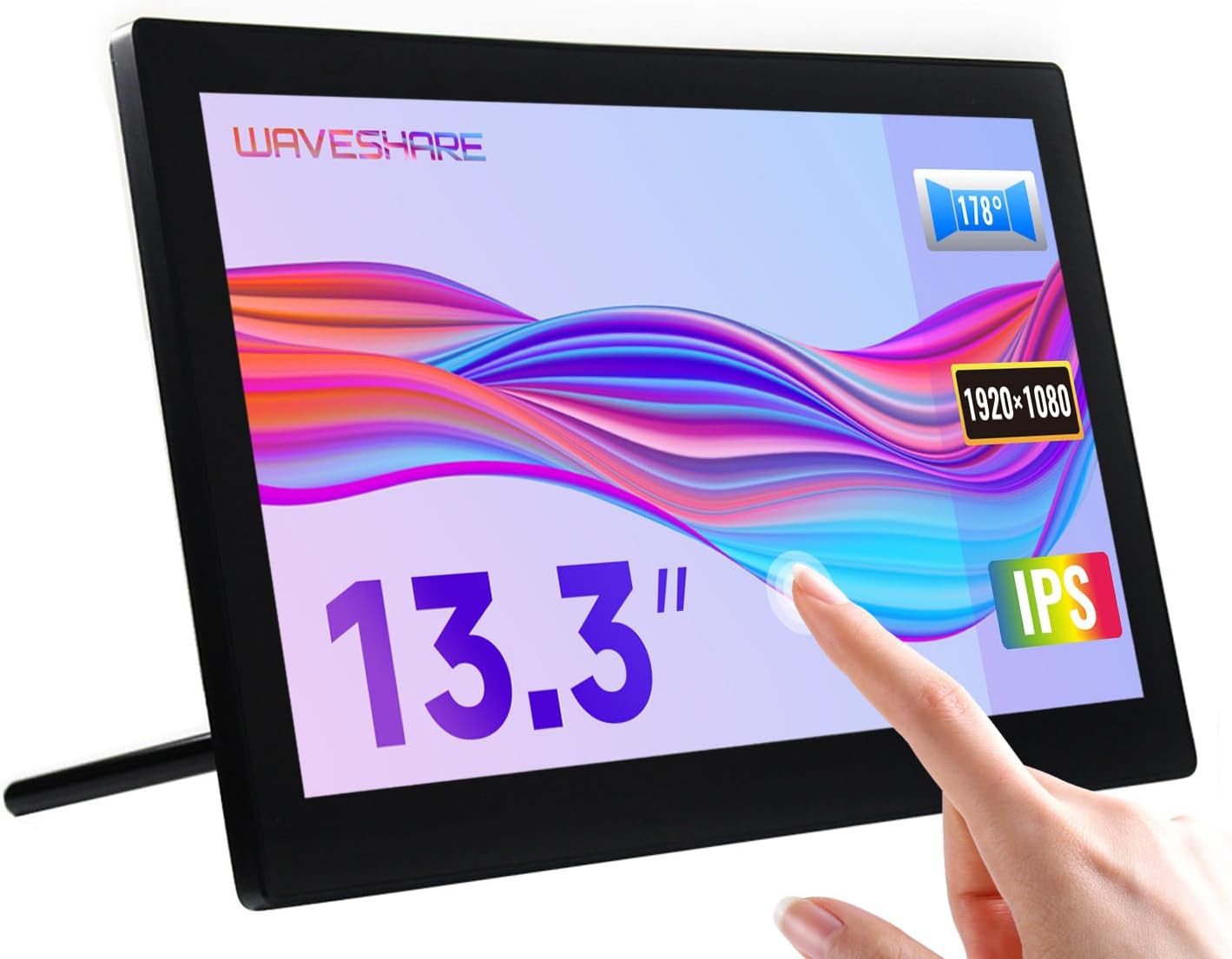
Image 1.1: The Waveshare 13.3-inch Capacitive Touch Screen LCD, showcasing its touch functionality and sleek design.
2. Veiligheidsinligting
- Verseker die kragtoevoer voltage matches the product's requirements to prevent damage.
- Avoid exposing the display to extreme temperatures, humidity, or direct sunlight.
- Moenie die eenheid uitmekaar haal nie. Verwys alle diens na gekwalifiseerde personeel.
- Keep the screen away from strong magnetic fields.
- Handle with care to avoid dropping or impacting the screen, especially the toughened glass panel.
3. Pakketinhoud
Verifieer dat alle items in die pakket teenwoordig is:
- Waveshare 13.3-inch HDMI LCD (H) Display
- Kragadapter
- HDMI kabel
- USB-A to Micro-USB Cable (for touch functionality)
- Gebruikershandleiding (hierdie dokument)
4. Produk verbyview
4.1. Kenmerke
- 13.3-inch IPS panel with 1920x1080 resolution.
- Capacitive 10-point touch control (operating system dependent).
- Toughened glass panel with up to 6H hardness.
- HDMI and VGA display interfaces.
- Built-in Hi-Fi speakers and 3.5mm audio jack.
- Supports various devices including Raspberry Pi, Jetson Nano, PCs, and game consoles.
- Integrated case with a 75° back stand and VESA mounting holes (75x75mm).

Image 4.1: Detailed features and system compatibility of the display.
4.2. Fisiese Komponente
The display includes various ports and control buttons:
- VGA Display Port: For video input via VGA.
- HDMI-poort: For video input via HDMI.
- 3.5 mm oudio-aansluiting: Vir oudio-uitvoer.
- Touch Port (USB): For connecting the touch functionality to your device.
- 12V Kraginvoer: Om die kragadapter aan te sluit.
- Back Buttons: Power, direction controls, and Menu/Enter/Return buttons for OSD navigation.

Prent 4.2: Agter view of the display with ports and a Raspberry Pi connection example.
5. Opstelinstruksies
5.1. Aanvanklike verbinding
- Koppel video: Use the provided HDMI cable to connect the display's HDMI port to your source device (e.g., Raspberry Pi, PC). If using VGA, connect a VGA cable.
- Connect Touch (USB): Connect the USB-A to Micro-USB cable from your source device's USB port to the display's Touch Port. This enables touch functionality.
- Koppel krag: Plug the power adapter into the display's 12V Power Input, then connect it to a power outlet.
- Krag aan: Press the power button on the back of the display. The screen should illuminate and display content from your source device.

Image 5.1: Display showing a Windows desktop after successful connection.
5.2. Verbinding Bvamples
The display supports various connection configurations:
- Werk met Raspberry Pi 4: Connect HDMI for video and USB for touch. Power the display with its 12V adapter.
- Werk met Raspberry Pi Zero W: Requires additional mini HDMI adapter and USB cable. Connect mini HDMI for video and USB for touch. Power the display with its 12V adapter.
- Werk met KI-rekenaar Jetson Nano: Connect HDMI for video and USB for touch. Power the display with its 12V adapter.
- Werk met Mini-rekenaar: Connect HDMI for video and USB for touch. Power the display with its 12V adapter.

Image 5.2: Visual guide for connecting the display to different devices.
6. Bedryfsinstruksies
6.1. On-Screen Display (OSD)-kieslys
The OSD menu allows you to adjust display settings such as brightness, contrast, and input source. Use the back buttons (direction controls and Menu/Enter/Return) to navigate and select options.
- Druk die SPYSKAART knoppie om die OSD-kieslys oop te maak.
- Gebruik die Rigting knoppies om deur die kieslysopsies te navigeer.
- Druk SPYSKAART again (or the designated Enter button) to select an option or confirm a setting.
- Gebruik die Keer terug button to go back or exit the menu.
6.2. Displaying Content
Once connected and powered on, the display will automatically detect the active video input. Ensure your source device is outputting video to the selected HDMI or VGA port.

Image 6.1: The display showing multimedia content from a web blaaier.
6.3. Raak Beheer
The display features capacitive 10-point touch control. Ensure the USB touch cable is connected to your source device for touch functionality. Driver-free operation is supported on most compatible operating systems.

Image 6.2: Illustration of touch control and audio features.
6.4. Klankuitset
The display includes built-in Hi-Fi speakers for audio output. Alternatively, you can connect external speakers or headphones to the 3.5mm audio jack for private listening or higher quality audio.
7. Device & System Support
The Waveshare 13.3-inch display offers broad compatibility:
- Framboos Pi: Supports all versions of Raspberry Pi.
- Supports Raspberry Pi OS, 10-point touch, driver free.
- Supports Ubuntu / Kali / WIN10 IoT, single point touch, driver free.
- Supports Retropie, driver free.
- Jetson Nano: Supports Ubuntu, single point touch, driver free.
- PC: Supports Windows 11 / 10 / 8.1 / 8 / 7, 10-point touch, driver free.
- Spelkonsoles: Ondersteun Xbox360, PS4, Switch (slegs skerm en klank).

Beeld 7.1: verbyview of supported devices and operating systems.
8. Onderhoud
- Skoonmaak van die skerm: Gebruik 'n sagte, pluisvrye lap effens dampmet water of 'n skermskoonmaakoplossing afgespoel. Vermy harde chemikalieë of skuurmiddels.
- Algemene sorg: Keep the display free from dust. When not in use for extended periods, consider covering it to prevent dust accumulation.
- Berging: Store the display in a cool, dry place, away from direct sunlight and extreme temperatures.
9. Probleemoplossing
| Probleem | Moontlike oorsaak | Oplossing |
|---|---|---|
| Geen vertoon/Swart skerm |
|
|
| Touch not working |
|
|
| Geen oudio nie |
|
|
10. Spesifikasies
| Kenmerk | Detail |
|---|---|
| Skerm grootte | 13.3 duim |
| Resolusie | 1920x1080 (FHD 1080p) |
| Vertoonpaneel | IPS |
| Viewing Hoek | 178° |
| Raak Tipe aan | Capacitive, 10-point touch |
| Aanraakpaneelhardheid | Up to 6H Toughened Glass |
| Vertoonvlak | HDMI, VGA |
| Oudio-uitset | Built-in Hi-Fi Speakers, 3.5mm Audio Jack |
| Krag Invoer | 12V GS |
| Produkafmetings (LxBxH) | 7.09 x 3.94 x 3.54 duim (ongeveer 180 x 100 x 90 mm) |
| Item gewig | 2.2 pounds (1 kg approx.) |
| Omhulselmateriaal | Polikarbonaat / ABS |

Image 10.1: Physical dimensions of the display.
11. Waarborg en Ondersteuning
Waveshare products are designed for reliability and performance. For warranty information, technical support, or further assistance, please visit the official Waveshare webwebwerf of kontak hul kliëntediens direk. Bewaar u aankoopbewys as bewys van aankoop vir waarborgeise.
Amptelike Waveshare Webwebwerf: www.waveshare.com
Ask a question about this manual
Ask about setup, troubleshooting, compatibility, parts, safety, or missing instructions. Manuals+ will review the question and use this page’s manual context to help answer it.