
BenQ EX3501R
BenQ EX3501R Ultrawide Curved Gaming Monitor User Manual
Model: EX3501R
1. Opstelling
1.1 Uitpak van die monitor
Verwyder alle komponente versigtig uit die verpakking. Maak seker dat alle items wat hieronder gelys word, teenwoordig is:
- BenQ EX3501R Monitor
- Monitorstaander (basis en nek)
- Kragadapter
- Kragkoord
- HDMI kabel
- DisplayPort-kabel
- USB-C-kabel
- Gebruikershandleiding (hierdie dokument)
1.2 Montering van die Staanplek
Volg hierdie stappe om die staander aan jou monitor te heg:
- Plaas die monitor met die gesig na onder op 'n sagte, skoon lap om krapmerke te voorkom.
- Attach the stand neck to the back of the monitor. Ensure it clicks securely into place.
- Connect the stand base to the neck, tightening any screws as indicated in the quick start guide.

Figuur 1: Voorkant view of the BenQ EX3501R monitor with its stand.
1.3 Aansluitkabels
Connect the necessary cables to the monitor and your computer. The monitor supports various input options:
- Krag: Koppel die kragadapter aan die monitor en dan aan 'n kragpunt.
- Video Input: Use either the HDMI, DisplayPort, or USB-C cable to connect your computer to the monitor.
- USB-C: The USB-C port supports video, data transfer, and power delivery, allowing for a single-cable connection with compatible devices.
- USB 3.0 Poorte: Utilize the integrated USB 3.0 ports for connecting peripherals.
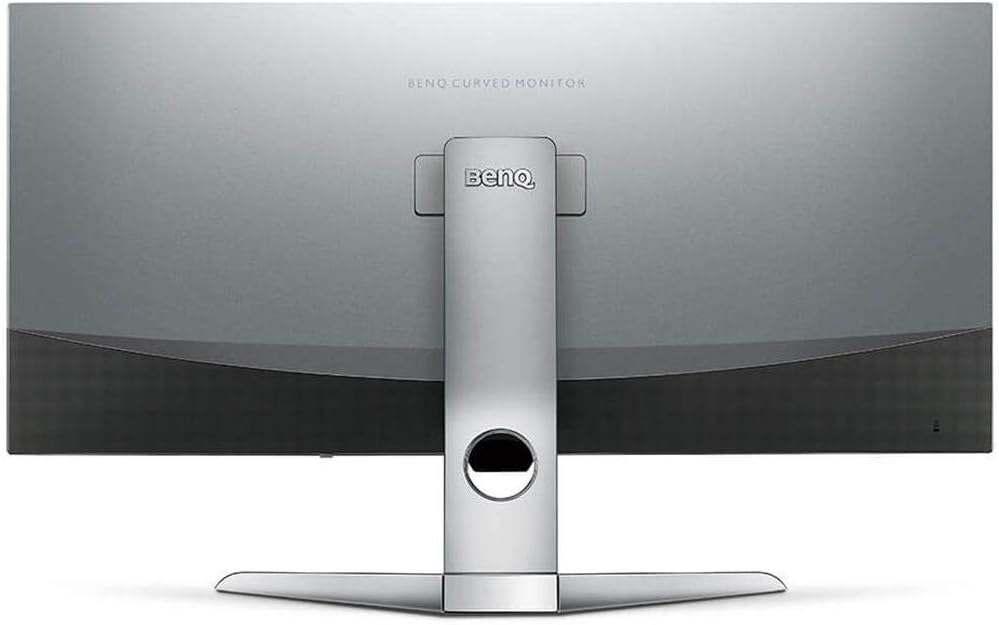
Figuur 2: Agter view of the monitor displaying the connectivity ports.
2. Bedien die monitor
2.1 Krag aan/af
Press the power button, usually located on the bottom right side of the monitor, to turn it on or off. The power indicator light will illuminate when the monitor is active.
2.2 Skermvertoning (OSD) Navigasie
Use the joystick or buttons located on the monitor's underside to navigate the On-Screen Display (OSD) menu. This menu allows you to adjust various settings such as brightness, contrast, color modes, and input sources.
2.3 Display Features and Eye-Care Technology
The BenQ EX3501R incorporates several technologies designed to enhance viewing experience and reduce eye strain:
- Brightness Intelligence Plus (B.I.+): This patented technology automatically senses ambient lighting conditions and adjusts the screen's brightness and color temperature to provide optimal viewing comfort and protect your eyes during extended use.
- Lae blou lig: Filters out harmful blue light emissions to reduce eye fatigue. Multiple levels of blue light reduction are available.
- ZeroFlicker™: Eliminates screen flickering at all brightness levels, further reducing eye strain and discomfort.
- HDR (Hoë Dinamiese Omvang): Offers enhanced brightness and contrast, bringing greater detail and vibrancy to HDR video content.
Video 1: 'n Oorview of BenQ's Eye-Care technology, including Low Blue Light, ZeroFlicker, and Brightness Intelligence Plus, demonstrating how these features work to reduce eye strain and adjust screen settings automatically based on ambient light.
2.4 Resolution and Refresh Rate
The monitor features a QHD (3440x1440) resolution and a 100Hz refresh rate, providing a smooth and detailed visual experience. The 21:9 ultrawide aspect ratio offers ample screen space for multitasking, such as viewing multiple documents side-by-side without needing a second monitor.
2.5 AMD FreeSync
For a fluid gaming experience, the monitor supports AMD FreeSync technology, which synchronizes the monitor's refresh rate with your graphics card's frame rate to eliminate screen tearing and stuttering.
3. Onderhoud
3.1 Skoonmaak van die monitor
To maintain optimal performance and appearance, regularly clean your monitor:
- Skerm: Vee die skerm liggies af met 'n sagte, pluisvrye lap. Vir hardnekkige vlekke, gebruik 'n monitor-spesifieke skoonmaakoplossing wat op die lap aangewend word, nie direk op die skerm nie.
- Buitekant: Use a soft, dry cloth to wipe dust and debris from the monitor casing and stand.
Avoid using abrasive cleaners, waxes, or solvents as they can damage the monitor's surface.
3.2 Algemene Sorgwenke
- Moenie ventilasie-openinge op die monitor blokkeer nie.
- Vermy om die monitor in direkte sonlig of naby hittebronne te plaas.
- Hanteer die monitor versigtig om fisiese skade te voorkom.
4. Probleemoplossing
If you encounter issues with your BenQ EX3501R monitor, refer to the following common troubleshooting steps:
4.1 No Display or Black Screen
- Maak seker dat die kragkabel stewig aan beide die monitor en die kragaansluiting gekoppel is.
- Verifieer dat die videokabel (HDMI, DisplayPort of USB-C) stewig aan beide die monitor en jou rekenaar gekoppel is.
- Kontroleer of die korrekte invoerbron in die monitor se OSD-kieslys gekies is.
- Herbegin jou rekenaar.
4.2 Flickering or Unstable Image
- Ensure the ZeroFlicker™ feature is enabled in the OSD menu.
- Kontroleer vir los videokabelverbindings.
- Dateer jou grafiese kaartbestuurders op na die nuutste weergawe.
- If using AMD FreeSync, ensure it is properly configured in your graphics card settings.
4.3 Color or Brightness Issues
- Adjust brightness, contrast, and color settings via the OSD menu.
- Enable or disable Brightness Intelligence Plus (B.I.+) to see if it resolves the issue.
- Voer 'n fabrieksherstel uit deur die OSD-kieslys.
5. Spesifikasies
Key technical specifications for the BenQ EX3501R monitor:
| Kenmerk | Spesifikasie |
|---|---|
| Skerm grootte | 35 duim |
| Maksimum skermresolusie | 3440 x 1440 Pixels (QHD Ultrawide) |
| Aspekverhouding | 21:9 |
| Herlaaitempo | 100 Hz |
| Kromming | 1800R |
| Paneel tipe | VA (Vertikale belyning) |
| Konnektiwiteit | USB-C, HDMI, DisplayPort |
| Spesiale kenmerke | AMD FreeSync, Brightness Intelligence Plus, Low Blue Light, ZeroFlicker |
| Item gewig | 21.3 pond |
| Produk afmetings | 6.88 x 3.47 x 12.93 duim |
6. Waarborg en Ondersteuning
6.1 Produkwaarborg
The BenQ EX3501R monitor typically comes with a 3-year manufacturer's warranty. Please refer to the warranty card included in your product packaging for specific terms and conditions, or visit the official BenQ webwebwerf vir gedetailleerde waarborginligting.
6.2 Kliëntediens
For further assistance, technical support, or warranty claims, please contact BenQ customer service. You can find contact information and support resources on the official BenQ webwebwerf: www.benq.com/en-us/support.html
Ask a question about this manual
Ask about setup, troubleshooting, compatibility, parts, safety, or missing instructions. Manuals+ will review the question and use this page’s manual context to help answer it.