
1. Inleiding
Dankie vir die aankoopasing the Zebronics ZEB-A18 Plus 17.3-inch LED Monitor. This manual provides essential information for setting up, operating, and maintaining your monitor. Please read it thoroughly before use and retain it for future reference.
1.1 Wat is in die boks
- Monitor
- Kragadapter
- Monitore stand
- Gebruikershandleiding
- VGA-kabel
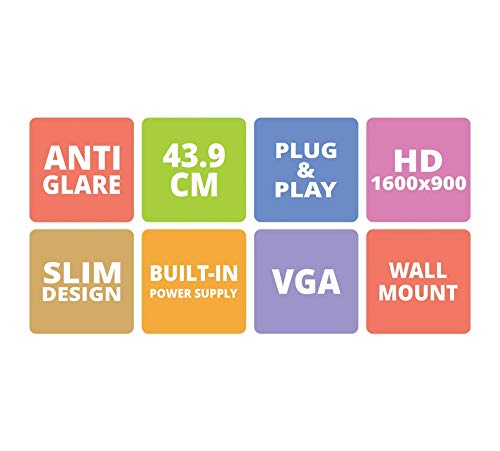
Figure 1: Key features of the Zebronics ZEB-A18 Plus monitor, including Anti Glare, 43.9 CM screen size, Plug & Play functionality, HD 1600x900 resolution, Slim Design, Built-in Power Supply, VGA connectivity, and Wall Mount compatibility.
2. Veiligheidsinligting
Om veilige werking te verseker en skade te voorkom, neem asseblief die volgende veiligheidsmaatreëls in ag:
- Moenie die monitor aan reën of vog blootstel nie.
- Moenie die monitor oopmaak nie casing; verwys alle diens na gekwalifiseerde personeel.
- Plaas die monitor op 'n stabiele, plat oppervlak.
- Verseker behoorlike ventilasie rondom die monitor.
- Gebruik slegs die meegeleverde kragadapter.
- Disconnect the power cable during lightning storms or when unused for long periods.
3. Opstelling
3.1 Montering van die Staanplek
- Verwyder die monitor- en staanderkomponente versigtig uit die verpakking.
- Heg die staanderbasis aan die staandernek vas.
- Secure the assembled stand to the back of the monitor using the provided screws. Ensure it is firmly attached.
3.2 Koppel die monitor
- Kragverbinding: Connect the power adapter to the monitor's power input and then plug the adapter into a power outlet.
- Videoverbinding: Connect one end of the VGA cable to the VGA port on your computer's graphics card and the other end to the VGA input port on the monitor.
- Oudioverbinding (indien van toepassing): The monitor has built-in speakers. No separate audio cable is typically needed for VGA connections as audio is not transmitted via VGA. Ensure your computer's audio output is configured correctly.
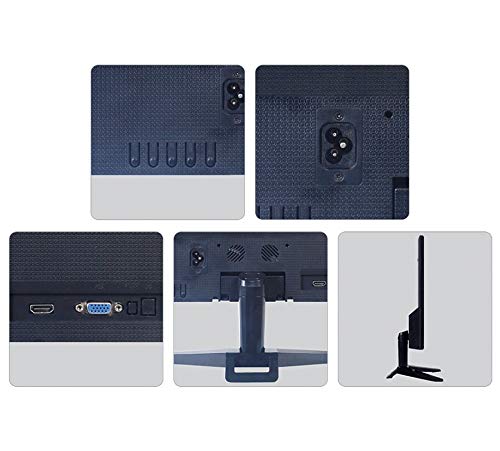
Figuur 2: Agter view of the Zebronics ZEB-A18 Plus monitor showing the power input, VGA port, and side profile. This image illustrates the available connection points for power and video input.
4. Bedryfsinstruksies
4.1 Aan-/afskakel
Druk die aan/af-knoppie op die monitor om dit aan of af te skakel. Die aan/af-liggie sal brand wanneer die monitor aktief is.
4.2 Basic Display Adjustments
The monitor features an On-Screen Display (OSD) menu for adjusting various settings. Use the control buttons (usually located on the bottom or back of the monitor) to navigate the OSD menu. Common adjustments include:
- Helderheid: Pas die algehele helderheid van die skerm aan.
- Kontras: Pas die verskil tussen ligte en donker areas aan.
- Kleurinstellings: Verfyn kleurtemperatuur of individuele RGB-vlakke.
- Invoerkeuse: Manually select the video input source (e.g., VGA).
4.3 Ingeboude luidsprekers
The ZEB-A18 Plus monitor includes built-in speakers. Ensure your computer's audio output is directed to the monitor if you wish to use them. Volume can typically be controlled via your computer's operating system.
5. Onderhoud
5.1 Skoonmaak van die monitor
- Ontkoppel altyd die monitor van die kragtoevoer voordat u dit skoonmaak.
- Gebruik 'n sagte, pluisvrye lap liggies dampmet water of 'n nie-skurende skermreiniger afgevee.
- Moenie skoonmaakmiddel direk op die skerm spuit nie.
- Vermy die gebruik van harde chemikalieë, oplosmiddels of skuurmiddels.
- Vee die casing met 'n sagte, droë lap.
6. Probleemoplossing
As jy probleme met jou monitor ondervind, raadpleeg die volgende algemene probleme en oplossings:
- No Display / "No Signal" Message:
- Ensure the monitor is powered on and the power indicator is lit.
- Check that the VGA cable is securely connected to both the monitor and the computer.
- Verifieer dat jou rekenaar aangeskakel is en nie in slaapmodus is nie.
- Probeer om jou rekenaar te herbegin.
- If using multiple monitors, ensure the correct display output is selected on your computer.
- Poor Image Quality (Blurry, Distorted, Incorrect Colors):
- Check the VGA cable for damage or loose connections.
- Pas die resolusie-instellings op jou rekenaar aan om by die monitor se oorspronklike resolusie (1600 x 900) te pas.
- Use the OSD menu to adjust brightness, contrast, and color settings.
- Geen klank van ingeboude luidsprekers nie:
- Ensure the monitor's volume is not muted or set too low via the OSD (if available) or your computer's audio settings.
- Verify that your computer's audio output is correctly configured to send sound to the monitor.
7. Spesifikasies
| Handelsmerk | SEBRONIEK |
| Model Naam | ZEB A18 Plus |
| Modelnommer | ZEB-A18 |
| Skerm grootte | 17.2 duim |
| Tipe vertoon | LED |
| Maksimum skermresolusie | 1600 x 900 (HD+) |
| Aspekverhouding | 16:9 |
| Herlaaitempo | 60 Hz |
| Reaksie Tyd | 8 millisekondes |
| Beeldhelderheid | 220 cd/m² |
| Kontrasverhouding | 400:1 |
| Viewing Hoek | 178 grade |
| Konnektiwiteit | VGA |
| Ingeboude luidsprekers | Ja |
| Montage tipe | Muurmontering |
| Kleur | Swart |
| Kragverbruik | 15 W |
| Gewig | 1.1 kg |
| Afmetings met staander (B x D x H) | 415 x 13 x 340 mm |
8. Waarborg en Ondersteuning
8.1 Waarborginligting
Your Zebronics ZEB-A18 Plus monitor is covered by a limited warranty. Please refer to the warranty card included with your product for specific terms and conditions. Keep your purchase receipt as proof of purchase for warranty claims.
8.2 Kliëntediens
For technical assistance, troubleshooting, or warranty inquiries, please contact Zebronics customer support. Contact details can typically be found on the official Zebronics webwebwerf of op die produkverpakking.