
1. Inleiding
This manual provides instructions for the ROCCAT KONE Aimo Gaming Mouse. The KONE Aimo features an Owl-Eye Optical Sensor, customizable RGB AIMO LED illumination, and 23 programmable keys. It is designed for precision and ergonomic comfort during extended use.
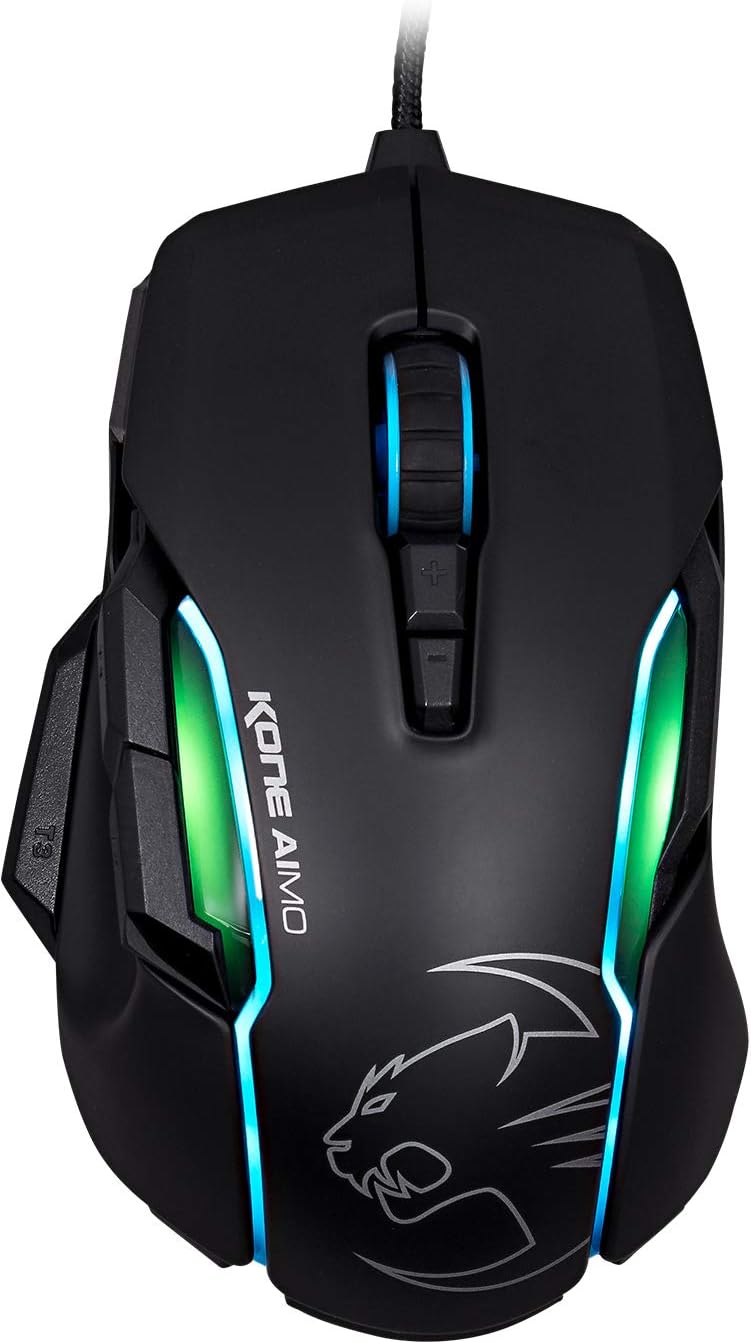
Figuur 1: Bo view of the ROCCAT KONE Aimo Gaming Mouse, showcasing its ergonomic shape and RGB lighting zones.
2. Pakketinhoud
Verifieer dat alle items in die pakket teenwoordig is:
- KONE AIMO Mouse with Attached Braided USB Cable
- Vinnige gids
- ROCCAT Stickers

Figure 2: Retail packaging of the ROCCAT KONE Aimo Gaming Mouse.
3. Opstelling
- Koppel die muis: Plug the USB cable of the ROCCAT KONE Aimo mouse into an available USB port on your computer.
- Bestuurder installasie: Your operating system (Windows 7, 8, 8.1, 10) should automatically detect and install the necessary drivers.
- Install ROCCAT Swarm Software: For full customization of DPI settings, button assignments, and AIMO lighting, download and install the ROCCAT Swarm software from the official ROCCAT webwebwerf. Hierdie sagteware laat jou toe om professionele persone te skep en te bestuurfiles.

Figure 3: The ROCCAT KONE Aimo mouse in use on a mouse pad, connected to a computer.
4. Bedryfsinstruksies
4.1. Knoppie Funksies
The KONE Aimo features 23 programmable keys, including a tri-button thumb zone and a 4D tilting Titan wheel. These can be customized via the ROCCAT Swarm software.
- Links/Regs Klik: Standaard muisfunksies.
- Scroll Wheel (4D Titan Wheel): Scrolls vertically and can tilt horizontally for additional functions. Also acts as a clickable button.
- DPI-aanpassingsknoppies: Located above and below the scroll wheel, these buttons allow for on-the-fly DPI sensitivity changes. Settings are configured in the Swarm software.
- Thumb Buttons (T1, T2, T3): Three buttons located on the left side, easily accessible by the thumb. The bottom-most button (T3) is often defaulted to the Easy-Shift[+] function.
- Easy-Shift[+] Button: This exclusive ROCCAT feature doubles the number of programmable functions for other buttons when held down, effectively expanding the total programmable keys.

Figuur 4: Gedetailleerd view of the programmable thumb buttons (T1, T2, T3) on the left side of the mouse.
4.2. AIMO Lighting System
The AIMO lighting system provides intelligent, reactive RGB illumination across four independently configurable LED light zones and the glowing mouse wheel. It can synchronize with other compatible ROCCAT devices and is programmable through the ROCCAT Swarm software.

Figure 5: The KONE Aimo mouse displaying its multi-zone RGB AIMO illumination.
4.3. Owl-Eye Optical Sensor
The mouse is equipped with the ROCCAT Owl-Eye Optical Sensor, a modified PixArt 3361 sensor, offering adjustable DPI from 100 to 12,000. This sensor provides precise tracking and responsiveness. A built-in tracking distance control unit monitors the lift-off distance for enhanced accuracy.

Figure 6: The bottom of the mouse, highlighting the Owl-Eye Optical Sensor.
4.4. Ergonomie
The KONE Aimo features refined ergonomics designed for comfort during extended use. Its shape provides a natural fit for the hand, with a dedicated thumb rest area.

Figure 7: A hand gripping the KONE Aimo mouse, illustrating its ergonomic design.
5. Onderhoud
- Skoonmaak: Gebruik 'n sagte, droë lap om die muisoppervlak skoon te maak. Vir hardnekkige vuiligheid, gebruik 'n effens droë lap.amp 'n Lap kan gebruik word om te verseker dat geen vog die interne komponente binnedring nie.
- Sensor sorg: Hou die optiese sensor aan die onderkant van die muis skoon en vry van stof of puin om optimale dopprestasie te verseker.
- Kabelbestuur: Vermy skerp buigings of oormatige trek aan die gevlegte USB-kabel om skade te voorkom.
6. Probleemoplossing
- Muis reageer nie:
- Maak seker dat die USB-kabel stewig in 'n werkende USB-poort ingeprop is.
- Try a different USB port or another computer to rule out port or system issues.
- Herbegin jou rekenaar.
- Tracking Issues / Inaccurate Movement:
- Maak die optiese sensor aan die onderkant van die muis skoon.
- Ensure you are using the mouse on a clean, suitable mouse pad or surface.
- Check DPI settings in the ROCCAT Swarm software.
- RGB Lighting Not Working / Incorrect:
- Verifieer dat die ROCCAT Swarm-sagteware loop en opgedateer is.
- Kontroleer beligtingsinstellings binne die Swarm-sagteware.
- Maak seker dat geen botsende sagteware RGB-beligting beheer nie.
- Knoppe wat nie werk nie:
- Check button assignments in the ROCCAT Swarm software.
- Ensure the software is not experiencing issues (try restarting it).
7. Spesifikasies
| Kenmerk | Detail |
|---|---|
| Handelsmerk | ROCCAT |
| Modelnommer | ROC-11-815-BK |
| Sensor | Owl-Eye Optical Sensor (modified PixArt 3361) |
| DPI-reeks | 100 tot 16 000 DPI |
| Programmeerbare knoppies | 23 (with Easy-Shift[+]) |
| Verligting | RGBA AIMO LED Illumination (4 independent zones + scroll wheel) |
| Konnektiwiteit | USB (bedraad) |
| Bedryfstelselversoenbaarheid | Windows 7, Windows 8, Windows 8.1, Windows 10 (32-bit and 64-bit versions) |
| Item gewig | 11.2 onse (ongeveer 317.5 gram) |
| Produkafmetings (LxBxH) | 5.12 x 2.95 x 1.57 duim (ongeveer 13 x 7.5 x 4 cm) |
8. Waarborg en ondersteuning
For warranty information, technical support, and additional resources, please visit the official ROCCAT website or contact ROCCAT customer service. Keep your proof of purchase for warranty claims.
U kan ook die ROCCAT Store on Amazon vir meer produkinligting.


