
Inleiding
The ZAGG Folio Case with Backlit Keyboard is designed to enhance your Verizon Ellipsis 8" HD Tablet experience by providing both protection and increased productivity. This folio features a built-in Bluetooth keyboard with island-style keys and backlighting, a unique hinge design for multiple viewing angles, and a long-lasting battery. This manual provides instructions for setup, operation, maintenance, and troubleshooting to ensure optimal use of your device.
Pakketinhoud
Verifieer dat alle items in jou pakket teenwoordig is:
- ZAGG Folio Case with Backlit Keyboard
- USB-laaikabel
- Gebruikershandleiding (hierdie dokument)
Opstelling
1. Inserting Your Tablet
Carefully align your Verizon Ellipsis 8" HD Tablet with the case. Gently press the tablet into the protective shell until it is securely seated. Ensure all ports and buttons are accessible.

Image: The ZAGG Folio Case open with a tablet inserted, showing the backlit keyboard and the tablet screen at an angle.
2. Laai die sleutelbord
Before initial use, fully charge your ZAGG Folio keyboard. Connect the included USB charging cable to the charging port on the keyboard and plug the other end into a USB power source (e.g., wall adapter, computer USB port). The charging indicator light will illuminate during charging and turn off when fully charged. A full charge can provide up to three months of regular use.
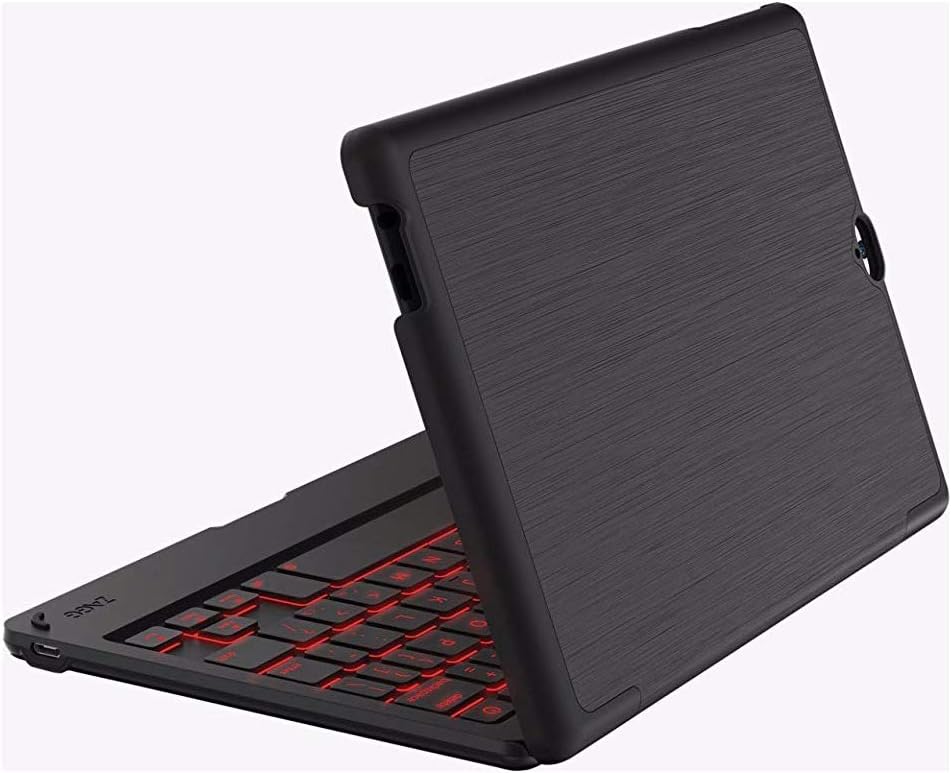
Image: The ZAGG Folio Case in a closed position, showcasing the textured exterior of the case.
3. Bluetooth-koppeling
- Ensure your tablet's Bluetooth is enabled.
- On the ZAGG Folio keyboard, locate and press the Bluetooth pairing button (refer to the keyboard layout for exact location, usually near the power button). The Bluetooth indicator light will begin to flash, indicating it is in pairing mode.
- On your tablet, go to Bluetooth settings and search for available devices.
- Select "ZAGG Folio" from the list of available devices.
- Follow any on-screen prompts to complete the pairing process. Once paired, the Bluetooth indicator light on the keyboard will stop flashing.
Bedryfsinstruksies
Die gebruik van die sleutelbord
The ZAGG Folio features a full-size, island-style keyboard designed for comfortable and efficient typing. Simply open the case and position your tablet to begin typing.
Verligte sleutels
The keyboard includes a backlight feature for typing in low-light conditions. To activate or adjust the backlight, locate the backlight key (often represented by a sun icon or similar) on the keyboard. Pressing this key repeatedly will cycle through brightness levels or turn the backlight off. This model supports single-color backlighting.
Verstelbaar Viewing Hoeke
The unique hinge design allows you to position your tablet at various viewing angles, up to 135 degrees. Adjust the tablet to your preferred angle for typing, viewing, or interacting with the touchscreen.
Sleep/Wake Function
The ZAGG Folio utilizes magnets to automatically put your tablet to sleep when the case is closed and wake it up when opened. This feature helps conserve your tablet's battery life.
Onderhoud
To ensure the longevity and performance of your ZAGG Folio Case:
- Skoonmaak: Gebruik 'n sagte, damp cloth to wipe down the exterior of the case and the keyboard. Avoid harsh chemicals or abrasive cleaners.
- Berging: When not in use for extended periods, ensure the keyboard is turned off and stored in a cool, dry place.
- Batterysorg: For optimal battery health, avoid completely draining the battery frequently. Charge the keyboard regularly, especially if it will be unused for several weeks.
Probleemoplossing
If you encounter issues with your ZAGG Folio, try the following solutions:
- Sleutelbord reageer nie:
- Maak seker dat die sleutelbord aangeskakel is.
- Gaan die batteryvlak na en laai indien nodig.
- Verify that Bluetooth is enabled on your tablet and the keyboard is paired. If not, re-pair the devices.
- Probeer om die sleutelbord af en weer aan te skakel.
- Agterlig werk nie:
- Press the backlight key multiple times to cycle through brightness settings.
- Maak seker dat die sleutelbord voldoende batterylading het.
- Tablet Not Sleeping/Waking:
- Ensure the tablet is correctly seated in the case.
- Check your tablet's settings to ensure the sleep/wake function is enabled (if applicable).
- Verbindingskwessies:
- Unpair the keyboard from your tablet and then re-pair it.
- Restart both your tablet and the keyboard.
Spesifikasies
| Kenmerk | Detail |
|---|---|
| Modelnommer | E86ZFK-BB0 |
| Versoenbare toestelle | Verizon Ellipsis 8" HD Tablet |
| Verbindingstegnologie | Bluetooth |
| Sleutelbordbeskrywing | Wireless, Island-style keys |
| Spesiale kenmerk | Backlit (Single Color) |
| Battery Tipe | 1 litiumpolimeer (ingesluit) |
| Batterylewe | Up to 3 months between charges (951 mAh) |
| Item gewig | 13.1 onse (ongeveer 371 gram) |
| Produkafmetings (LxBxH) | 8.35 x 0.71 x 5.39 duim |
| Kleur | Swart |
| Materiaal | Plastic, possibly polyurethane or leather |
Waarborg en Ondersteuning
For warranty information or technical support, please visit the official ZAGG website or contact ZAGG customer service. Keep your proof of purchase for warranty claims.
ZAGG Official Webwebwerf: zagg.com