
1. Inleiding
The Zoom LiveTrak L-12 is a versatile 12-channel digital mixer and 14-track multitrack recorder, engineered for a wide range of audio applications including live performances, studio recording, band rehearsals, and podcast production. This compact unit integrates a digital mixer with a robust multitrack recorder and a USB audio interface, providing comprehensive control over your audio environment.
Key features include 8 mono channels with high-gain, low-noise microphone preamps, +48V phantom power, and a compression knob, alongside two stereo input channels. Channels 1 and 2 are equipped with Hi-Z inputs for direct instrument connection. Each channel offers a low-cut filter, a 3-band equalizer, pan control, and a dedicated send for the 16 built-in high-quality effects.
2. Pakketinhoud
Verifieer dat al die items wat hieronder gelys word in u pakket ingesluit is. Indien enige items ontbreek of beskadig is, kontak asseblief u kleinhandelaar.
- Zoom LiveTrak L-12 Digital Mixer & Multitrack Recorder
- Kragkabel
- USB kabel
- XLR-XLR Cable (2 units)
- XLR-TRS Cable (2 units)
- Polsen HPC-A30 Geslote-Agter Studio Monitor Koptelefoon
- Gator Cases G-MIXERBAG-1815 Padded Nylon Mixer/Equipment Bag
3. Opstelling
3.1 Uitpak en plasing
Carefully remove the LiveTrak L-12 from its packaging. Place the unit on a stable, flat surface, ensuring adequate ventilation around the device. Avoid placing it near heat sources or in direct sunlight.

Figure 3.1: Zoom LiveTrak L-12 Digital Mixer and Multitrack Recorder. This image shows the top-down view of the L-12 unit, highlighting its various faders, knobs, and input/output ports.
3.2 Kragverbinding
- Connect the supplied power cable to the DC IN port on the rear panel of the L-12.
- Steek die ander kant van die kragkabel in 'n geskikte wisselstroomaansluiting.
- Press the POWER switch to turn on the unit. The display will illuminate.
3.3 Oudio-invoerverbindings
The L-12 offers various input options:
- Mono-kanale (1-8): Use XLR or 1/4" TRS/TS cables for microphones, line-level instruments, or other audio sources. Channels 1 and 2 feature Hi-Z inputs for direct connection of guitars and basses.
- Stereo-kanale (9/10, 11/12): Use dual 1/4" TS/TRS or RCA cables for stereo line-level sources.

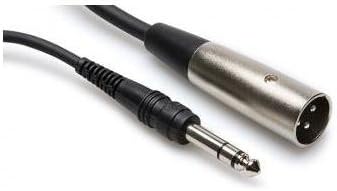
Figuur 3.2: Examples of XLR-XLR (left) and XLR-TRS (right) cables used for connecting microphones and other audio equipment to the L-12.
3.4 Uitsetverbindings
- Meester uit: Connect to your main PA system or studio monitors using XLR cables.
- Monitor uit: Use for connecting stage monitors or personal monitoring systems.
- Koptelefoon uitsette: Five independent headphone outputs are available for individual monitoring.

Figure 3.3: Polsen HPC-A30 Closed-Back Studio Monitor Headphones, suitable for monitoring audio from the L-12.
3.5 USB-verbinding
Connect the L-12 to a computer via the USB cable to use it as a 14-in/4-out USB audio interface. This allows for multi-track recording directly to a DAW or playback from a computer. The L-12 is also compatible with iOS devices.
4. Bedryfsinstruksies
4.1-kanaalstrookkontroles
- GAIN Knop: Pas die invoervlak vir elke kanaal aan.
- COMP (Compression) Knob: Applies compression to mono channels (1-8) to control dynamics.
- LOW CUT Button: Activates a high-pass filter to reduce unwanted low-frequency noise.
- 3-band EQ: Adjusts High, Mid, and Low frequencies for tone shaping.
- PAN Knop: Positions the channel's sound in the stereo field.
- SEND EFX Knob: Controls the amount of signal sent to the internal effects processor.
- OPNAME/SPEELS-knoppie: Engages recording or playback for individual tracks on the SD card.
- MUTE -knoppie: Maak die kanaaluitvoer stil.
- FADER: Adjusts the overall volume level of the channel.
4.2 Recording to SD Card
The L-12 features a built-in 14-track SD recorder. Insert an SD card (Class 10 or higher recommended) into the SD card slot. Use the dedicated REC/PLAY buttons on each channel and the master recorder controls (REC, PLAY, STOP) to manage your recording sessions. Recordings are saved as WAV files.
4.3 Using Effects
The L-12 includes 16 editable effects. Use the SEND EFX knobs on individual channels to route signal to the effects processor. The EFX RETURN fader controls the overall level of the effects in the mix. Adjust effect parameters using the dedicated controls in the master section.
4.4 Scene Memory
The L-12 allows you to save and recall up to nine mix scenes. This feature is useful for quickly switching between different setups for various songs or performance segments. Use the SCENE buttons to store and recall your preferred settings.
5. Onderhoud
- Skoonmaak: Gebruik 'n sagte, droë lap om die buitekant van die eenheid skoon te maak. Vermy skuurmiddels of oplosmiddels.
- Berging: When not in use, store the L-12 in a cool, dry place, away from direct sunlight and extreme temperatures. The included Gator Cases G-MIXERBAG-1815 is ideal for protection during storage and transport.
- Firmware -opdaterings: Periodically check the Zoom webwebwerf vir firmware-opdaterings om optimale werkverrigting en toegang tot nuwe funksies te verseker.

Figure 5.1: Gator Cases G-MIXERBAG-1815 Padded Nylon Mixer/Equipment Bag, designed for protecting and transporting the L-12.
6. Probleemoplossing
- Geen klankuitset nie:
- Ensure the L-12 is powered on and connected correctly to your speakers or headphones.
- Check all faders (channel, master, EFX return) are raised and not muted.
- Verify input sources are connected properly and their gain levels are set appropriately.
- Confirm that the correct output (Master Out, Monitor Out, Headphone) is selected and its level is up.
- Verwronge klank:
- Reduce input GAIN levels to prevent clipping (indicated by the PEAK LED).
- Check that output levels are not too high, causing distortion in connected devices.
- Ensure cables are in good condition and correctly connected.
- Opname kwessies:
- Ensure an SD card is inserted and has sufficient free space.
- Verify the SD card is Class 10 or higher for reliable recording.
- Check that the REC/PLAY button for the desired track is engaged (red).
- Confirm that the master recorder's REC button is pressed to start recording.
- USB Audio Interface Not Recognized:
- Ensure the USB cable is securely connected to both the L-12 and your computer.
- Check your computer's audio settings to select the L-12 as the input/output device.
- Install any necessary drivers from the Zoom website if prompted by your operating system.
7. Spesifikasies
| Kenmerk | Spesifikasie |
|---|---|
| Aantal kanale | 12 (8 mono, 2 stereo) |
| Ingeboude opnemer | 14-track SD Recorder |
| USB Audio Interface | 14-in/4-out (iOS Compatible) |
| Insette | 8x Combo XLR-1/4" (Channels 1-8), 2x Dual 1/4" (Channels 9/10, 11/12), 2x RCA (Channels 9/10, 11/12) |
| Hi-Z Inputs | Kanale 1-2 |
| Fantastiese krag | +48V |
| Preamps | Hoë-wins, lae-geraas |
| Kompressie | Single knob (Channels 1-8) |
| EQ | 3-band (High, Mid, Low) per channel |
| Effekte | 16 built-in, editable |
| Uitsette | Master Out (XLR), Monitor Out, 5x Headphone Outputs |
| Kragbron | Elektries met koord |
| Geraasvlak | 26 Desibel |
8. Waarborg en Ondersteuning
8.1 Produkwaarborg
The Zoom LiveTrak L-12 comes with a Limited 1-Year Warranty from the date of purchase. This warranty covers defects in materials and workmanship under normal use. Please retain your proof of purchase for warranty claims. For specific terms and conditions, refer to the warranty card included with your product or visit the official Zoom webwebwerf.
The Polsen HPC-A30 Closed-Back Studio Monitor Headphones and Gator Cases G-MIXERBAG-1815 Padded Nylon Mixer/Equipment Bag included in this bundle may have separate warranties. Please refer to their respective documentation for details.
8.2 Kliëntediens
For technical assistance, troubleshooting, or service inquiries, please visit the official Zoom support website or contact their customer service department. You can typically find contact information and FAQs on the manufacturer's webwebwerf: