
1. Produk verbyview
The Teltonika RUT240 is an industrial 4G LTE Wi-Fi router designed for reliable cellular communication in various environments. This manual provides essential information for its proper installation, configuration, and use.
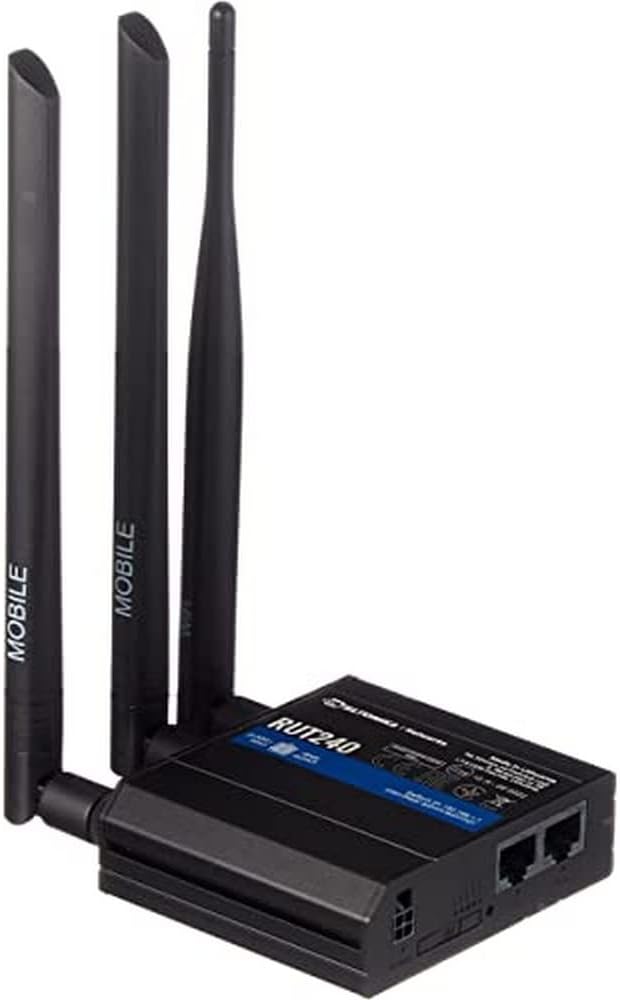
Figuur 1: Voorkant view of the Teltonika RUT240 LTE Router with its three attached antennas, illustrating its compact design.
2. Pakketinhoud
Before proceeding with installation, verify that all items are present in the package:
- Teltonika RUT240 LTE-roeteerder
- Kragadapter
- Ethernet kabel
- Two LTE Antennas (magnetic mount, SMA male)
- One Wi-Fi Antenna (magnetic mount, RP-SMA male)
- Vinnige Begingids

Figuur 2: The Teltonika RUT240 router displayed with its standard accessories, including the power adapter and an Ethernet cable.
3. Opstelling
3.1 Hardeware installasie
- Plaas SIM-kaart in: Locate the SIM card slot on the side of the router. Insert your activated Mini-SIM card into the slot until it clicks into place. Ensure the SIM card is correctly oriented as indicated on the device.
- Heg antennas aan: Screw the two LTE antennas onto the SMA connectors labeled "MOBILE" and the Wi-Fi antenna onto the RP-SMA connector labeled "WLAN" on the router. Ensure they are securely tightened.
- Koppel krag: Connect the power adapter to the power socket on the router and then plug the adapter into a power outlet. The router will begin to power on.
- Opsioneel: Ethernet-verbinding: For initial configuration or wired network access, connect one end of the Ethernet cable to the LAN port on the router and the other end to your computer's Ethernet port.

Figuur 3: Kant view of the Teltonika RUT240, highlighting the SIM card slot and the antenna connection points for mobile and Wi-Fi signals.

Figuur 4: Agter view of the Teltonika RUT240, showing the power input, SIM card slot, and the LAN/WAN Ethernet ports.
3.2 Aanvanklike konfigurasie
- Toegang Web Interface: Maak oop a web blaaier op jou gekoppelde rekenaar en navigeer na http://192.168.1.1.
- Teken in: Enter the default username "admin" and the password found on the device label or packaging. You will be prompted to change the password for security.
- Vinnige Opstelassistent: Follow the on-screen Quick Setup Wizard to configure basic settings such as mobile data connection (APN settings), Wi-Fi network name (SSID), and password.
4. Bedryfsinstruksies
4.1 LED-aanwysers
The RUT240 features several LED indicators to provide status information:
- Krag LED: Indicates power status. Solid green when powered on.
- Mobile Signal Strength LEDs: Multiple LEDs indicate the strength of the cellular signal. More illuminated LEDs mean stronger signal.
- Network Type LEDs: Indicate the active cellular network type (e.g., 2G, 3G, 4G/LTE).
- Wi-Fi LED: Indicates Wi-Fi module status.
- LAN/WAN LEDs: Indicate activity on the respective Ethernet ports.
4.2 Koppel aan Wi-Fi
- On your device (smartphone, laptop), search for available Wi-Fi networks.
- Select the network name (SSID) configured during the initial setup.
- Enter the Wi-Fi password (WPA2 key) when prompted.
- Once connected, your device should have internet access via the RUT240.
4.3 Gevorderde konfigurasie
Die router s'n web interface (RutOS) offers extensive configuration options for advanced users, including VPN, firewall rules, SMS utilities, and more. Refer to the official Teltonika documentation for detailed guides on advanced features.
5. Onderhoud
- Firmware -opdaterings: Regularly check for and install firmware updates from the official Teltonika website to ensure optimal performance, security, and access to new features. This can typically be done via the router's web koppelvlak.
- Skoonmaak: Hou die router skoon en stofvry. Gebruik 'n sagte, droë lap. Moenie vloeibare skoonmaakmiddels gebruik nie.
- Omgewingstoestande: Ensure the router is operated within its specified temperature and humidity ranges to prevent damage. Avoid direct sunlight and excessive heat.
- Veilige wagwoorde: Periodically change your router's login password and Wi-Fi password to maintain network security.
6. Probleemoplossing
| Probleem | Moontlike oorsaak | Oplossing |
|---|---|---|
| Geen internettoegang nie |
|
|
| Kan nie toegang kry nie Web Koppelvlak |
|
|
| Wi-Fi nie sigbaar of verbindbaar nie |
|
|
6.1 Fabrieksterugstelling
As jy aanhoudende probleme ondervind, kan 'n fabrieksterugstelling dit oplos. Om 'n fabrieksterugstelling uit te voer:
- Maak seker dat die router aangeskakel is.
- Locate the reset button (often recessed) on the router.
- Use a thin object (e.g., a paperclip) to press and hold the reset button for approximately 10 seconds.
- Release the button when the LEDs indicate a reset (e.g., all LEDs flash). The router will reboot with factory default settings.
7. Spesifikasies
| Kenmerk | Detail |
|---|---|
| Model Naam | Teltonika RUT240 |
| Item Modelnommer | RUT24006B000 |
| Produk afmetings | 2.91 x 3.27 x 0.98 duim |
| Item gewig | 4 milligram |
| Bedryfstelsel | RutOS |
| Verbindingstegnologie | LAN, Wi-Fi |
| Draadlose kommunikasie standaard | 802.11n |
| Frekwensiebandklas | Vierband |
| Spesiale kenmerk | WPS |
| Versoenbare toestelle | Persoonlike rekenaar |
| Aanbevole gebruike | Monitering |
| Vervaardiger | JSC Teltonika |
8. Waarborg en Ondersteuning
For detailed warranty information, please refer to the official Teltonika website or the warranty card included with your product. Technical support is available through Teltonika's official support channels, including their website and dedicated support portal.
Aanlyn hulpbronne:
- Teltonika RUT240 Wiki (for comprehensive documentation and guides)
- Teltonika Networks Support