
1. Produk verbyview
The Vimtag CP1 is a wireless IP video monitoring surveillance security camera designed for remote home or business monitoring. It features high-definition video, pan/tilt functionality, two-way audio, and night vision capabilities.
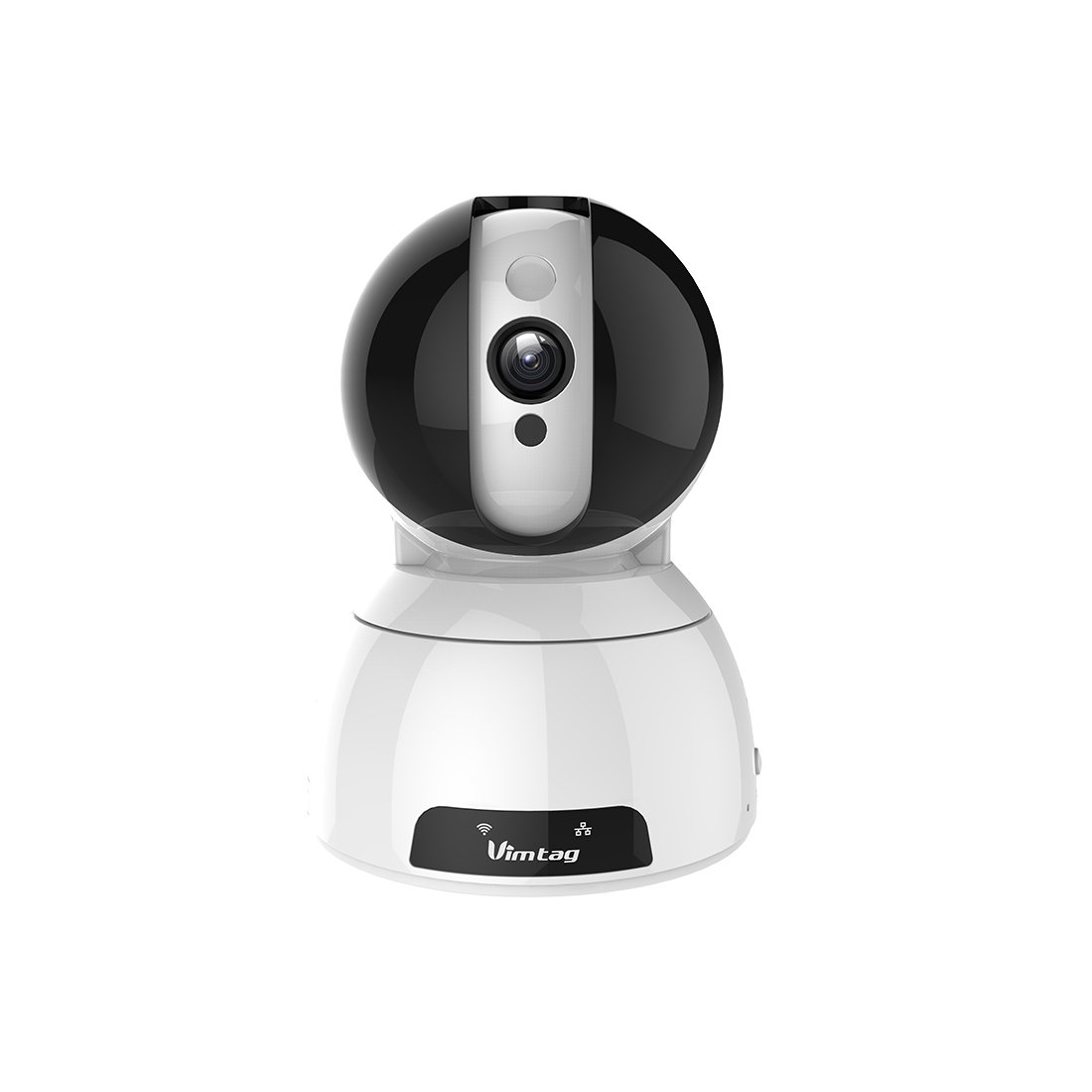
Figure 1: Vimtag CP1 Camera Front View
Sleutel kenmerke:
- HD Video Quality: 1280 x 720p at 25 frames per second for clear monitoring.
- Pan- en Kantel-funksionaliteit: 350-degree horizontal rotation and 100-degree vertical tilt to cover a wide area.
- Tweerigting-klank: Ingeboude mikrofoon en luidspreker vir kommunikasie.
- Nagvisie: Infrared LEDs provide clear visibility up to 10 meters in low-light conditions.
- Bewegingsopsporing: Alerts with snapshots and video clips upon detecting movement.
- Plaaslike en wolkberging: Supports Micro SD cards up to 64GB and optional cloud storage.
- Maklike opstelling: Quick Wi-Fi setup via the Vimtag mobiele toepassing.

Figure 2: Vimtag CP1 Key Features
2. Opstelgids
2.1 Pakketinhoud
Maak seker dat alle items in die pakket teenwoordig is voordat u begin:
- 1 x Vimtag CP1 Kamera
- 1 x Camera Rack
- 1 x Kragkabel
- 1 x Ethernet-kabel
- 1 x Gebruikershandleiding (hierdie dokument)
2.2 Aanvanklike opstellingstappies
- Krag aan: Connect the power cable to the camera and plug it into a power outlet. The camera will initiate its startup sequence.
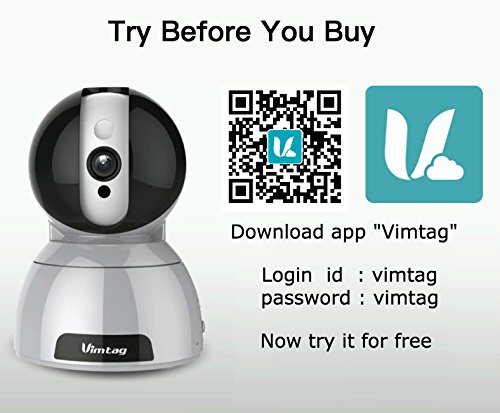
- Laai die toepassing af: Download the free Vimtag toepassing vanaf jou slimfoon se toepassingswinkel (iOS App Store of Google Play Store).
- Rekeningregistrasie: Open the Vimtag app and register for a new account or log in if you already have one.
- Voeg kamera by: Follow the in-app instructions to add your new CP1 camera. This typically involves scanning a QR code on the camera or entering its device ID.
- Wi-Fi-konfigurasie: Configure the camera to connect to your Wi-Fi network using the app. Ensure your Wi-Fi network is 2.4GHz, as 5GHz networks may not be supported.
- Montering (Opsioneel): Use the included camera rack to mount the camera on a wall or ceiling if desired.
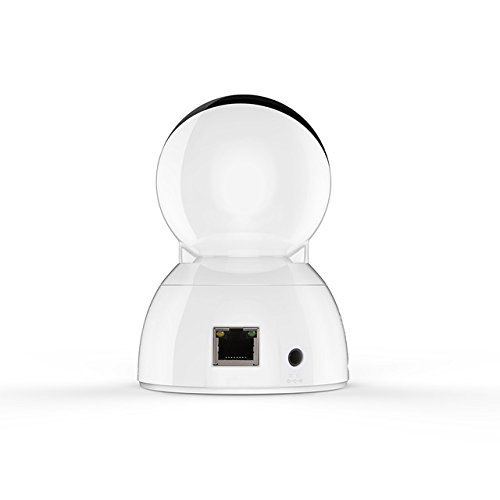
Figure 3: Vimtag CP1 Back View met Hawens
For detailed visual guidance, refer to the video tutorials available on the official Vimtag ondersteun webwebwerf.
3. Bedryfsinstruksies
3.1 Lewendig View en Pan/Kantelbeheer
Once the camera is connected, open the Vimtag app to access the live video feed. Use the on-screen controls to pan the camera horizontally (350 degrees) and tilt it vertically (100 degrees) to adjust the viewing hoek.

Figure 5: Pan and Tilt Control via App
3.2 Tweerigting-klank
The camera supports two-way audio. Tap the microphone icon in the app to speak through the camera's speaker, and listen to audio from the camera's built-in microphone.
3.3 Nagvisie
The CP1 camera automatically switches to night vision mode in low-light conditions, providing clear black and white video up to 10 meters using its infrared LEDs.
3.4 Bewegingsopsporing en waarskuwings
Configure motion detection settings within the Vimtag app. You can set sensitivity levels and define specific areas for detection. When motion is detected, the camera can send instant notifications to your smartphone, including snapshots or short video clips.
3.5 Video-opname en -berging
The camera supports two primary storage methods:
- Mikro-SD-kaart: Insert a Micro SD card (up to 64GB, not included) into the camera's designated slot for local recording. Recordings can be accessed and managed through the app.
- Wolkberging: Optional cloud storage services are available through Vimtag for remote backup and access to recorded footage.
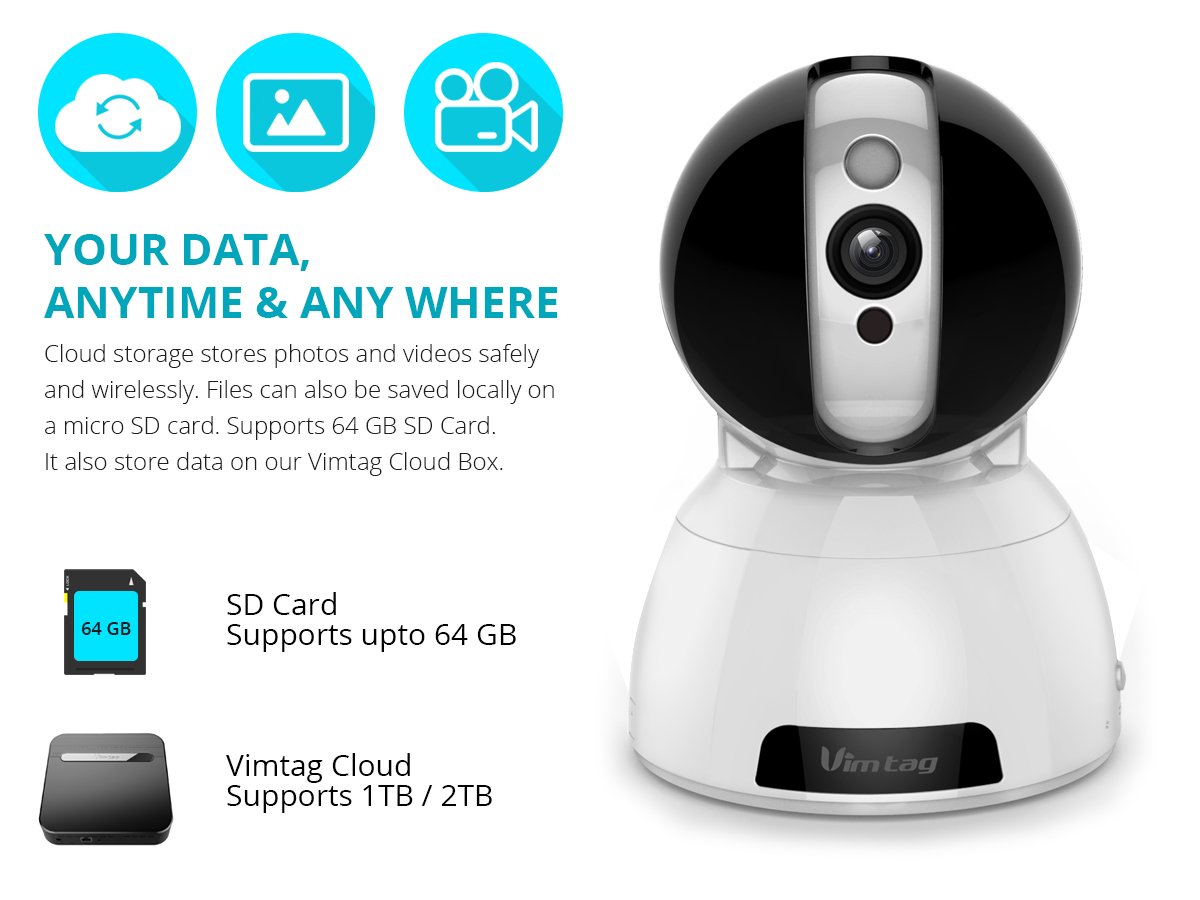
Figure 6: Storage Options for Vimtag CP1
4. Onderhoud
4.1 Skoonmaak
To maintain optimal performance, periodically clean the camera's lens and exterior. Use a soft, dry cloth. Avoid abrasive cleaners or solvents that could damage the camera's finish or lens coating.
4.2 Firmware-opdaterings
Vimtag may release firmware updates to improve camera performance, add features, or enhance security. Check the Vimtag app regularly for available updates and follow the in-app instructions to install them. Ensure the camera remains powered during the update process.
4.3 Omgewingsoorwegings
The Vimtag CP1 camera is designed for indoor use. Avoid exposing it to extreme temperatures, direct sunlight, high humidity, or water, as it is not water-resistant.
5. Probleemoplossing
This section addresses common issues you might encounter with your Vimtag CP1 camera.
5.1 Kamera koppel nie aan Wi-Fi nie
- Check Wi-Fi Band: Ensure your Wi-Fi network is 2.4GHz. The camera may not support 5GHz networks.
- Seinsterkte: Place the camera closer to your Wi-Fi router to ensure a strong signal.
- Korrekte wagwoord: Maak dubbeld seker dat jy die korrekte Wi-Fi-wagwoord in die toepassing invoer.
- Herstel kamera: Locate the reset button on the camera (often a small pinhole) and press it for 5-10 seconds until the camera resets. Then, attempt the setup process again.
- Router-instellings: Verify that your router's firewall or security settings are not blocking the camera's connection.
5.2 Swak videokwaliteit
- Netwerkbandwydte: Ensure your internet connection has sufficient upload speed for streaming HD video.
- Programinstellings: Check the video quality settings within the Vimtag app; you might be able to adjust it.
- Lens Skoonheid: Maak die kameralens skoon met 'n sagte, droë lap.
5.3 Two-Way Audio Issues
- Volumevlakke: Check the volume settings on your smartphone and within the Vimtag app.
- Microphone/Speaker Obstruction: Maak seker dat die kamera se mikrofoon en luidspreker nie geblokkeer word nie.
- Netwerkvertraging: High network latency can affect audio quality and introduce delays.
5.4 Bewegingsopsporing werk nie
- Aktiveer funksie: Verify that motion detection is enabled in the Vimtag toepassing instellings.
- Sensitiwiteit: Adjust the motion detection sensitivity. If it's too low, it might miss events.
- Bespeuringsones: Ensure the areas you want to monitor are correctly configured as detection zones.
6. Tegniese spesifikasies
| Model Naam | Vimtag CP1 |
| Item Modelnommer | 6970167642228 |
| Video-opname-resolusie | 720p (1280 x 720 piksels) |
| Raamtempo | 25 rame per sekonde |
| Pan/kantel-reeks | 350 degrees (Pan) x 100 degrees (Tilt) |
| Digitale zoom | 4x |
| Nagsig afstand | Up to 10 meters (Infrared) |
| Bergingsopsies | Mikro SD (tot 64 GB), Wolkberging |
| Konnektiwiteit | Wireless (Wi-Fi IEEE802.12b/g/n) |
| Kragbron | AC Power Adapter (7 Watts) |
| Afmetings (L x B x H) | 40 x 30 x 40 Millimeter |
| Item gewig | 450 gram |
| Binne/buiteluggebruik | Binneshuise |
| Waterweerstandvlak | Nie waterbestand nie |
| Beheer metode | App (Android, iOS), Voice |
7. Waarborg en Ondersteuning
7.1 Produkwaarborg
The Vimtag CP1 camera comes with a 6-maande vervangingswaarborgHierdie waarborg dek vervaardigingsdefekte en wanfunksies onder normale gebruik. Bewaar asseblief u bewys van aankoop vir waarborgeise.
7.2 Kliëntediens
For any queries, technical assistance, or warranty claims, please contact Vimtag customer support. Support is available via telephone, chat, Skype, and email. Refer to the official Vimtag webwebwerf vir die mees onlangse kontakinligting.
Step-by-step setup instructions and video tutorials are also available on the Vimtag support portal to assist you with installation and operation.