
1. oorview
The MoKo Bluetooth Wireless Keyboard is designed to enhance your Microsoft Surface Pro experience, offering a comfortable typing solution with advanced features. This keyboard provides a seamless wireless connection, a practical trackpad, and customizable 7-color backlighting, making it suitable for various environments and tasks.

Image: MoKo Bluetooth Wireless Keyboard attached to a Microsoft Surface Pro tablet, showcasing its sleek design and integration.
2. Pakketinhoud
Kontroleer asseblief die pakket vir die volgende items:
- MoKo Bluetooth Wireless Keyboard
- USB-laaikabel
- Gebruikershandleiding (hierdie dokument)

Image: A USB Type-C charging cable, included for recharging the keyboard's internal battery.
3. Verenigbaarheid
This keyboard is designed for specific Microsoft Surface Pro models. Please verify your device model before use.
- Microsoft Surface Pro 7 Plus (2021)
- Microsoft Surface Pro 7 (2019)
- Microsoft Surface Pro 6
- Microsoft Surface Pro 5 (Pro 2017)
- Microsoft Surface Pro 4
- Microsoft Surface Pro 3
Note: This keyboard is NOT compatible with Surface Go (2018) or Surface Go 2.
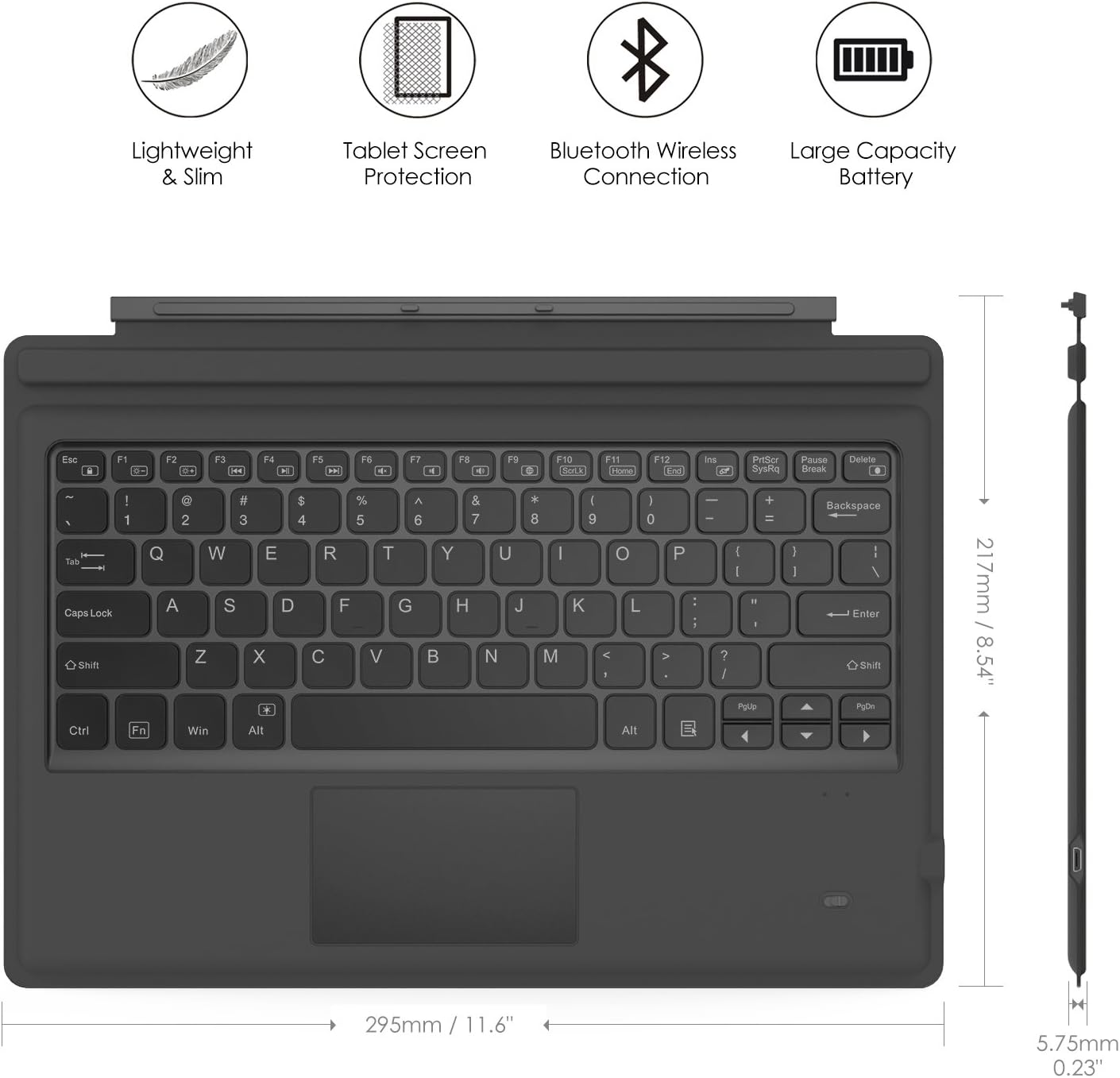
Image: A visual guide indicating compatible Microsoft Surface Pro models (Pro 7 Plus, Pro 7, Pro 6, Pro 5, Pro 4, Pro 3, Pro LTE) and incompatible models (Surface Go, Surface Go 2).
4. Opstelling
4.1. Laai die sleutelbord
Before initial use, fully charge the keyboard. Connect the provided USB charging cable to the keyboard's charging port and a USB power source. The charging indicator light will show the charging status.
- Battery Capacity: 750mAh (rechargeable lithium battery)
- Laai tyd: ongeveer 2-3 uur
- Working Time (backlight off): Up to 180 hours
- Working Time (backlight on): Up to 5 hours
- Bystandtyd: Tot 180 dae

Image: An illustration depicting the keyboard's battery and charging specifications, including charge time and standby duration.
4.2. Bluetooth-koppeling
Follow these steps to pair your keyboard with your Microsoft Surface Pro:
- Skakel die sleutelbord aan deur die aan/af-skakelaar na die 'AAN'-posisie te skuif. Die aanwyserliggie sal flikker.
- Druk die fn+c keys simultaneously to activate Bluetooth pairing mode. The Bluetooth indicator light will start blinking rapidly.
- On your Microsoft Surface Pro, go to Instellings > Toestelle > Bluetooth en ander toestelle.
- Ensure Bluetooth is enabled and select Voeg Bluetooth of ander toestel by.
- Kies Bluetooth van die opsies.
- Select the keyboard (usually named "Bluetooth Keyboard" or similar) from the list of available devices.
- Volg enige aanwysings op die skerm om die paringsproses te voltooi. Sodra dit gekoppel is, sal die Bluetooth-aanwyserliggie op die sleutelbord ophou flikker.

Image: A diagram illustrating the Bluetooth wireless connection process, showing the keyboard both attached and detached from the tablet, with a note on connection distance.
5. Bedryfsinstruksies
5.1. Agterligbeheer
The keyboard features a 7-color LED backlight with adjustable brightness levels.
- To turn the backlight ON/OFF: Press the Gloeilamp sleutel.
- Om die agtergrondkleur te verander: Druk Alt + Light Bulb key. Cycle through 7 different colors.
- Om die helderheid van die agtergrondlig aan te pas: Druk fn+alt keys. This will cycle through different brightness modes.

Image: Instructions on how to change the backlight color by pressing Alt + Light Bulb key.

Image: Instructions on how to adjust backlight brightness by pressing Fn + Alt keys.
5.2. Using the Trackpad
The integrated trackpad provides precise cursor control, similar to a mouse. It supports multi-touch gestures for enhanced navigation.
- To activate/deactivate the trackpad: Press Fn + Trackpad icon sleutel.
- Left Click: Press the left side of the trackpad or tap once.
- Right Click: Press the right side of the trackpad or tap with two fingers.
- Scrolling: Use two fingers to scroll up or down.

Image: An illustration highlighting the responsive trackpad with left and right click areas, and the scissor switch mechanism of the keys for comfortable typing.
5.3. Dual-Angle Adjustment
The keyboard features a magnetic attachment stripe that allows for two different typing angles, providing ergonomic comfort for various uses.
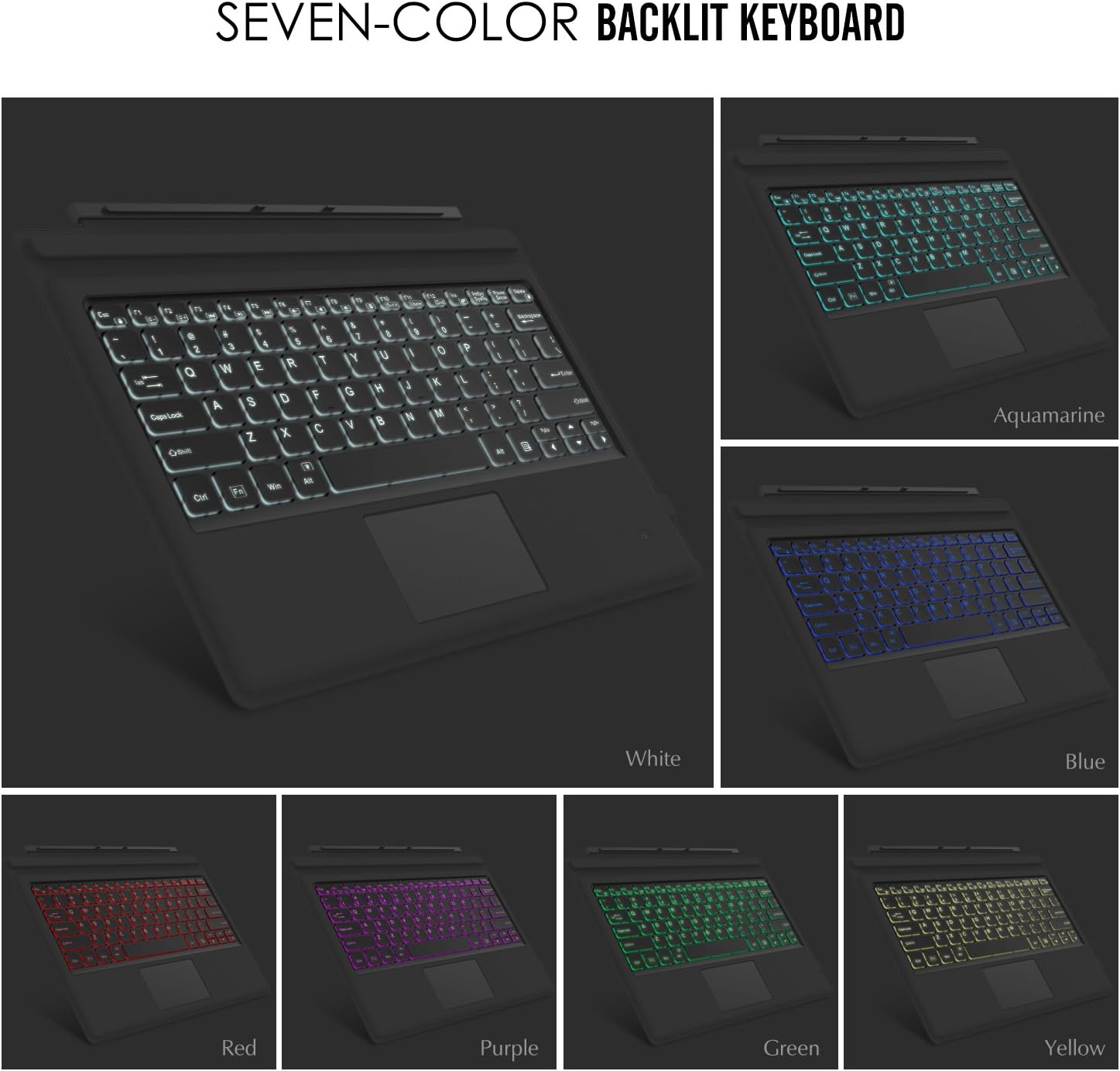
Image: A visual representation of the keyboard's dual-angle adjustment, showing two distinct positions for typing comfort.
6. Onderhoud
- Keep the keyboard away from liquids and extreme temperatures.
- Clean the keyboard with a soft, damp lap. Vermy harde chemikalieë.
- Moenie probeer om die sleutelbord uitmekaar te haal nie, aangesien dit die waarborg kan ongeldig maak.
- Bêre op 'n droë plek wanneer dit nie vir lang tye gebruik word nie.
7. Probleemoplossing
7.1. Sleutelbord verbind nie via Bluetooth nie
- Maak seker dat die sleutelbord volledig gelaai is.
- Make sure the keyboard's power switch is ON.
- Verify that Bluetooth is enabled on your Surface Pro.
- Re-enter pairing mode on the keyboard (Fn + C) and attempt to pair again from your Surface Pro's Bluetooth settings.
- If previously paired, try 'forgetting' the device on your Surface Pro and then re-pairing.
7.2. Agterlig werk nie
- Maak seker dat die sleutelbord voldoende gelaai is.
- Press the Light Bulb key to toggle the backlight.
- Adjust brightness using Fn + Alt keys.
7.3. Trackpad Not Responding
- Ensure the trackpad is activated by pressing Fn + Trackpad icon key.
- Maak die oppervlak van die raakvlak skoon om enige vuiligheid of puin te verwyder.
- Restart the keyboard and your Surface Pro.
8. Spesifikasies
| Kenmerk | Detail |
|---|---|
| Handelsmerk | MoKo |
| Modelnommer | LYSB01AJOX7LU-ELECTRNCS |
| Kleur | Grys |
| Verbindingstegnologie | Bluetooth |
| Sleutelbordbeskrywing | Ergonomic, QWERTY US International |
| Spesiale kenmerke | Wireless, Magnetic, Backlit (7 Colors), Trackpad |
| Kragbron | Battery (Rechargeable Lithium) |
| Battery kapasiteit | 750mAh |
| Battery Voltage | 3 Volt |
| Produk afmetings | 29.49 x 21.69 x 0.58 cm (11.6 x 8.54 x 0.23 duim) |
| Produk Gewig | 500 g |
| Versoenbare toestelle | Microsoft Surface Pro 7 Plus (2021) / Pro 7 (2019) / Pro 6 / Surface Pro 5 (Pro 2017) / Pro 4 / Pro 3 |
| Bedryfstelsel | Vensters |

Image: A diagram illustrating the precise dimensions of the MoKo Bluetooth Wireless Keyboard.
9. Waarborg en Ondersteuning
For warranty information and technical support, please refer to the product packaging or contact MoKo customer service directly. Keep your purchase receipt for warranty claims.