
JOOAN 770
JOOAN 770 HD 720P Wireless IP Camera Instruction Manual
1. Inleiding
This manual provides detailed instructions for the installation, operation, and maintenance of your JOOAN 770 HD 720P Wireless IP Camera. Please read this manual thoroughly before using the product to ensure proper functionality and to avoid damage. Keep this manual for future reference.
2. Produk verbyview
2.1 Pakketinhoud
Verifieer dat al die items wat hieronder gelys word in u pakket ingesluit is. Indien enige items ontbreek of beskadig is, kontak asseblief kliëntediens.
- JOOAN 770 HD 720P Wireless IP Camera (Note: Some variants may be 1080P or have internal model JA-C9E-U)
- Kragadapter
- USB-datakabel
- Montagebeugel
- Skroefpak (vir montering)
- Netwerkkabel (Ethernet)
- Gebruikershandleiding (hierdie dokument)

Image: Contents of the JOOAN 770 HD 720P Wireless IP Camera package, including the camera, power adapter, cables, and mounting hardware.
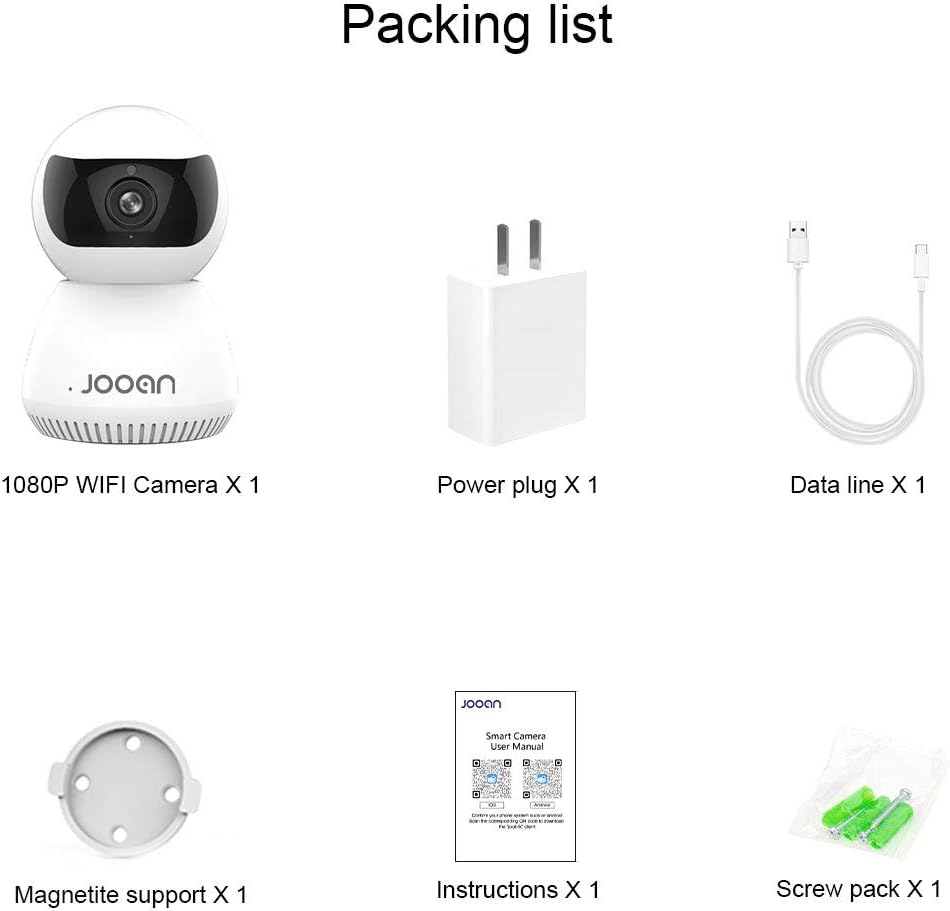
Beeld: 'n Gedetailleerde view of the packing list for a JOOAN WiFi Camera, showing a 1080P camera, power plug, data line, magnetite support, instructions, and screw pack.
2.2 Sleutelkenmerke
- HD Video Quality: Captures clear 720P high-definition video. (Note: Some models may support 1080P resolution).
- Draadlose konneksie: Supports Wi-Fi for flexible placement and easy setup.
- Pan/Tilt-funksionaliteit: Bied 'n wye viewing angle with 355° horizontal rotation and 100° vertical tilt, controllable via the companion application.
- Tweerigting-klank: Ingeboude mikrofoon en luidspreker maak kommunikasie intyds moontlik.
- Nagvisie: Equipped with infrared LEDs for clear monitoring in low-light conditions, up to 35 feet.
- Bewegingsopsporing: Alerts users to detected movement within the camera's field of view.
- Plaaslike berging: Supports Micro SD cards up to 128GB for continuous or event-triggered recording.
- P2P Cloud Monitoring: Remote access and monitoring via smartphone (Android & iOS) and computer applications.
- Ethernet-poort: Provides an option for wired network connection when Wi-Fi signal is unstable.

Beeld: Voorkant view of the JOOAN 770 HD 720P Wireless IP Camera, showcasing its dome design and lens.

Image: A JOOAN camera with speech bubbles indicating two-way audio functionality, allowing communication between the camera's location and a remote user via a smartphone.

Image: A JOOAN camera in a nursery setting, illustrating its infrared night vision capability with red LEDs visible, providing clear monitoring in darkness.
3. Opstelinstruksies
3.1 Uitpak en Aanvanklike Plasing
- Verwyder alle komponente versigtig uit die verpakking.
- Choose a suitable location for your camera. Ensure it is within range of your Wi-Fi network or close to an Ethernet port.
- For optimal performance, place the camera on a stable, flat surface or mount it using the provided bracket and screws.
3.2 Aanskakel
- Connect the USB data cable to the camera's power input port.
- Steek die kragadapter in 'n standaard elektriese aansluiting.
- The camera will power on, and an indicator light will illuminate, typically blinking to indicate readiness for setup.
3.3 Network Connection (Wi-Fi or Ethernet)
Your camera supports both wireless (Wi-Fi) and wired (Ethernet) connections.
Wi-Fi-verbinding:
- Ensure your smartphone is connected to the 2.4GHz Wi-Fi network you intend to use for the camera. (5GHz networks are generally not supported).
- Proceed to section 3.4 for app installation and pairing, which will guide you through the Wi-Fi setup process.
Ethernet-verbinding:
- Connect one end of the provided network cable to the camera's Ethernet port.
- Connect the other end of the network cable to an available LAN port on your router or network switch.
- Die kamera sal outomaties probeer om 'n bedrade netwerkverbinding te vestig.

Beeld: Agter view of the JOOAN camera, highlighting the Ethernet port for wired network connectivity.
3.4 Programinstallasie en toestelparing
- Download the official companion application for JOOAN cameras from your smartphone's app store (e.g., Apple App Store for iOS, Google Play Store for Android). Refer to the quick start guide included in your package for the specific app name or QR code.
- Maak die toepassing oop en skep 'n nuwe gebruikersrekening, of meld aan as jy reeds een het.
- Follow the in-app instructions to add a new device. This typically involves scanning a QR code on the camera, or selecting your camera model and following prompts for Wi-Fi configuration (entering your Wi-Fi password).
- Once successfully paired, the camera's indicator light will usually turn solid, and you will see the live video feed in the app.
4. Bedryfsinstruksies
4.1 Lewendig View
After successful pairing, open the companion app and select your camera from the device list to view the live video feed. You can switch between standard and high-definition viewing modes if available.
4.2 Pan- en Kantelbeheer
Op die lewendige view screen within the app, use the directional controls (often a joystick-like interface or swipe gestures) to remotely adjust the camera's horizontal (pan) and vertical (tilt) angles. The camera supports 355° pan and 100° tilt.
4.3 Tweerigting-klank
To use the two-way audio feature, tap the microphone icon in the app's live view interface. Hold the button to speak, and release to listen. Ensure your phone's microphone permissions are granted to the app.
4.4 Bewegingsopsporing en waarskuwings
- Navigeer na die kamera-instellings binne die toepassing.
- Locate the "Motion Detection" or "Alarm Settings" option.
- Enable motion detection and configure sensitivity levels as desired.
- Set up alert notifications (e.g., push notifications to your phone, email alerts) to be informed when motion is detected.
4.5 Opname en berging
Micro SD Card Recording:
- Insert a Micro SD card (up to 128GB, Class 10 or higher recommended) into the camera's SD card slot. Power off the camera before inserting or removing the card.
- In the app settings, format the SD card if prompted.
- Configure recording settings: continuous recording, motion-triggered recording, or scheduled recording.
- Opgeneem footage kan wees viewed and downloaded directly from the app.
Wolkberging (Opsioneel):
The camera may offer optional cloud storage services. Refer to the app for details on subscription plans and activation.
5. Onderhoud
- Skoonmaak: Gebruik 'n sagte, droë lap om die kameralens en -behuizing skoon te maak. Vermy die gebruik van vloeibare skoonmaakmiddels of skuurmiddels.
- Sagteware-opdaterings: Regularly check the companion app for firmware updates. Keeping the camera's firmware updated ensures optimal performance and security.
- Plasing: Ensure the camera is not exposed to extreme temperatures, direct sunlight for prolonged periods, or excessive moisture.
- Krag siklus: As die kamera probleme ondervind, probeer om dit vir 10 sekondes van die kragbron af te koppel en dit dan weer in te prop.
6. Probleemoplossing
This section addresses common issues you might encounter. For more complex problems, please contact customer support.
| Probleem | Moontlike oorsaak | Oplossing |
|---|---|---|
| Kamera kon nie aan Wi-Fi koppel nie. | Incorrect Wi-Fi password; camera too far from router; 5GHz Wi-Fi network used; router firewall settings. | Verify Wi-Fi password. Move camera closer to router. Ensure you are using a 2.4GHz Wi-Fi network. Check router settings for any restrictions. |
| No live video feed. | Camera offline; poor network connection; app issue. | Check camera's power and network connection. Restart camera and router. Close and reopen the app. Ensure stable internet connection. |
| Tweerigting-klank werk nie. | Microphone/speaker muted in app; app permissions not granted; network latency. | Check audio settings in the app. Ensure the app has microphone permissions on your phone. Verify network stability. |
| Motion detection alerts not received. | Motion detection disabled; notification settings incorrect; app running in background. | Enable motion detection in app settings. Check app notification permissions on your phone. Ensure the app is allowed to run in the background. |
| SD card not recording or recognized. | SD card not inserted correctly; card corrupted; unsupported card type/size; card not formatted. | Reinsert SD card. Try a different, compatible SD card (Max 128GB, Class 10). Format the SD card via the app. |
7. Spesifikasies
The following are the technical specifications for the JOOAN 770 HD 720P Wireless IP Camera:
| Kenmerk | Detail |
|---|---|
| Model | 770 (Internal Model: JA-C9E-U) |
| Video-resolusie | 720P HD (Some variants may support 1080P) |
| Konnektiwiteit | Wi-Fi (2.4GHz), Ethernet |
| Pan/kantel-reeks | Horisontaal: 355°, Vertikaal: 100° |
| Kragbron | Corded Electric, 5 Volts |
| Berging | Mikro SD-kaart (maks. 128 GB) |
| Spesiale kenmerke | Motion Sensor, Two-Way Audio, Infrared Night Vision |
| Versoenbare toestelle | Smartphone (Android & iOS), Tablet, Computer |
| Materiaal | Metaal |
| Afmetings | Ongeveer 20 x 15.2 x 13.8 cm |
| Gewig | Ongeveer 679.99 g |

Image: The bottom of a JOOAN Smart Camera, displaying the model number JA-C9E-U and power specifications.
8. Waarborg en Ondersteuning
JOOAN products are designed for reliability and performance. For warranty information, please refer to the warranty card included with your product or visit the official JOOAN website. If you encounter any issues or require technical assistance, please contact JOOAN customer support.
Kontakinligting:
- Skype: live:market_491
- E-pos: wendy@qacctv.com