
Inleiding
This manual provides essential information for the proper setup, operation, and maintenance of your RCA Cambio 10.1 W101 V2 Windows 10 2-in-1 Tablet PC. Please read these instructions thoroughly before using your device to ensure optimal performance and longevity.
The RCA Cambio 10.1 W101 V2 is a versatile 10-inch tablet powered by an Intel quad-core processor and preloaded with Windows 10. It features a detachable keyboard, allowing for flexible use as both a tablet and a laptop. Key features include Bluetooth connectivity, front and rear 2MP cameras, and 32GB of internal storage.
Opstelling
1. Uitpak en aanvanklike inspeksie
Verwyder alle komponente versigtig uit die verpakking. Maak seker dat die volgende items teenwoordig is:
- RCA Cambio 10.1 W101 V2 Tablet
- Afneembare sleutelbord
- Kragadapter
Inspect the device for any visible damage. If any components are missing or damaged, contact customer support.
2. Laai die toestel
Before first use, fully charge the tablet. Connect the power adapter to the charging port on the tablet and then to a power outlet. The charging indicator will illuminate. A full charge may take several hours.
3. Bevestig die afneembare sleutelbord
Align the tablet with the magnetic connector on the detachable keyboard. Gently push the tablet down until it securely clicks into place. The keyboard does not require separate power or pairing.

Beeld: Agter view of the RCA Cambio 10.1 W101 V2 tablet with the detachable keyboard attached, illustrating the connection point and available ports.
4. Aanvanklike aanskakeling en Windows 10-opstelling
Press and hold the power button located on the side of the tablet until the screen illuminates. Follow the on-screen prompts to complete the initial Windows 10 setup, including language selection, network connection, and user account creation.
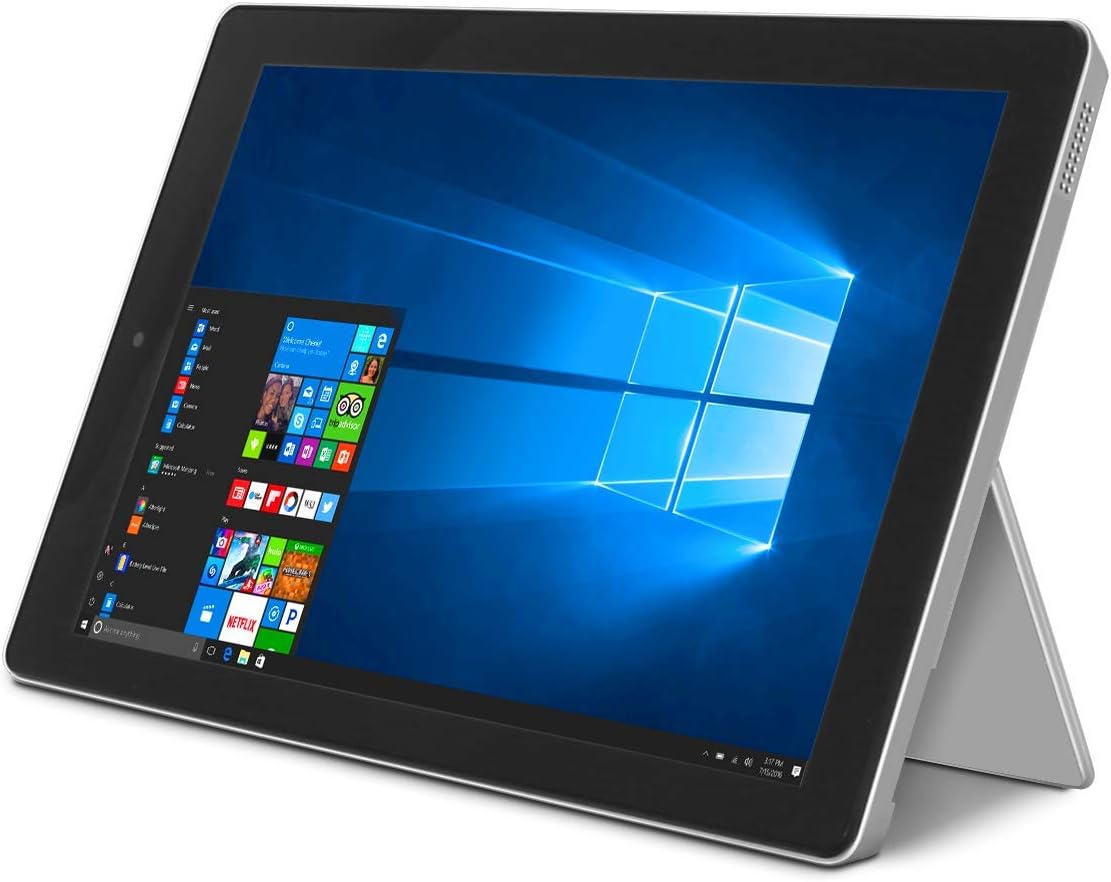
Image: The RCA Cambio 10.1 W101 V2 tablet in laptop mode, showcasing the Windows 10 operating system interface.
Bedryfsinstruksies
1. Basiese navigasie
Raakskerm:
The tablet features a multi-touch display. Use gestures such as tap, swipe, pinch-to-zoom, and press-and-hold to interact with the interface.
Sleutelbord en raakblad:
When the detachable keyboard is connected, you can use the physical keys for typing and the integrated touchpad for cursor control. The touchpad supports multi-touch gestures similar to a laptop touchpad.

Image: The RCA Cambio 10.1 W101 V2 tablet in portrait orientation, showing the Windows 10 Start screen with application tiles.
2. Koppel aan Wi-Fi
- Maak die oop Begin Kieslys en klik op Instellings.
- Kies Netwerk en internet.
- Kies Wi-Fi from the left-hand menu.
- Wi-Fi wissel On as dit af is.
- Select your desired network from the list and click Koppel.
- Voer die netwerkwagwoord in indien gevra word.
3. Bluetooth-koppeling
- Maak die oop Begin Kieslys en klik op Instellings.
- Kies Toestelle.
- Kies Bluetooth en ander toestelle from the left-hand menu.
- Wissel Bluetooth On.
- Klik Voeg Bluetooth of ander toestel by and follow the instructions to pair with your desired device.
4. Die gebruik van die kameras
The tablet is equipped with front and rear 2MP cameras. To access the camera, open the Kamera application from the Start Menu or search bar. You can switch between front and rear cameras within the application interface.
5. Productivity with Microsoft Office 365
The device comes preloaded with Windows 10, which supports Microsoft Office 365 applications. You can create and edit documents, spreadsheets, and presentations. An active subscription to Microsoft Office 365 may be required for full functionality.

Image: The RCA Cambio 10.1 W101 V2 tablet running Microsoft Office applications, highlighting its use for productivity tasks.
6. Bergingbestuur
The tablet includes 32GB of internal storage. To manage your storage, go to Instellings > Stelsel > Berging. Jy kan view storage usage, free up space, and change where new content is saved. Consider using cloud storage or an external microSD card (not included) for additional space.
Onderhoud
1. Maak die toestel skoon
Use a soft, lint-free cloth to clean the screen and exterior surfaces. For stubborn smudges, slightly dampMaak die lap skoon met water of 'n skermskoonmaakoplossing. Vermy die gebruik van harde chemikalieë of skuurmiddels.
2. Sagteware-opdaterings
Regularly check for and install Windows updates to ensure your system has the latest security patches and features. Go to Instellings > Opdatering en Sekuriteit > Windows Update om te kyk vir opdaterings.
3. Batteryversorging
Om die batterylewe te verleng:
- Vermy om die battery gereeld heeltemal te ontlaai.
- Moenie die toestel aan uiterste temperature blootstel nie.
- Unplug the charger once the battery is fully charged, especially during extended periods of non-use.
4. Data-rugsteun
Regularly back up important data to an external drive or cloud storage to prevent data loss in case of device malfunction.
Probleemoplossing
This section addresses common issues you might encounter with your RCA Cambio 10.1 W101 V2.
Toestel skakel nie aan nie:
- Ensure the device is fully charged. Connect the power adapter and wait a few minutes before attempting to power on again.
- Press and hold the power button for at least 10-15 seconds to perform a hard reset.
Stadige werkverrigting of vries:
- Maak onnodige toepassings wat in die agtergrond loop toe.
- Kontroleer vir en installeer enige hangende Windows-opdaterings.
- Ensure sufficient free storage space. Delete unnecessary files or move them to external storage.
- Herbegin die toestel.
Wi-Fi-verbindingskwessies:
- Maak seker dat Wi-Fi geaktiveer is in Instellings > Netwerk en internet > Wi-Fi.
- Herbegin jou Wi-Fi-router en die tablet.
- Forget the network and reconnect by entering the password again.
- Maak seker dat jy binne die bereik van die Wi-Fi-sein is.
Probleme met Bluetooth-paring:
- Ensure Bluetooth is enabled on both the tablet and the device you are trying to pair.
- Make sure both devices are in pairing mode and within close proximity.
- Remove previously paired devices from the tablet's Bluetooth settings if you are experiencing conflicts.
Sleutelbord reageer nie:
- Maak seker dat die sleutelbord stewig aan die tablet se magnetiese konnektor vas is.
- Maak die sleutelbord los en heg dit weer aan.
- Herbegin die tablet.
Battery dreineer vinnig:
- Verstel die skermhelderheid na 'n laer instelling.
- Close background applications and disable unnecessary features like Bluetooth or Wi-Fi when not in use.
- Kontroleer batteryverbruik in Settings > System > Battery to identify power-consuming applications.
Fabrieksherstel (Laaste uitweg):
If issues persist, you may consider performing a factory reset. This will erase all data and reinstall Windows 10. Rugsteun alle belangrike data voordat u voortgaan. Gaan na Settings > Update & Security > Recovery > Reset this PC en volg die instruksies op die skerm.
Spesifikasies
| Kenmerk | Spesifikasie |
|---|---|
| Modelnommer | W101 V2 |
| Bedryfstelsel | Windows 10 |
| Skerm grootte | 10.1 duim |
| Skermresolusie | 1280 x 800 |
| Verwerker | Intel Quad-Core (1.83 GHz) |
| RAM | 2 GB DDR3 SDRAM |
| Interne berging | 32 GB flitsgeheue |
| Draadlose konneksie | 802.11b Wi-Fi, Bluetooth |
| Kameras | Front and Rear (2 MP) |
| Battery | 1 Litium-ioonbattery (ingesluit) |
| Afmetings (LxBxH) | 12.2 x 8.5 x 3.15 duim |
| Item gewig | 2.75 pond |
Waarborg en Ondersteuning
Vir waarborginligting en tegniese ondersteuning, verwys asseblief na die dokumentasie wat by u produk ingesluit is of besoek die amptelike RCA-ondersteuningsentrum webwebwerf. Bewaar u bewys van aankoop vir waarborgeise.
For further assistance, you may contact RCA customer service. Contact details are typically available on the manufacturer's webwebwerf.