
1. Inleiding
This manual provides essential information for the safe and efficient use of your InFocus IF195a Touch Pad. Please read this manual thoroughly before operating the device and retain it for future reference.
2. Veiligheidsinligting
- Moenie die toestel blootstel aan uiterste temperature, direkte sonlig of hoë humiditeit nie.
- Vermy om die toestel te laat val of aan sterk impakte te onderwerp.
- Use only the charger provided or approved by InFocus.
- Moenie probeer om die toestel self uitmekaar te haal of te herstel nie. Verwys alle diens na gekwalifiseerde personeel.
- Hou die toestel weg van water en ander vloeistowwe.
- Gooi die toestel en sy battery verantwoordelik weg volgens plaaslike regulasies.
3. Produk verbyview
The InFocus IF195a is a 20-inch Android-powered touch pad designed for interactive use. Familiarize yourself with its components.
3.1 Voorkant View

Figuur 1: Voorkant view of the InFocus IF195a Touch Pad. This image shows the large 20-inch display with the Android operating system interface, including various app icons and the Google search bar. The device features a sleek bezel around the screen.
- Vertoon: 20-inch multi-touch screen.
- Voorste kamera: Located at the top center bezel.
- Mikrofoon: Integrated for voice input.
3.2 Kant View en Hawens
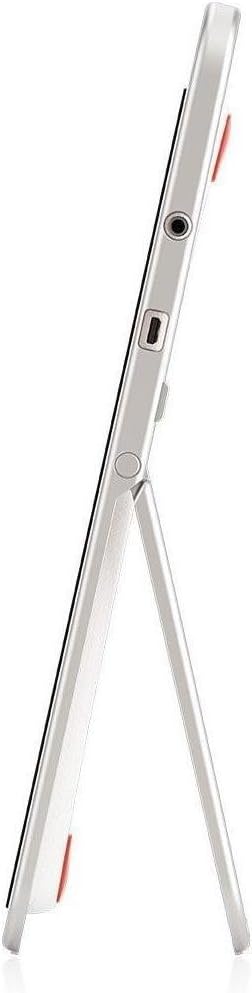
Figuur 2: Kant view of the InFocus IF195a Touch Pad. This image highlights the device's slim profile and the integrated kickstand, which allows for upright positioning. Visible ports include a headphone jack and a USB port.
- Kragknoppie: Used to turn the device on/off or put it to sleep.
- Volume knoppies: Adjust the device's audio output.
- Koptelefoonaansluiting (3.5 mm): Vir die koppeling van eksterne klanktoestelle.
- Mikro-USB-poort: Vir laai en data-oordrag.
- Geïntegreerde skopstaander: Allows the device to stand upright.
4. Opstelling
4.1 Uitpak en Aanvanklike Lading
- Carefully remove the InFocus IF195a Touch Pad and all accessories from the packaging.
- Connect the provided power adapter to the Micro-USB port on the device and plug it into a power outlet. Allow the device to charge fully before first use. The charging indicator will typically show a full battery when complete.
4.2 Aan-/afskakel
- Om aan te skakel: Press and hold the Power button until the InFocus logo appears on the screen.
- Om af te skakel: Press and hold the Power button until a power-off menu appears. Select "Power off" and confirm.
- Om te slaap/wakker te word: Briefly press the Power button to put the device into sleep mode or wake it up.
4.3 Aanvanklike Opstellingsassistent
Upon first power-on, the device will guide you through an initial setup process:
- Taalkeuse: Kies die taal wat u verkies.
- Wi-Fi-verbinding: Select your Wi-Fi network from the list and enter the password. A stable internet connection is required for many features.
- Google-rekening: Sign in with an existing Google account or create a new one. This is necessary to download apps from the Google Play Store and access Google services.
- Datum en Tyd: Set the correct date and time or allow the device to set it automatically via the network.
- Privaatheidinstellings: Review en pas privaatheidinstellings aan soos verlang.
5. Bedryf die Toestel
5.1 Raak Gebare
- Tik: Raak die skerm een keer aan om 'n item te kies of 'n toepassing oop te maak.
- Raak en hou: Press and hold an item to access contextual menus or drag items.
- Swiep: Sleep jou vinger oor die skerm om deur lyste te blaai of tussen tuisskerms te wissel.
- Knyp-om-te-Zoem: Use two fingers to zoom in or out on images, maps, or web bladsye.
5.2 Tuisskerm en Navigasie
- Tuisknoppie: Neem jou terug na die hooftuisskerm.
- Terug-knoppie: Returns to the previous screen or closes the current application.
- Onlangse programme-knoppie: Displays a list of recently used applications for quick switching.
- Kennisgewingpaneel: Vee van die bokant van die skerm af om toegang tot kennisgewings en kitsinstellings te verkry.
5.3 Installing and Managing Applications
- Google Play Winkel: Open the "Play Store" app to browse and download applications. A Google account is required.
- Installeer toepassings: Select an app and tap "Install." Follow on-screen prompts for permissions.
- Deïnstallering van programme: Gaan na Instellings > Programme, select the desired app, and tap "Uninstall." Alternatively, touch and hold an app icon on the home screen and drag it to the "Uninstall" option (if available).
5.4 Connecting to External Devices
- Oorfone: Koppel 3.5 mm-oorfone in die koptelefoonaansluiting.
- USB-toestelle: Connect compatible USB devices (e.g., flash drives, keyboards) to the Micro-USB port using an appropriate adapter if necessary. The device supports USB On-The-Go (OTG).
6. Onderhoud
6.1 Die skoonmaak van die toestel
- Gebruik 'n sagte, pluisvrye lap om die skerm en liggaam van die toestel skoon te maak.
- Vir hardnekkige merke, effens dampMaak die lap skoon met water of 'n skermreiniger wat spesifiek vir elektronika ontwerp is.
- Vermy die gebruik van harde chemikalieë, skuurmiddels of aërosolspuitmiddels.
6.2 Batterysorg
- Om die batterylewe te verleng, vermy om die battery gereeld heeltemal te ontlaai.
- Moenie die toestel vir lang tye aan die laaier gekoppel laat nadat dit volledig gelaai is nie.
- Store the device in a cool, dry place if not used for a long time, with the battery charged to about 50%.
6.3 Sagteware-opdaterings
Kontroleer gereeld vir sagteware-opdaterings om optimale werkverrigting en sekuriteit te verseker. Gaan na Instellings > Meer oor tablet > Stelselopdaterings to check for and install available updates. Ensure your device is connected to Wi-Fi and has sufficient battery charge before starting an update.
7. Probleemoplossing
| Probleem | Moontlike Oplossing |
|---|---|
| Device will not power on. | Ensure the device is charged. Connect the charger and wait a few minutes before attempting to power on again. If unresponsive, perform a hard reset by holding the power button for 10-15 seconds. |
| Wi-Fi-verbindingsprobleme. | Kontroleer of Wi-Fi in instellings geaktiveer is. Herbegin jou Wi-Fi-router. Vergeet die netwerk en koppel weer aan. Maak seker dat jy binne die bereik van die Wi-Fi-sein is. |
| Applications are crashing or freezing. | Close and restart the application. Clear the app's cache (Instellings > Programme > [Programnaam] > Berging > Vee kasgeheue uit). Indien die probleem voortduur, deïnstalleer en herinstalleer die toepassing. |
| Skerm reageer nie. | Restart the device. Ensure the screen is clean and free of debris. If the issue continues, contact support. |
| Stadige werkverrigting. | Close unnecessary background applications. Clear cache for frequently used apps. Check available storage (Instellings > Berging) and free up space if needed. Consider a factory reset as a last resort. |
7.1 Fabrieksterugstelling
’n Fabrieksherstel sal alle data van jou toestel uitvee en dit na sy oorspronklike fabrieksinstellings herstel. Rugsteun alle belangrike data voordat u voortgaan.
- Gaan na Instellings > Rugsteun en herstel > Fabrieksdata-terugstelling.
- Read the warning message carefully.
- Tap "Reset tablet" and then "Erase everything" to confirm.
- Die toestel sal herbegin en die herstelproses begin.
8. Tegniese spesifikasies
| Kenmerk | Spesifikasie |
|---|---|
| Model | IF195a |
| Handelsmerk | InFokus |
| Vertoon grootte | 20 duim |
| Maksimum resolusie | 1600 x 900 |
| Verwerker | ARM Cortex-A15 Quad-Core 1.8 GHz |
| RAM kapasiteit | 2 GB |
| Berging kapasiteit | 16 GB |
| Bedryfstelsel | Android 4.4 KitKat |
| Agterkamera-resolusie | 5 MP |
| Afmetings (L x B x H) | 61.6 x 47 x 8.6 cm |
| Gewig | 3.7 kg |
| Kleur | Grys |
9. Waarborg en Ondersteuning
For warranty information, please refer to the warranty card included with your product or visit the official InFocus website. For technical support, product registration, or service inquiries, please contact InFocus customer service through their official channels.
Please note that warranty terms may vary by region and retailer. Keep your proof of purchase for warranty claims.