
Microsoft ST9-00001
Microsoft Surface Pro 3 Gebruikershandleiding
Model: ST9-00001
Inleiding
This manual provides essential information for setting up, operating, maintaining, and troubleshooting your Microsoft Surface Pro 3. The Surface Pro 3 is a versatile device designed to function as both a tablet and a laptop, powered by the Windows 10 operating system.
It features a 12-inch high-resolution screen, ample internal storage, dual HD cameras, and robust connectivity options, including a full-size USB 3.0 port. Its integrated kickstand allows for comfortable viewing in various positions, and the magnesium frame ensures a lightweight and durable design.
Veiligheidsinligting
- Moenie die toestel blootstel aan uiterste temperature, direkte sonlig of hoë humiditeit nie.
- Vermy om die toestel te laat val of aan ernstige impakte bloot te stel.
- Use only Microsoft-approved power adapters and accessories.
- Keep the device away from liquids. In case of liquid contact, power off immediately and seek professional assistance.
- Moenie probeer om die toestel self uitmekaar te haal of te herstel nie. Dit kan die waarborg ongeldig maak en skade veroorsaak.
- Verseker behoorlike ventilasie wanneer die toestel gebruik word om oorverhitting te voorkom.
Opstelling
1. Uitpak en aanvanklike inspeksie
Carefully remove the Surface Pro 3 and all accessories from the packaging. Inspect the device for any visible damage. Retain the packaging for future transport or service needs.
2. Aanskakeling en aanvanklike opstelling
- Connect the power supply to the Surface Pro 3 and a power outlet.
- Press the power button located on the top edge of the device.
- Follow the on-screen prompts to complete the Windows 10 initial setup, including language selection, network connection, and user account creation.
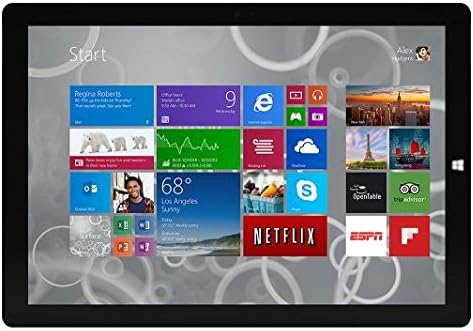
Figure 1: Windows 10 Start Screen during initial setup.
This image shows the Microsoft Surface Pro 3 screen displaying the Windows 10 Start menu, characterized by a grid of live tiles representing various applications and services. This is typically seen during the initial setup or when navigating the operating system.
3. Attaching Accessories (Sold Separately)
The Surface Pro 3 is compatible with various accessories, such as the Surface Type Cover keyboard and the Surface Pen, which are sold separately.
- Surface Type Cover: Align the magnetic connector of the Type Cover with the bottom edge of the Surface Pro 3 until it clicks into place.
- Surface Pen: The Surface Pen can be magnetically attached to the side of the Surface Pro 3 for storage. For initial pairing, follow the instructions provided with the pen.
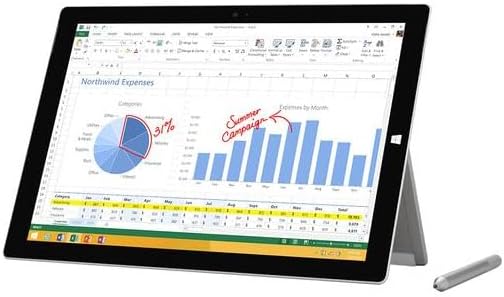
Figure 2: Surface Pro 3 with optional Surface Pen.
This image illustrates the Microsoft Surface Pro 3 in use, displaying an Excel spreadsheet on its screen. A Surface Pen is positioned next to the device, highlighting its compatibility for precise input and navigation.
4. Expanding Storage with a MicroSD Card
You can expand the internal storage of your Surface Pro 3 using a microSD card (sold separately).
- Locate the microSD card slot on the side of the Surface Pro 3, typically behind the kickstand.
- Plaas die microSD-kaart in die gleuf totdat dit in plek klik.
- The device will automatically detect the card. You may need to format it if it's a new card or if prompted by the system.

Figure 3: MicroSD card slot.
This close-up image shows the microSD card slot on the side of the Microsoft Surface Pro 3, with a microSD card partially inserted, demonstrating how to expand the device's storage.
Bedryfsinstruksies
1. Navigasie deur Windows 10
- Beginkieslys: Click the Windows icon in the bottom-left corner to access applications, settings, and power options.
- Raakskerm: Use gestures for navigation, zooming, and scrolling.
- Edge Browser: Utilize the pre-installed Edge browser for web browsing, which includes features for marking up web bladsye.

Figure 4: Using the Surface Pro 3 for productivity.
This image depicts the Microsoft Surface Pro 3 in an active use scenario, showcasing a note-taking application open on its screen. The display features handwritten notes, diagrams, and sketches, illustrating the device's capability for creative and productive tasks.
2. Using the Integrated Kickstand
The multi-position kickstand allows you to adjust the viewing angle for optimal comfort, whether you are typing, watching videos, or drawing.
- Gently pull the kickstand out from the back of the device.
- Adjust it to your desired angle. The kickstand offers a wide range of positions for versatility.
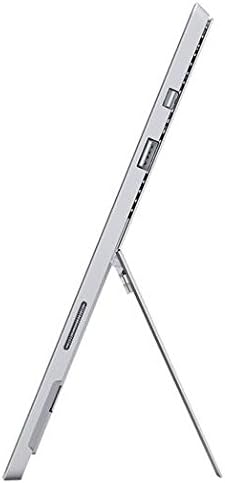
Figure 5: Adjustable kickstand.
Hierdie beeld bied 'n kant view of the Microsoft Surface Pro 3, clearly showing its integrated kickstand extended to support the device at an angle, demonstrating its versatile viewvermoëns.
3. Kamerafunksionaliteit
The Surface Pro 3 is equipped with 5.0MP front and rear cameras.
- Open the Camera application from the Start Menu.
- Switch between front and rear cameras as needed for photos or video calls.

Figure 6: Front camera.
This close-up image focuses on the front-facing camera and associated sensors located at the top edge of the Microsoft Surface Pro 3 screen.
4. Konnektiwiteit
The full-size USB 3.0 port allows for connecting various peripherals and transferring data.
- Insert USB devices (e.g., flash drives, external hard drives, printers) into the USB 3.0 port.
- The device also supports Wi-Fi (802.11a/b/g/n/ac) for wireless internet connectivity.
Onderhoud
1. Cleaning Your Surface Pro 3
- Gebruik 'n sagte, pluisvrye lap dampmet water of 'n skermreiniger wat spesifiek vir elektronika ontwerp is.
- Vermy die gebruik van harde chemikalieë, skuurmiddels of aërosolspuitmiddels.
- Vee die skerm en buite-oppervlaktes liggies af.
2. Sagteware-opdaterings
Regularly check for and install Windows updates to ensure your device has the latest security patches and performance improvements.
- Gaan na Instellings > Opdatering en sekuriteit > Windows Update.
- Klik op "Kontroleer vir opdaterings" en installeer enige beskikbare opdaterings.
3. Bergingbestuur
To maintain optimal performance, manage your device's storage space.
- Verwyder gereeld onnodige files en toepassings.
- Utilize cloud storage services or external drives for large files.
- Consider using the Disk Cleanup tool in Windows to remove temporary files.
Probleemoplossing
This section addresses common issues you might encounter with your Surface Pro 3.
Toestel skakel nie aan nie
- Ensure the power supply is securely connected to both the device and a working power outlet.
- Probeer 'n ander kragpunt.
- Press and hold the power button for 10-15 seconds to perform a forced shutdown, then press it again to restart.
Wi-Fi-verbindingsprobleme
- Kontroleer of Wi-Fi in Windows-instellings geaktiveer is.
- Herbegin jou Wi-Fi-router.
- Vergeet die netwerk en koppel weer aan, en voer die wagwoord weer in.
- Begin die Windows Netwerk Probleemoplosser.
Stadige prestasie
- Maak onnodige toepassings wat in die agtergrond loop toe.
- Kontroleer vir en installeer enige hangende Windows-opdaterings.
- Maak seker dat jy genoeg gratis stoorplek het.
- Voer 'n virusskandering uit.
For more detailed troubleshooting or issues not covered here, please refer to the official Microsoft Support webwebwerf of kontak kliëntediens.
Spesifikasies
| Kenmerk | Detail |
|---|---|
| Model | Microsoft Surface 1631 Pro 3 |
| Bedryfstelsel | Windows 10 |
| Skerm grootte | 12 duim |
| Skermresolusie | 2160 x 1440 |
| Verwerker | Intel Core i3 1.5 GHz |
| RAM | 4 GB |
| Interne berging | 128 GB Flash-berging |
| Grafiese medeverwerker | Intel HD-grafika |
| Kameras | 5.0MP Front and Rear |
| Draadlose tipe | 802.11b, 802.11a, 802.11g |
| Hawens | Full-size USB 3.0 |
| Item gewig | 1.8 pond |
| Produk afmetings | 11.5 x 0.36 x 7.93 duim |
| Kleur | Silwer |
Waarborg en Ondersteuning
Your Microsoft Surface Pro 3 comes with a standard manufacturer's warranty. For detailed warranty terms and conditions, please refer to the documentation included with your purchase or visit the official Microsoft support webwebwerf.
For technical assistance, troubleshooting guides, driver downloads, and service requests, please visit the Microsoft Surface-ondersteuning bladsy.