
1. Inleiding
This manual provides comprehensive instructions for the proper setup, operation, and maintenance of your Manhattan 13-Port USB 2.0 Hub with Power Adapter, Model 162463. Please read this manual thoroughly before using the device to ensure optimal performance and safety.
The Manhattan 13-Port USB 2.0 Hub is designed to expand the USB connectivity of your computer, offering multiple ports for connecting various USB devices and dedicated high-power ports for charging. Its powered design ensures stable performance for all connected peripherals.

Beeld 1.1: Hoekig view of the Manhattan 13-Port USB 2.0 Hub, highlighting its compact design and multiple USB ports.
2. Pakketinhoud
Verify that all items listed below are present in your product packaging. If any items are missing or damaged, please contact your retailer or Manhattan customer support.
- Manhattan 13-Port USB 2.0 Hub (Model 162463)
- Kragadapter (5V, 4A)
- USB 2.0 Type-A to Type-B Cable
- Gebruikershandleiding (hierdie dokument)

Image 2.1: The Manhattan 13-Port USB 2.0 Hub and its accessories as typically found in the retail box.
3. Produkkenmerke
The Manhattan 13-Port USB 2.0 Hub offers a robust solution for expanding your computer's USB capabilities:
- Thirteen (13) USB 2.0 Ports: Verskaf ample connectivity for multiple peripherals.
- Nine (9) Standard USB 2.0 Ports: For data transfer and standard charging of devices.
- Four (4) High-Power Charging Ports: Delivers up to 2.4A per port for faster charging of smartphones, tablets, and other power-hungry devices. These ports are activated by a dedicated button.
- Aangedrewe werking: Includes an external power adapter to ensure stable power delivery to all connected devices, preventing power-related issues.
- Universele verenigbaarheid: Works with Windows and macOS operating systems.
- Data-oordragtempo: Supports USB 2.0 speeds up to 480 Mbps.

Beeld 3.1: Bo view of the hub, illustrating its overall layout and the central power button for high-power charging ports.
4. Opstelinstruksies
Follow these steps to set up your Manhattan 13-Port USB 2.0 Hub:
- Koppel die kragadapter: Insert the barrel connector of the included power adapter into the DC IN port on the back of the USB hub. Plug the power adapter into a standard electrical outlet. The hub requires external power for full functionality.
- Koppel aan jou rekenaar: Use the provided USB 2.0 Type-A to Type-B cable. Connect the Type-B end to the upstream USB port on the hub and the Type-A end to an available USB port on your computer.
- Drywerinstallasie (Outomaties): Your operating system (Windows or macOS) should automatically detect and install the necessary drivers for the USB hub. No manual driver installation is typically required.
- Koppel USB-toestelle: Once the hub is recognized, you can connect your USB devices (e.g., keyboards, mice, external hard drives, flash drives) to any of the available USB ports on the hub.
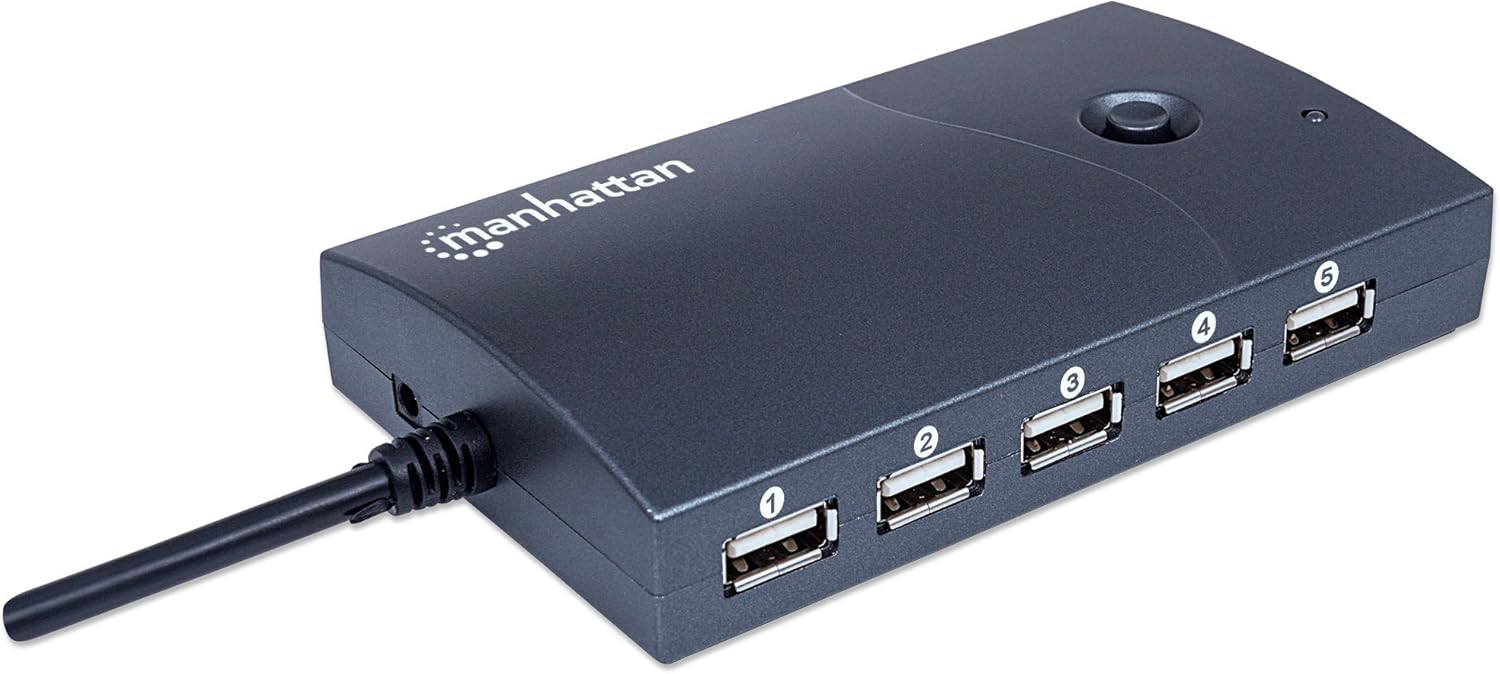
Prent 4.1: Agter view of the hub, indicating the power input port.

Image 4.2: The hub connected to a computer using the supplied USB cable.
5. Bedryfsinstruksies
Using your Manhattan 13-Port USB 2.0 Hub is straightforward:
- Standard USB Ports (1-9): These ports are suitable for connecting most USB peripherals that require data transfer and standard power. Simply plug your device into an available port.
- High-Power Charging Ports (10-13): These four ports are designed for faster charging of mobile devices. They are identifiable by a lightning bolt icon next to the port. To activate these high-power charging ports, press the dedicated button located on the top of the hub. An indicator light will illuminate when these ports are active.
- Kragbestuur: The external power adapter ensures that all connected devices receive sufficient power. Avoid connecting devices that collectively exceed the hub's total power output (20W / 4A at 5V) to prevent instability.
- Data-oordrag: The hub operates at USB 2.0 speeds (up to 480 Mbps). While suitable for most peripherals, for maximum speed with USB 3.0 or higher devices, connect them directly to your computer's native USB 3.0+ ports if available.

Image 5.1: Detail of the high-power charging ports, indicated by the lightning bolt symbol.
6. Onderhoud
To ensure the longevity and proper functioning of your USB hub, follow these maintenance guidelines:
- Skoonmaak: Disconnect the hub from power and your computer before cleaning. Use a soft, dry, lint-free cloth to wipe the exterior. Do not use liquid cleaners, aerosols, or abrasive materials.
- Berging: Wanneer dit nie vir lang tye gebruik word nie, bêre die hub op 'n koel, droë plek weg van direkte sonlig en uiterste temperature.
- Omgewingstoestande: Avoid exposing the hub to moisture, dust, or corrosive environments.
- Kabelbestuur: Ensure cables are not kinked, pinched, or under excessive strain to prevent damage to the cables and ports.
7. Probleemoplossing
If you encounter issues with your Manhattan 13-Port USB 2.0 Hub, refer to the following common problems and solutions:
| Probleem | Moontlike oorsaak | Oplossing |
|---|---|---|
| Hub or connected device not recognized. |
|
|
| Devices are charging slowly or not at all. |
|
|
| Stadige data-oordragspoed. |
|
|
If the problem persists after trying these solutions, please contact Manhattan customer support for further assistance.
8. Spesifikasies
| Modelnommer | 162463 |
| Handelsmerk | Manhattan |
| USB-standaard | USB 2.0 |
| Aantal poorte | 13 (9 standard, 4 high-power charging) |
| Data-oordragtempo | Tot 480 Mbps |
| Krag Invoer | 5V DC, 4A (via included power adapter) |
| High-Power Charging Output | Up to 2.4A per port (for dedicated charging ports) |
| Afmetings (L x B x H) | 12.1 x 2.5 x 7.1 cm (4.76 x 0.98 x 2.8 duim) |
| Gewig | 147.42 g (0.32 lbs) |
| Kleur | Swart |
| Bedryfstelselversoenbaarheid | Windows, macOS |
9. Waarborg en Ondersteuning
Manhattan products are designed to meet high-quality standards. For information regarding warranty coverage, technical support, or to register your product, please visit the official Manhattan webwebwerf of kontak jou plaaslike kleinhandelaar. Bewaar jou aankoopbewys as bewys van aankoop.
Aanlyn ondersteuning: For the latest product information, drivers, and support, please visit www.manhattanproducts.com/support (Hierdie is 'n plekhouer URL, please refer to your product packaging for the actual support webwerf).