
Inleiding
This manual provides instructions for setting up, operating, and maintaining your Mercury MW3030R Dual Band Wireless Router. Please read this manual carefully before use to ensure proper installation and optimal performance.
Veiligheidsinligting
- Moenie die toestel aan water of oormatige humiditeit blootstel nie.
- Moenie probeer om die toestel self uitmekaar te haal of te herstel nie.
- Gebruik slegs die kragadapter wat by die toestel voorsien is.
- Verseker behoorlike ventilasie rondom die router om oorverhitting te voorkom.
Pakketinhoud
Verifieer dat jou pakket die volgende items bevat:
- Mercury MW3030R Wireless Router
- Kragadapter
- Ethernet kabel
- Quick Installation Guide (this manual serves as a detailed guide)
Produk verbyview
Maak jouself vertroud met die router se komponente en aanwysers.
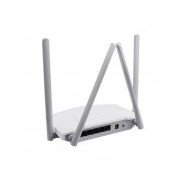
Figuur 1: Agter view of the Mercury MW3030R router. This image displays the four external antennas, the WAN port (typically blue), multiple LAN ports (typically yellow), and the power input jack. The reset button and WPS button are also usually located on the rear panel.
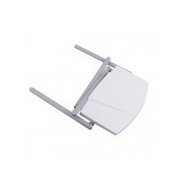
Figuur 2: Van onder na onder view of the Mercury MW3030R router with its antennas folded. This perspective highlights the router's sleek, white casing and its overall compact form factor, suitable for various placements.
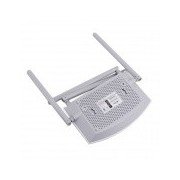
Figuur 3: Onderkant view of the Mercury MW3030R router. This image shows the ventilation holes designed for heat dissipation and the product label, which typically contains important information such as the default Wi-Fi name (SSID), password, and web management address.
LED-aanwysers:
- Krag LED: Indicates the power status of the router.
- Internet LED: Indicates the status of the internet connection.
- WLAN LED: Dui draadlose aktiwiteit aan.
- LAN LED's: Indicate connection status for each LAN port.
Opstelling
1. Hardewareverbinding
- Krag aan: Connect the power adapter to the router's power port and plug it into a wall outlet. Wait for the Power LED to become stable.
- Koppel aan die internet (WAN): Connect one end of an Ethernet cable to your modem's LAN port and the other end to the router's WAN port (usually distinctively colored, e.g., blue).
- Connect Devices (LAN): For wired connections, connect your computer or other devices to the router's LAN ports (usually yellow) using Ethernet cables.
- antennas: Adjust the four antennas for optimal signal coverage.
2. Aanvanklike konfigurasie (Web Koppelvlak)
- Koppel aan router: Connect your computer to the router either via an Ethernet cable to a LAN port or wirelessly using the default Wi-Fi SSID and password printed on the router's label (refer to Figure 3).
- Toegang Web Blaaier: Maak oop a web browser (e.g., Chrome, Firefox) and type the default access address (e.g., http://192.168.1.1 or http://tplinkwifi.net) in die adresbalk en druk Enter.
- Teken in: Voer die standaard gebruikersnaam en wagwoord in (gewoonlik admin vir beide, of soos gespesifiseer op die router se etiket).
- Voer Vinnige Opstelling uit: Follow the on-screen instructions of the Quick Setup Wizard to configure your internet connection type (e.g., PPPoE, Dynamic IP, Static IP) and wireless settings (SSID, password).
- Verander verstekwagwoord: Vir sekuriteit word dit sterk aanbeveel om die standaard aanmeldwagwoord vir die router se ... te verander. web bestuur koppelvlak.
Bedryfsinstruksies
Koppel tans aan Wi-Fi
- Soek op jou draadlose toestel (slimfoon, skootrekenaar) na beskikbare Wi-Fi-netwerke.
- Select your router's Wi-Fi network name (SSID) that you configured during setup.
- Enter the Wi-Fi password you set.
- Jou toestel behoort nou aan die internet gekoppel te wees.
Dubbelband-operasie
The MW3030R supports both 2.4GHz and 5.0GHz wireless bands. The 2.4GHz band offers wider coverage, while the 5.0GHz band provides faster speeds with less interference over shorter distances. You can connect your devices to either band based on your needs.
Gasnetwerk
Kry toegang tot die router se web interface to enable and configure a separate guest network. This allows guests to access the internet without accessing your main network resources.
Onderhoud
- Firmware -opdaterings: Gaan gereeld die vervaardiger se webwebwerf vir firmware-opdaterings. Die opdatering van firmware kan werkverrigting verbeter, nuwe funksies byvoeg en sekuriteitskwesbaarhede regstel.
- Herbegin van die router: If you experience network issues, try restarting the router by unplugging the power adapter, waiting 10 seconds, and then plugging it back in.
- Skoonmaak: Hou die router skoon en stofvry. Gebruik 'n sagte, droë lap. Moenie vloeibare skoonmaakmiddels gebruik nie.
- Plasing: Place the router in a central location, away from obstructions and devices that may cause interference (e.g., microwaves, cordless phones).
Probleemoplossing
Geen internettoegang nie
- Check if the Internet LED on the router is lit or blinking correctly.
- Maak seker dat die Ethernet-kabel van jou modem stewig aan die router se WAN-poort gekoppel is.
- Herbegin jou modem en router.
- Verifieer jou internetverbindingsinstellings in die router se web koppelvlak.
Slow Wireless Speed
- Ensure your device is connected to the 5.0GHz band if it supports it, for faster speeds.
- Move closer to the router or adjust antenna positions.
- Kyk vir steuring van ander elektroniese toestelle.
- Reduce the number of devices connected to the network or bandwidth-intensive activities.
Kan nie toegang tot router kry nie Web Koppelvlak
- Maak seker dat jou toestel aan die router gekoppel is (bedraad of draadloos).
- Verify the IP address you are typing in the browser is correct (e.g., http://192.168.1.1).
- Probeer om jou blaaier se kasgeheue skoon te maak of 'n ander blaaier te gebruik.
- If you forgot the login password, you may need to perform a factory reset (Warning: This will erase all your settings).
Spesifikasies
| Kenmerk | Beskrywing |
|---|---|
| Model | MW3030R |
| Draadlose standaarde | IEEE 802.11ac/n/g/b/a |
| Frekwensie | 2.4GHz and 5.0GHz (Dual Band) |
| Draadlose spoed | Up to 600Mbps (combined) |
| Antennas | 4 Eksterne Antennas |
| Koppelvlakke | 1x WAN Port, Multiple LAN Ports (typically 3 or 4) |
| Kragtoevoer | External Power Adapter (provided) |
Waarborg en Ondersteuning
The Mercury MW3030R router comes with a standard manufacturer's warranty. For detailed warranty information, technical support, or service inquiries, please refer to the official Mercury webwebwerf of kontak hul kliëntediens. Bewaar u aankoopbewys vir waarborgeise.