
1. Inleiding
Thank you for choosing the TECKNET M003 2.4G Wireless Optical Mouse. This ergonomic mouse is designed for comfort and precision, offering a reliable wireless connection for various computing tasks. Please read this manual carefully to ensure proper setup and operation.

Figure 1: TECKNET M003 Wireless Optical Mouse with ergonomic design highlighted.
2. Pakketinhoud
- TECKNET Pro Wireless Mouse
- Nano USB-ontvanger
- Gebruikershandleiding (hierdie dokument)
3. Produk verbyview
Familiarize yourself with the components of your TECKNET M003 mouse:
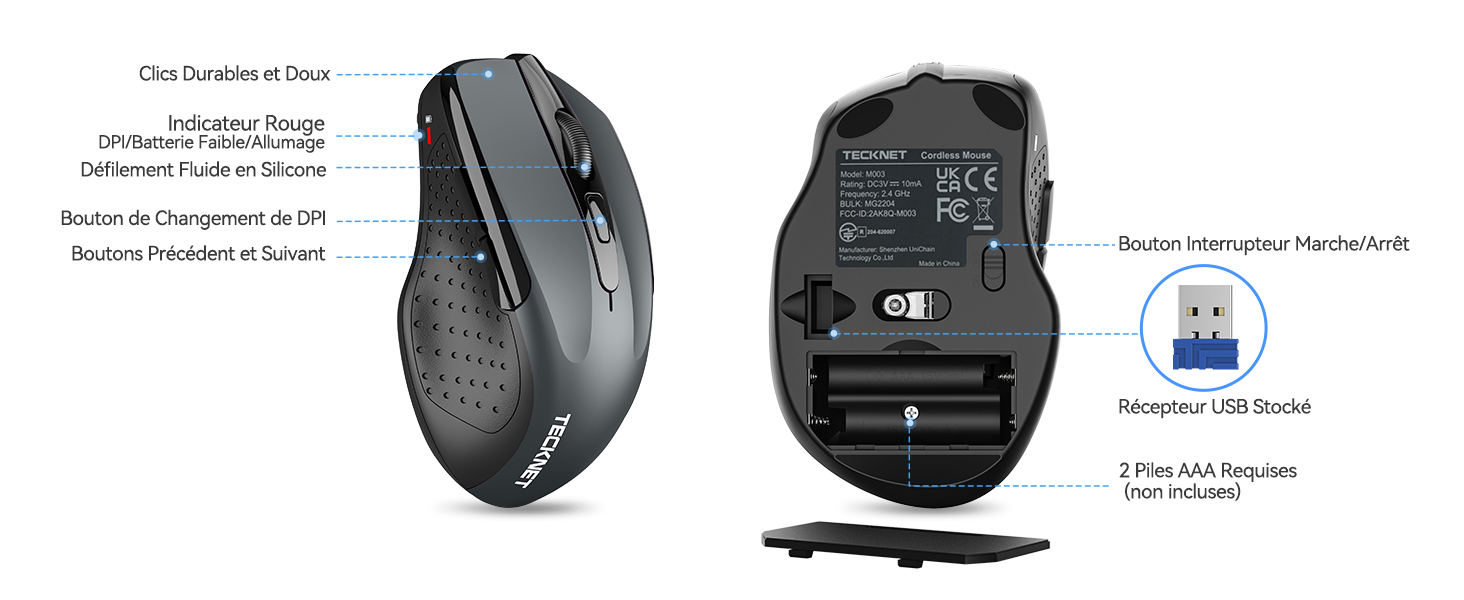
Figuur 2: Voorkant en onderkant view of the mouse with labeled parts.
- Linker knoppie: Standaard klikfunksie.
- Regter knoppie: Standaard regs-kliek funksie.
- Rolwiel: Vir vertikale blaai en middelklikfunksie.
- DPI-skakelaarknoppie: Pas wysergevoeligheid aan.
- Aanstuur-knoppie: Navigeer vorentoe in web blaaiers of file explorers (not available for Mac OS).
- Terug-knoppie: Navigeer agteruit in web blaaiers of file explorers (not available for Mac OS).
- Kragskakelaar (Aan/Af): Geleë aan die onderkant van die muis.
- Optical Tracking Sensor: For precise movement detection.
- Battery kompartement: Holds two AAA batteries.
- USB Receiver Storage Slot: Located inside the battery compartment for convenient storage.
4. Opstelinstruksies
4.1 Battery installasie
- Open the battery compartment cover located on the bottom of the mouse.
- Plaas twee (2) AAA-batterye in en maak seker dat die polariteit (+/-) korrek is. Batterye is nie ingesluit nie.
- Maak die batterykompartement se deksel stewig toe.
4.2 Die USB-ontvanger koppel
- Locate the nano USB receiver stored inside the battery compartment of the mouse.
- Verwyder die USB-ontvanger uit sy stoorplek.
- Koppel die USB-ontvanger aan 'n beskikbare USB-poort op jou rekenaar (rekenaar, skootrekenaar, Chromebook, Mac).
- Skakel die muis aan met die kragskakelaar aan die onderkant.
Your computer should automatically detect and install the necessary drivers. The mouse will be ready for use within a few seconds.

Figure 3: Plugging the USB receiver into a computer.
5. Bedryfsinstruksies
5.1 Basiese werking
- Beweeg die muis oor 'n plat oppervlak om die wyser op jou skerm te beheer.
- Use the left and right buttons for clicking and context menus.
- Roll the scroll wheel to navigate vertically through documents and web pages. Press the scroll wheel for a middle-click function (behavior may vary by application).
- The forward and backward buttons (side buttons) allow for quick navigation in web blaaiers of file explorers. Note: These buttons are not supported on Mac OS.
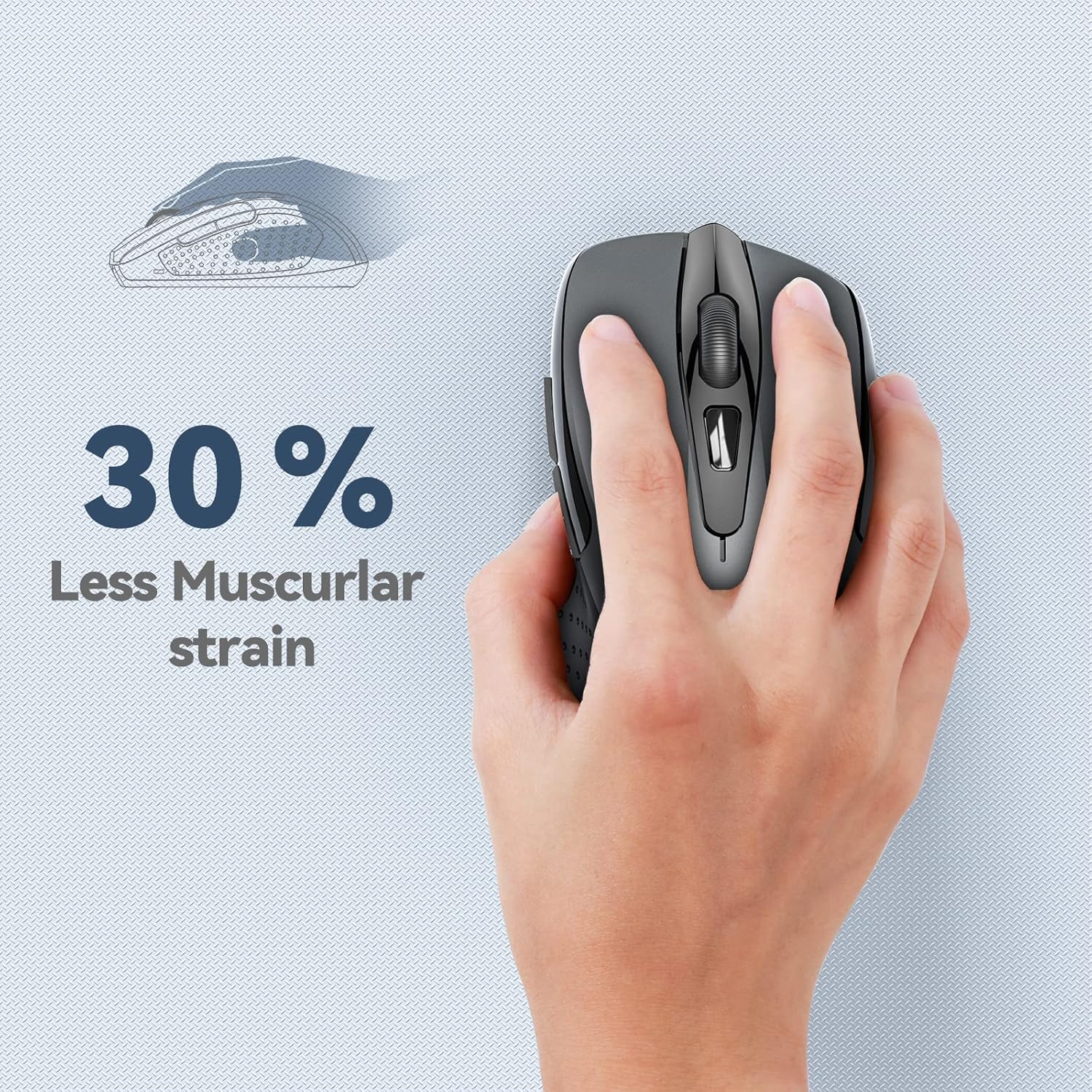
Figure 4: Ergonomic design reduces muscle strain during use.
5.2 DPI-aanpassing
The mouse features 5 adjustable DPI (Dots Per Inch) levels, allowing you to customize cursor sensitivity for different tasks. Press the DPI switch button (located below the scroll wheel) to cycle through the following settings:
- 800 DPI: Suitable for general web blaai.
- 1200 DPI: Ideal for spreadsheet editing (e.g., Excel).
- 1600 DPI: Recommended for video editing.
- 2000 DPI: Useful for graphic design software (e.g., Photoshop).
- 2600 DPI: High sensitivity for gaming or fast-paced tasks.

Figure 5: DPI levels and their recommended uses.
6. Onderhoud
6.1 Batterybestuur
- The mouse requires two AAA batteries. For optimal performance, use high-quality alkaline batteries.
- The mouse features an automatic sleep mode to conserve power when not in use.
- Always turn off the mouse using the power switch on the bottom when transporting it or when it will not be used for an extended period.
- Expected battery life is up to 24 months, depending on usage.
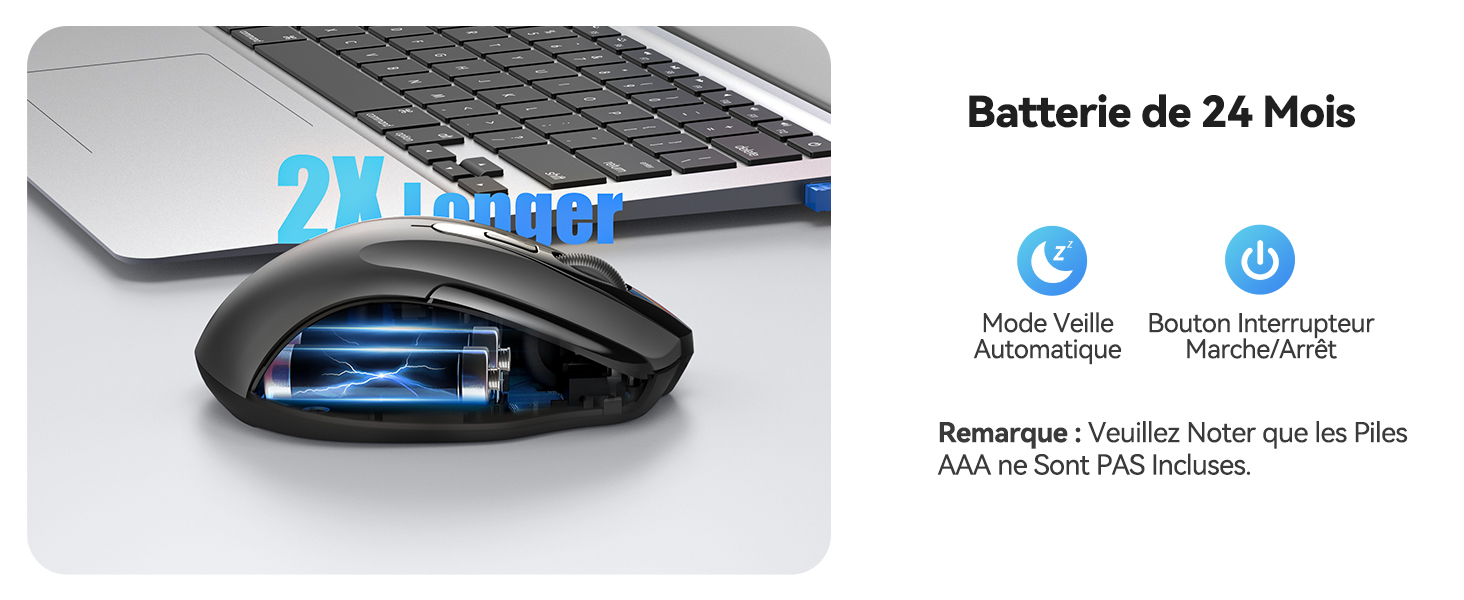
Figure 6: Battery saving features.
6.2 Skoonmaak
Om jou muis skoon te maak, vee dit saggies af met 'n sagte, damp lap. Vermy die gebruik van harde chemikalieë of skuurmateriaal.
7. Probleemoplossing
- Muis reageer nie:
- Maak seker dat die muis aangeskakel is.
- Kontroleer of die batterye korrek geplaas is en voldoende gelaai is. Vervang indien nodig.
- Verifieer dat die USB-ontvanger stewig in 'n werkende USB-poort op jou rekenaar ingeprop is. Probeer 'n ander USB-poort.
- Move the mouse closer to the USB receiver to ensure it is within the 15-meter operating range.
- Herbegin jou rekenaar.
- Onreëlmatige wyserbeweging:
- Maak die optiese sensor aan die onderkant van die muis skoon.
- Maak seker dat jy die muis op 'n geskikte oppervlak gebruik. Vermy hoogs weerkaatsende of deursigtige oppervlaktes.
- Adjust the DPI setting to a lower sensitivity if the cursor is too fast.
- Side buttons not working on Mac:
- The forward and backward side buttons are not supported on Mac OS. This is expected behavior.
8. Spesifikasies
| Kenmerk | Spesifikasie |
|---|---|
| Modelnommer | M003 |
| Verbindingstegnologie | 2.4G Draadloos (USB Ontvanger) |
| Bewegingsopsporingstegnologie | Opties |
| Verstelbare DPI | 800 / 1200 / 1600 / 2000 / 2600 |
| Aantal knoppies | 6 |
| Hand Oriëntasie | Ambidekstrous |
| Bedryfsreeks | Tot 15 meter |
| Battery Tipe | 2 x AAA (nie ingesluit nie) |
| Geskatte batterylewe | Up to 24 months (675 hours average) |
| Versoenbare bedryfstelsels | Windows XP/Vista/7/8/10/11, Mac OS, Linux, Chromebook |
| Item gewig | 100 gram |
| Afmetings (L x B) | 10.6L x 6.8W sentimeter |
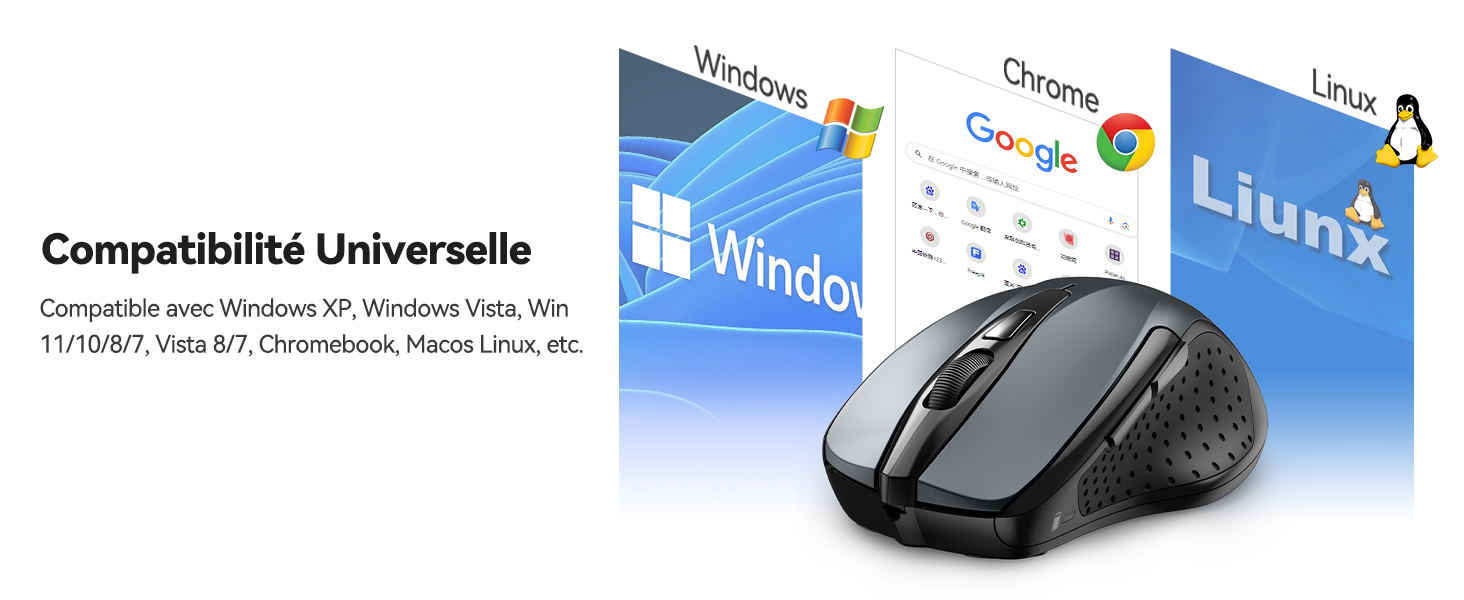
Figure 7: Universal compatibility with various operating systems.
9. Waarborg en Ondersteuning
The TECKNET M003 Wireless Optical Mouse comes with a 2 jaar waarborg vanaf die aankoopdatum.
If you encounter any issues during product use, please contact the professional TECKNET customer service team for assistance. You can find contact information on the official TECKNET webwebwerf of deur jou kleinhandelaar.
10. Produkvideo oorview
Video 1: 'n Kort oorsigview of the TECKNET 2.4G Wireless Mouse, highlighting its features and ease of use.