
1. Inleiding
The Comfast CF-WU720N is a compact 150Mbps Wireless USB Adapter designed to provide high-speed wireless connectivity for your desktop or notebook computer. It allows you to connect to a wireless network and access the internet, share files, and enjoy online gaming at speeds up to 150Mbps. This adapter is compliant with IEEE 802.11b/g/n standards and supports USB 2.0 for efficient data transfer.
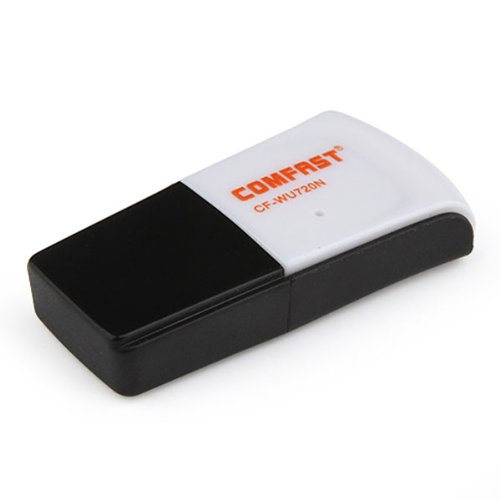
Image 1.1: The Comfast CF-WU720N Wireless USB Adapter, a compact device for wireless connectivity.
2. Produkkenmerke
- Meets IEEE 802.11b/g/n wireless standards.
- Supports USB 2.0 interface for broad compatibility.
- Utilizes Realtek 8191 SU chipset for reliable performance.
- Achieves wireless connection rates up to 150Mbps.
- Supports wireless roaming technology for seamless connectivity.
- Strong compatibility with various popular operating systems.
- Compact size: approximately 39 x 12 x 7mm (1.5 x 0.7 x 0.3 inches).
- Lightweight design: approximately 5g.
3. Pakketinhoud
Verifieer asseblief dat alle items in die pakket teenwoordig is:
- 1 x Comfast CF-WU720N Wireless USB Adapter
- 1 x Vinnige Installasiegids
- 1 x CD-ROM Driver
- 1 x Waarborgkaart

Image 3.1: The retail packaging for the Comfast CF-WU720N, showing the adapter inside.
4. Opstelling en installering
4.1. Bestuurder Installasie
Before connecting the USB adapter, it is recommended to install the necessary drivers from the provided CD-ROM. This ensures proper functionality and compatibility with your operating system.
- Insert the driver CD-ROM into your computer's optical drive.
- If the installer does not launch automatically, navigate to "My Computer" or "This PC," open the CD-ROM drive, and run the setup executable (e.g., "setup.exe" or "autorun.exe").
- Follow the on-screen instructions to complete the driver installation. You may be prompted to restart your computer after installation.
- Let wel: If your computer does not have an optical drive, you may need to download the latest drivers from the manufacturer's official webwebwerf.
4.2. Die USB-adapter koppel
Once the drivers are installed, you can connect the Comfast CF-WU720N Wireless USB Adapter to your computer.
- Locate an available USB 2.0 or 3.0 port on your desktop or laptop computer.
- Carefully insert the Comfast CF-WU720N adapter into the USB port. Ensure it is fully seated.
- The operating system should automatically detect the adapter and configure it using the installed drivers. A small LED indicator on the adapter may light up or blink, indicating activity.
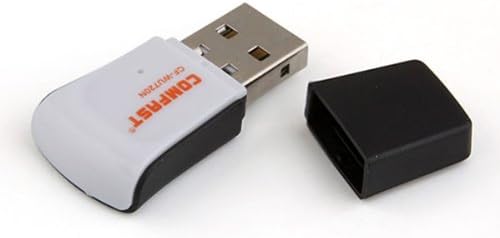
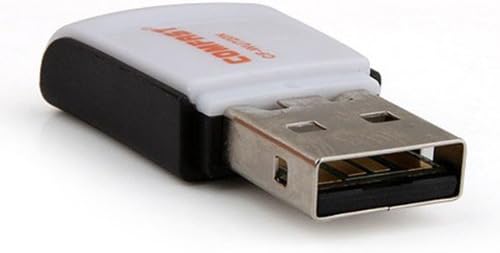
Image 4.1: The Comfast CF-WU720N adapter with its protective cap removed, revealing the USB connector. Image 4.2: A side view of the adapter, highlighting its compact design and USB interface.
5. Bedryfsinstruksies
After successful driver installation and adapter connection, you can now connect to a wireless network.
- Toegang tot netwerkinstellings:
- Windows: Klik die ikoon van die draadlose netwerk in die stelselbalk (gewoonlik regs onder).
- MacOS: Klik die Wi-Fi-ikoon in die menubalk (gewoonlik regs bo).
- Linux: Access network settings through your desktop environment's network manager.
- Kies jou netwerk: A list of available wireless networks (SSIDs) will appear. Select the name of your desired network.
- Koppel: Click "Connect" or "Join." If the network is secured, you will be prompted to enter the network security key (password).
- Bevestig verbinding: Once connected, the network icon will typically change to indicate a successful connection, and you should be able to access the internet.
6. Onderhoud
To ensure optimal performance and longevity of your Comfast CF-WU720N Wireless USB Adapter, follow these simple maintenance guidelines:
- Hou skoon: Gently wipe the adapter with a soft, dry cloth to remove dust. Avoid using liquid cleaners or solvents.
- Beskerm USB-konnektor: When not in use, keep the protective cap on the USB connector to prevent dust and damage.
- Vermy uiterste toestande: Do not expose the adapter to extreme temperatures, humidity, or direct sunlight.
- Hanteer versigtig: Vermy om die adapter te laat val of aan harde impakte bloot te stel.
- Bestuurderopdaterings: Kontroleer die vervaardiger se gereeld website for updated drivers to ensure the best performance and compatibility.
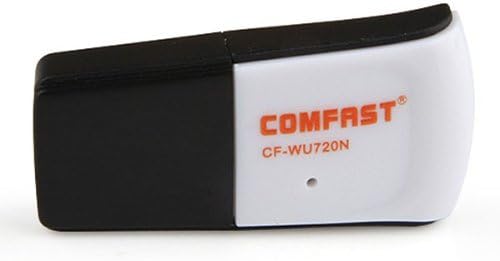
Image 6.1: The Comfast CF-WU720N adapter with its protective cap in place, ready for storage or transport.
7. Probleemoplossing
If you encounter issues with your Comfast CF-WU720N Wireless USB Adapter, refer to the following common solutions:
| Probleem | Moontlike Oplossing |
|---|---|
| Adapter not detected / No Wi-Fi networks visible. |
|
| Cannot connect to a specific Wi-Fi network. |
|
| Slow connection speed or frequent disconnections. |
|
8. Spesifikasies
| Kenmerk | Detail |
|---|---|
| Model | CF-WU720N |
| Draadlose standaarde | IEEE 802.11b/g/n |
| Koppelvlak | USB 2.0 |
| Chipset | Realtek 8191 SU |
| Draadlose spoed | Tot 150 Mbps |
| Frekwensiereeks | 2.4 GHz |
| Sekuriteitskenmerke | WPA/WPA2, WPA-PSK/WPA2-PSK, 64/128-bit WEP |
| Bedryfstelsels | Windows XP/Vista/7/8/10, macOS, Linux (driver dependent) |
| Afmetings (L x B x H) | Ongeveer 39 x 12 x 7 mm (1.5 x 0.7 x 0.3 duim) |
| Gewig | Ongeveer. 5g |
9. Waarborg en Ondersteuning
This product comes with a warranty as specified on the included Warranty Card. Please refer to the card for details regarding warranty period, terms, and conditions.
For technical support, driver updates, or further assistance, please visit the official Comfast webwebwerf of kontak hul kliëntediensafdeling. Kontakbesonderhede kan tipies op die produkverpakking of die vervaardiger se webwebwerf.
Bewaar asseblief u aankoopbewys vir waarborgdoeleindes.