
1. Inleiding
This manual provides comprehensive instructions for the installation, operation, and maintenance of your Swann SWDVK-163208S-US 3200S 16-Channel 960H DVR Security System. Please read this manual thoroughly before using the product to ensure proper setup and functionality. Keep this manual for future reference.
The system includes a 16-channel 960H Digital Video Recorder (DVR) with a pre-installed 1TB hard drive and eight 700TVL security cameras designed for both indoor and outdoor use. It supports continuous recording, motion detection, and remote viewvermoëns.
2. Veiligheidsinligting
- Maak seker dat alle kragverbindings veilig en korrek gegradeer is vir die toestel.
- Do not expose the DVR or cameras to water or excessive moisture.
- Vermy die plasing van die DVR in direkte sonlig of naby hittebronne.
- Gebruik slegs die kragadapters wat saam met die stelsel voorsien word.
- Do not attempt to open or service the DVR or cameras yourself. Refer all servicing to qualified personnel.
- Keep cables organized to prevent tripping hazards and ensure proper ventilation.
3. Pakketinhoud
Verify that all items listed below are present in your package. If any items are missing or damaged, contact Swann customer support.
- Swann SWDVK-163208S-US 16-Channel 960H DVR with 1TB HDD
- 8 x 700TVL Security Cameras
- 8 x BNC Cables (60ft/18m)
- Kragadapters vir DVR en kameras
- Ethernet kabel
- HDMI kabel
- USB-muis
- Monteringskroewe en -proppe
- Vinnige Begingids
- Diefstal afskrikwekkende plakkers
4. Stelsel verbyview
4.1 DVR Front Panel
The front panel of the DVR provides access to essential controls and indicators.
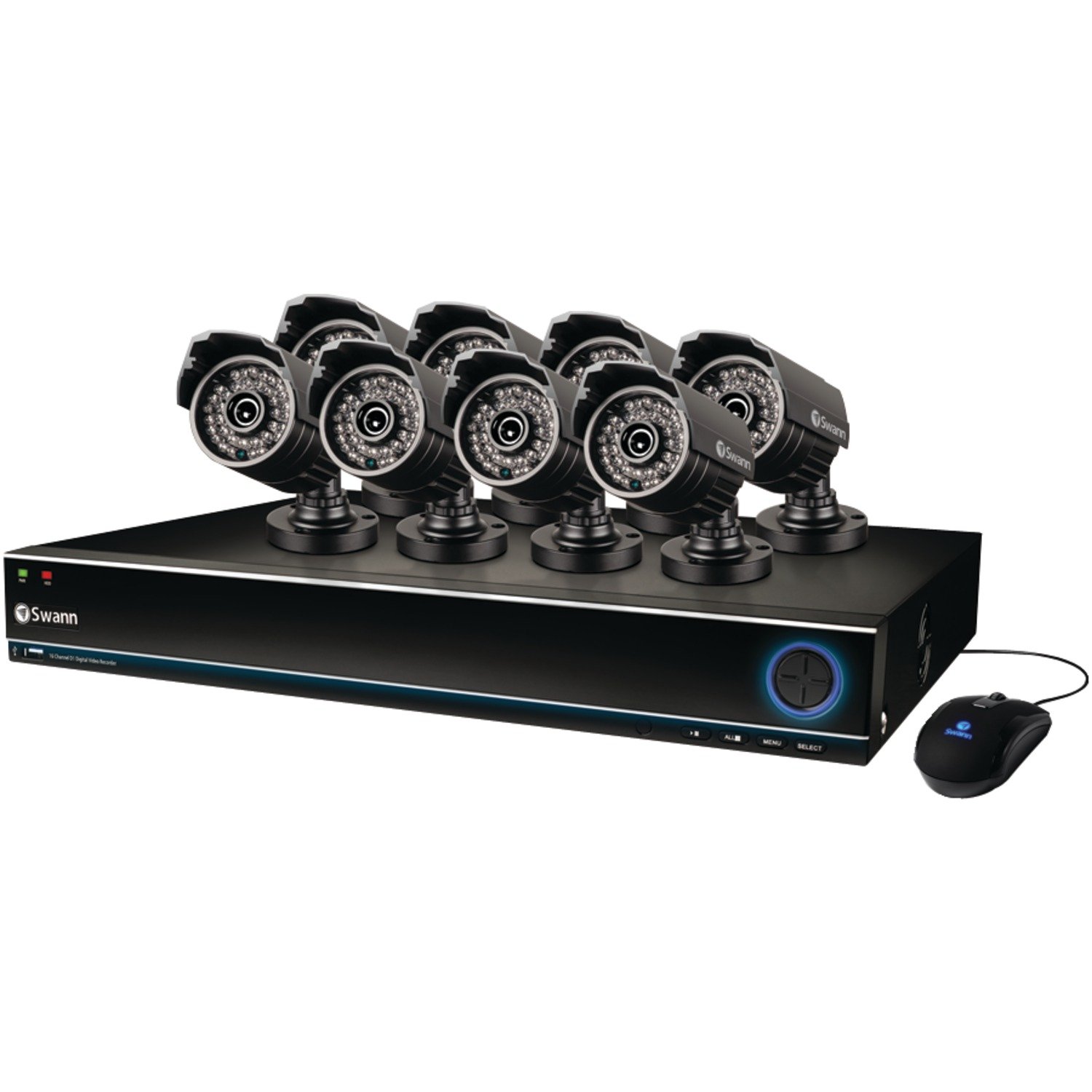
Image: The Swann SWDVK-163208S-US security system, showing the DVR unit and several cameras. The DVR features a blue-lit front panel with control buttons and status indicators.
- Kragaanwyser: Illuminates when the DVR is powered on.
- HDD-aanwyser: Flits wanneer die hardeskyf aktief is.
- Netwerk aanwyser: Dui netwerkkonnektiwiteit aan.
- USB-poort: For connecting a USB mouse or for data backup.
- Beheerknoppies: Navigate menus and control playback.
4.2 DVR Rear Panel
The rear panel contains all the necessary ports for connecting cameras, monitors, and network cables.
- Video-invoer (BNC): 16 ports for connecting security cameras.
- Video Output (HDMI/VGA): For connecting a monitor or TV.
- Oudio-invoer/-uitvoer (RCA): For connecting microphones and speakers (if supported).
- Ethernet-poort (RJ45): Vir netwerkverbinding.
- USB-poorte: Bykomende USB-poorte vir randapparatuur.
- eSATA Port: For connecting an external hard drive for expanded storage.
- Kragtoevoer: For connecting the DVR power adapter.
4.3 Kamerakenmerke
The included 700TVL cameras offer clear video surveillance with night vision capabilities.
- Resolusie: 700TVL (Television Lines) for detailed images.
- Nagvisie: Infrared LEDs provide visibility up to 82ft (25m) in low light or complete darkness.
- Weerbestand: Designed for both indoor and outdoor installation.
- Montering: Adjustable brackets for flexible positioning.
5. Opstelling
5.1 Die DVR koppel
- Koppel die ingeslote USB-muis aan een van die USB-poorte op die DVR.
- Connect the HDMI cable from the DVR's HDMI output to an HDMI input on your TV or monitor. Alternatively, use a VGA cable for VGA connections.
- Vir afstandbeheer viewing, connect an Ethernet cable from the DVR's Ethernet port to your router or network switch.
5.2 Kameras koppel
- Mount each camera in your desired location using the provided screws and plugs. Ensure the camera has a clear field of view and is protected from direct impact.
- Connect one end of the BNC cable to the camera's video output.
- Connect the other end of the BNC cable to a video input port on the DVR (e.g., Video In 1, Video In 2, etc.).
- Connect the camera's power input to the power splitter cable, then connect the power adapter to the splitter and a power outlet.
5.3 Aanskakel
- Connect the DVR power adapter to the DVR's power input and then to a power outlet.
- The DVR will power on automatically. The power indicator light on the front panel will illuminate.
- Wait for the system to boot up. The Swann logo will appear on your connected monitor, followed by the live view vertoon.
5.4 Aanvanklike konfigurasie
Upon first boot-up, the DVR will guide you through an initial setup wizard.
- Taalkeuse: Kies die taal wat u verkies.
- Datum en tyd: Set the correct date, time, and time zone. This is crucial for accurate recording timestamps.
- Netwerkinstellings: Configure network settings (DHCP is usually sufficient for automatic setup).
- Wagwoordopstelling: Create a strong password for the administrator account to secure your system.
- Hardeskyfformaat: The system may prompt to format the hard drive. Confirm to proceed.
6. Bedryf die stelsel
6.1 Lewendig View
Na die aanvanklike opstelling sal die DVR die regstreekse view from all connected cameras. You can switch between single-camera view, multi-camera grids (e.g., 4-channel, 8-channel, 16-channel), and sequence modes using the on-screen menu or front panel controls.
6.2 Opnamemodusse
The DVR supports various recording modes:
- Deurlopende opname: Neem 24/7 op, oorskryf die oudste voedseltage wanneer die hardeskyf vol is.
- Bewegingsopsporing opname: Neem slegs op wanneer beweging in die kamera bespeur word view. This conserves hard drive space. Sensitivity and detection areas can be configured for each camera.
- Geskeduleerde opname: Rekords gedurende spesifieke tye van die dag of week.
- Handmatige opname: Start and stop recording manually from the DVR interface.
Access recording settings via the DVR's main menu: Menu > Record > Record Schedule.
6.3 Afspeel
Om weerview opgeneem footage:
- Uit die lewendige view, right-click with the mouse to open the main menu.
- Kies Afspeel.
- Choose the desired date and camera channel(s).
- Use the timeline to navigate through recorded events. Different colors on the timeline indicate different recording types (e.g., continuous, motion).
- Use the playback controls (play, pause, fast forward, rewind) to review footage.
6.4 Rugsteun
You can back up important video footage to a USB flash drive or external hard drive.
- Insert a USB storage device into a USB port on the DVR.
- Gaan na Menu > Backup.
- Select the camera channel, date, and time range for the footage you wish to back up.
- Choose the backup device and file format (e.g., AVI).
- Klik Begin to begin the backup process.
6.5 Afstandsbediening Viewing (SwannLink & SwannView)
The SwannLink and SwannView applications allow you to view your cameras remotely from a smartphone or tablet.
- Ensure your DVR is connected to the internet via the Ethernet port.
- Download the SwannView program vanaf jou toestel se programwinkel.
- Open the app and follow the on-screen instructions to add your DVR. This typically involves scanning a QR code displayed on the DVR's monitor (Menu > Network > SwannLink) or manually entering the device ID.
- Enter the DVR's username and password when prompted.
- Jy behoort nou in staat te wees view leef footage and access playback remotely.
7. Onderhoud
7.1 Hardeskyfbestuur
Die 1TB-hardeskyf sal outomaties die oudste lêers oorskryf.tage when full. To ensure optimal performance, it is recommended to periodically check the hard drive status via Menu > HDD > Disk Manage. You can also connect an external hard drive to the eSATA port for additional storage capacity.
7.2 Cleaning Cameras
Maak die kameralense gereeld skoon met 'n sagte, damp cloth to remove dust, dirt, or water spots that may obscure the view. Do not use harsh chemicals or abrasive materials.
7.3 Firmware-opdaterings
Swann may release firmware updates to improve system performance or add new features. Check the Swann support website for the latest firmware for your model. Follow the instructions provided with the firmware update carefully to avoid damaging the DVR.
8. Probleemoplossing
| Probleem | Moontlike oorsaak | Oplossing |
|---|---|---|
| Geen beeld op monitor nie | Los videokabel, verkeerde invoer op monitor gekies, DVR nie aangeskakel nie. | Kontroleer HDMI/VGA-kabelverbindings. Maak seker dat die monitor op die korrekte invoer is. Verifieer die DVR se kragtoevoer. |
| Geen kamerabeeld nie | Loose BNC cable, camera power issue, faulty camera. | Check BNC and power connections for the specific camera. Test camera with a known working cable/power supply. |
| DVR neem nie op nie | Recording schedule not set, hard drive full or faulty, motion detection not configured. | Check recording schedule. Verify hard drive status. Ensure motion detection is enabled and configured correctly. |
| Kan nie view afstand | No network connection, incorrect network settings, app configuration error. | Verify DVR has internet access. Check network settings (DHCP). Reconfigure the DVR in the SwannView app. |
| Purple image on camera | IR filter stuck, camera malfunction. | Power cycle the camera. If the issue persists, the camera may be faulty and require replacement. |
9. Spesifikasies
- Modelnommer: SWDVK-163208S-US
- Video-insette: 16 Channels BNC
- Video-uitset: HDMI, VGA
- Vertoon resolusie: Up to 1080p (HDMI)
- Opname resolusie: 960H (960x576/960x480)
- Hardeskyf: 1TB SATA HDD (expandable via eSATA)
- Kompressieformaat: H.264
- Netwerkkoppelvlak: RJ45 Ethernet-poort
- USB-koppelvlak: 3 x USB 2.0-poorte
- Kamera resolusie: 700TVL
- Camera Night Vision: Tot 82ft (25m)
- Camera Weatherproof Rating: IP66 (vir buite gebruik)
- Dimensions (DVR): 22.5 x 15.3 x 8.1 duim (ongeveer)
- Weight (DVR): 14 pond (ongeveer)
- Kragbron: DC 12V
10. Waarborginligting
Swann products are covered by a limited warranty. The specific terms and duration of your warranty may vary by region and product. Please refer to the warranty card included with your product or visit the official Swann webwebwerf vir gedetailleerde waarborginligting en registrasieprosedures. Bewaar u bewys van aankoop vir waarborgeise.
11. Ondersteuning
For technical assistance, product support, or to download the latest software and manuals, please visit the official Swann support website. You can typically find FAQs, troubleshooting guides, and contact information for customer service there. Have your product model number (SWDVK-163208S-US) ready when contacting support.
Swann-ondersteuning Webwebwerf: https://www.swann.com/us/support