
1. Inleiding
This manual provides instructions for the installation, operation, and maintenance of your DIGITUS DN-70542 Wireless LAN USB 2.0 Adapter. This device allows your computer to connect to a wireless network using the 802.11n standard, offering data transfer rates of up to 300 Mbps.
The adapter is backward compatible with IEEE 802.11g and 802.11b standards and operates within the 2.4-2.4835GHz frequency range. It also features a Wireless Protected Setup (WPS) function for easy and secure network connection.

Figuur 1.1: Bo view of the DIGITUS DN-70542 Wireless LAN USB 2.0 Adapter.

Figuur 1.2: Hoekig view of the DIGITUS DN-70542 adapter, highlighting its compact design.

Figuur 1.3: Gedetailleerd view of the USB 2.0 connector of the DIGITUS DN-70542 adapter.
2. Pakketinhoud
Verifieer asseblief dat alle items in die pakket teenwoordig is:
- 1 x DIGITUS DN-70542 Mini USB WiFi Adapter
- 1 x Product Support CD-ROM (containing drivers and utilities)
- 1 x Gebruikershandleiding (hierdie dokument)
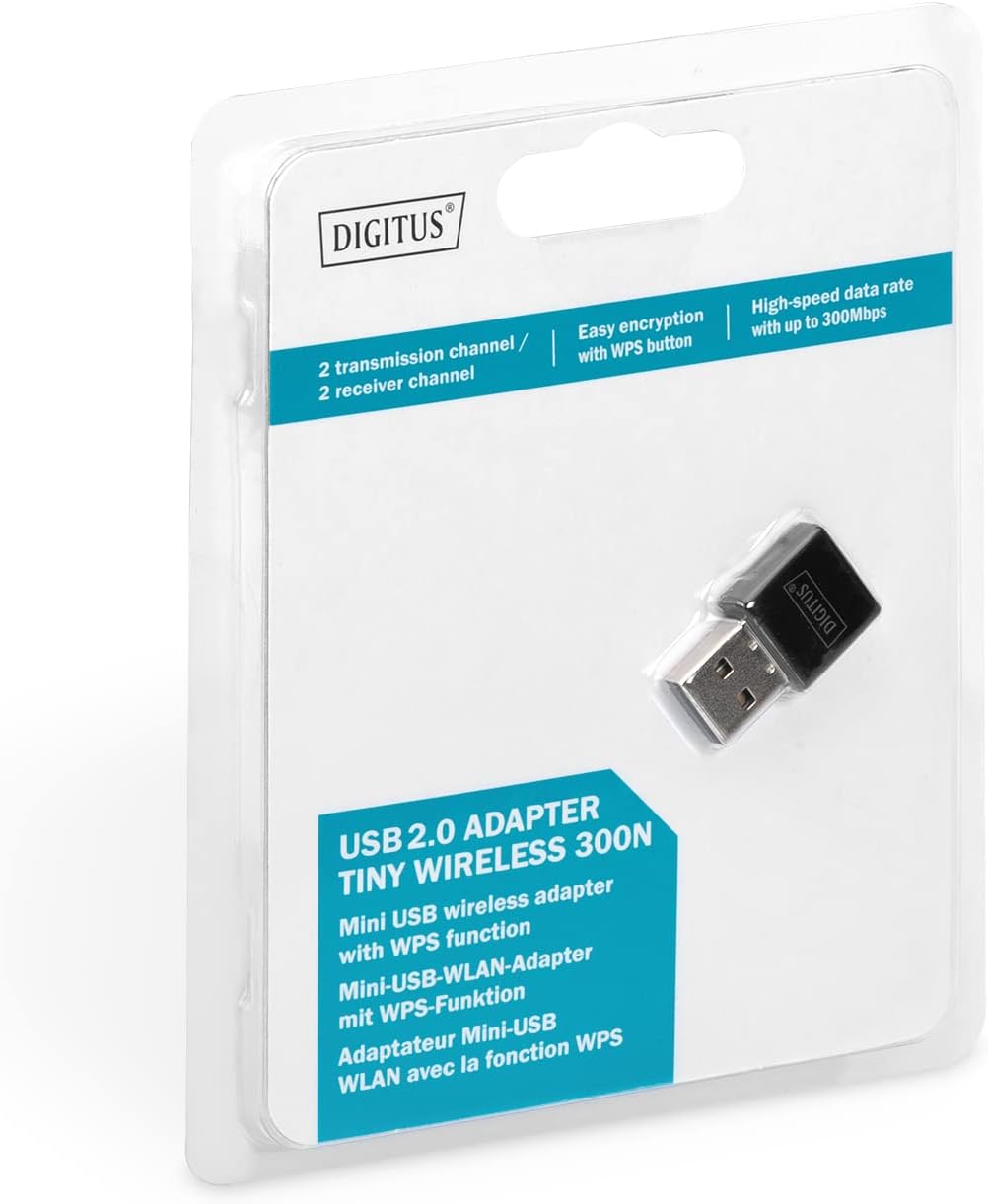
Figure 2.1: Retail packaging of the DIGITUS DN-70542 adapter, showing the adapter and its key features.
3. Opstelgids
Follow these steps to install your Wireless LAN USB Adapter:
- Installeer drywers: Before connecting the adapter, insert the included Product Support CD-ROM into your computer's optical drive. Follow the on-screen instructions to install the necessary drivers. If your computer does not have an optical drive, or if you encounter issues, please visit the official DIGITUS website to download the latest drivers for your operating system (Windows).
Note: Some operating systems, particularly older versions of Windows, may require driver installation prior to connecting the device. Refer to the Troubleshooting section if you encounter issues during this step.
- Koppel die adapter: Locate an available USB 2.0 port on your computer. Carefully insert the DIGITUS DN-70542 Wireless LAN USB 2.0 Adapter into the USB port.
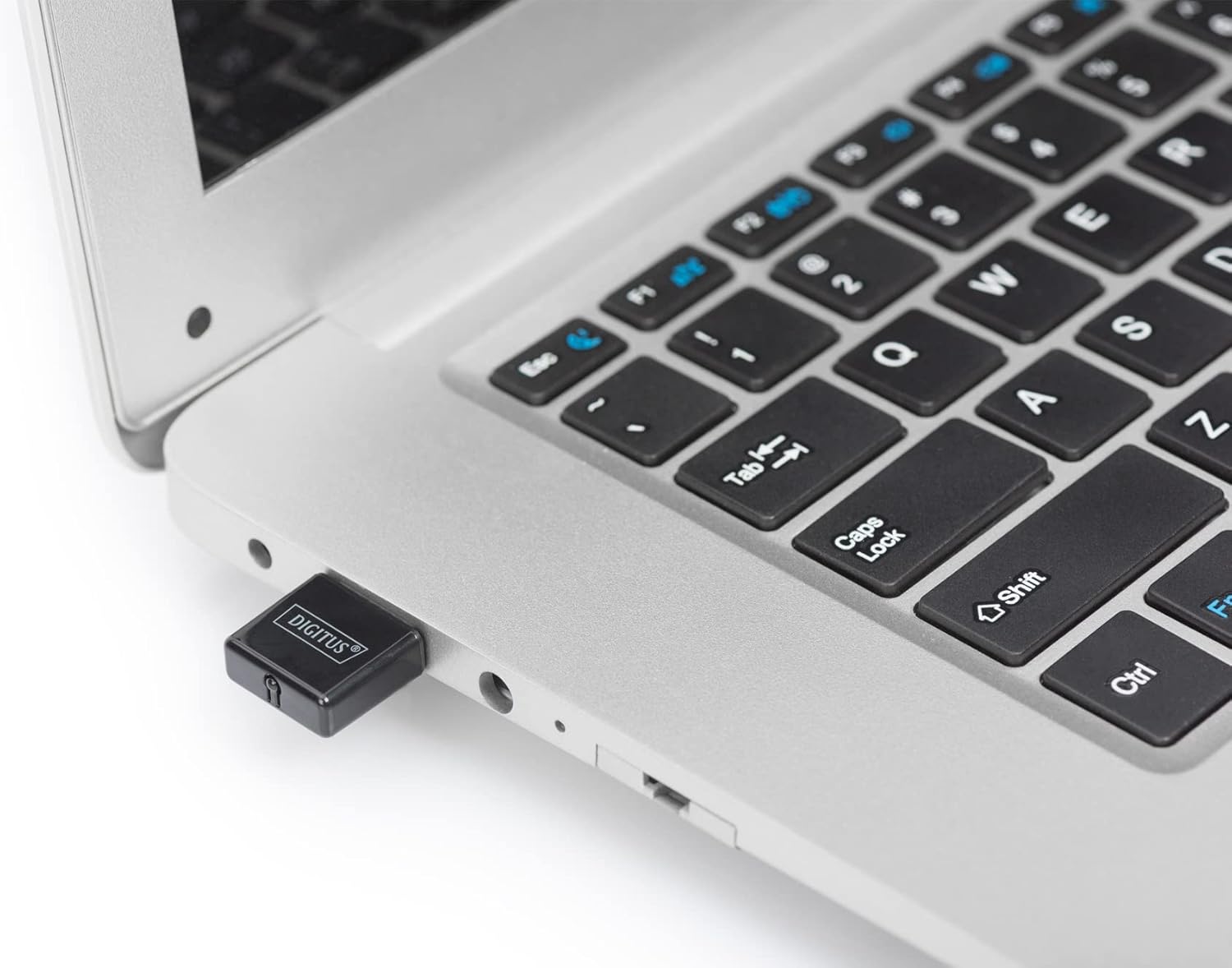
Figure 3.1: The DIGITUS DN-70542 adapter inserted into a laptop's USB port.

Figuur 3.2: 'n Nader view of the adapter connected to a laptop, showing its compact size.
- Verifieer installasie: After connecting, your operating system should detect the new hardware and complete the installation. You can verify the installation by checking your computer's Device Manager (for Windows) to ensure the wireless adapter is listed and functioning correctly.
4. Bedryfsinstruksies
Once the adapter is successfully installed, you can connect to a wireless network.
- Koppel aan 'n draadlose netwerk:
- Open your computer's wireless network settings.
- Scan for available wireless networks.
- Select your desired network (SSID) from the list.
- Voer die netwerksekuriteitsleutel (wagwoord) in indien gevra.
- Click "Connect" to establish the wireless connection.
- Gebruik WPS (Wi-Fi Protected Setup):
The adapter supports WPS for a simplified and secure connection to compatible routers.
- Druk die WPS-knoppie op jou draadlose router.
- Within two minutes, press the WPS button on the DIGITUS DN-70542 adapter. The WPS button is a small, recessed button on the side of the adapter.
- The adapter and router will automatically establish a secure connection.

Figure 4.1: The WPS button located on the side of the adapter.
5. Onderhoud
To ensure optimal performance and longevity of your DIGITUS DN-70542 adapter, follow these guidelines:
- Hou die adapter skoon en stofvry. Gebruik 'n sagte, droë lap vir skoonmaak.
- Vermy die blootstelling van die adapter aan uiterste temperature, humiditeit of direkte sonlig.
- Moenie probeer om die adapter self uitmekaar te haal of te herstel nie. Dit sal die waarborg ongeldig maak.
- Bêre die adapter op 'n veilige plek wanneer dit nie gebruik word nie om fisiese skade te voorkom.
6. Probleemoplossing
If you encounter issues with your DIGITUS DN-70542 Wireless LAN USB 2.0 Adapter, refer to the following common problems and solutions:
- Adapter Not Detected / Driver Installation Issues:
- Ensure the adapter is fully inserted into a functional USB port.
- Probeer 'n ander USB-poort.
- Reinstall the drivers from the provided CD-ROM.
- Download the latest drivers from the official DIGITUS webwebwerf.
- If using Windows 8.1 or newer and encountering issues like "Bluescreen" or "infected file" warnings during driver installation, temporarily disable antivirus software (like Windows Defender) during driver installation, then re-enable it immediately after. Ensure you are downloading drivers from a trusted source (DIGITUS official webwerf).
- Check Device Manager to see if the adapter is listed with any error symbols.
- Cannot Connect to Wireless Network:
- Verifieer dat jou draadlose router aangeskakel is en 'n sein uitsaai.
- Ensure you are entering the correct network security key (password).
- Move closer to the wireless router to improve signal strength.
- Restart your computer and the wireless router.
- Check if other devices can connect to the same wireless network.
- Stadige verbindingspoed:
- Ensure your router supports 802.11n for optimal speeds.
- Minimaliseer steuring van ander elektroniese toestelle (bv. mikrogolfoonde, koordlose telefone).
- Dateer jou router se firmware op.
- Check for other devices consuming bandwidth on your network.
7. Spesifikasies
| Kenmerk | Beskrywing |
|---|---|
| Model | DN-70542 |
| Hardeware-koppelvlak | USB 2.0 |
| Draadlose standaarde | IEEE 802.11n, IEEE 802.11g, IEEE 802.11b |
| Data-oordragtempo | Tot 300 Mbps |
| Frekwensiereeks | 2.4 - 2.4835 GHz |
| Sekuriteitskenmerke | WPS (Wireless Protected Setup) function |
| Ondersteuning van bedryfstelsels | Vensters |
| Produk afmetings | 24 x 15 x 2 mm (approximate); 15 g |
| Vervaardiger | ASSMANN Electronic GmbH PES - BO DE |
8. Waarborg en Ondersteuning
For warranty information and technical support, please refer to the documentation included with your product or visit the official DIGITUS webwebwerf. Kontakbesonderhede vir kliëntediens kan tipies op die vervaardiger se webwerf gevind word. webwebwerf.
Bewaar asseblief u aankoopbewys vir enige waarborgaansprake.