
1. Inleiding
The Microsoft LifeChat LX-3000 Headset (JUG-00013) is designed to provide clear stereo sound and comfortable use for various audio applications, including internet voice calls, music, movies, and gaming. Featuring a noise-cancelling microphone and convenient in-line controls, this wired USB headset offers a reliable audio solution for your PC.
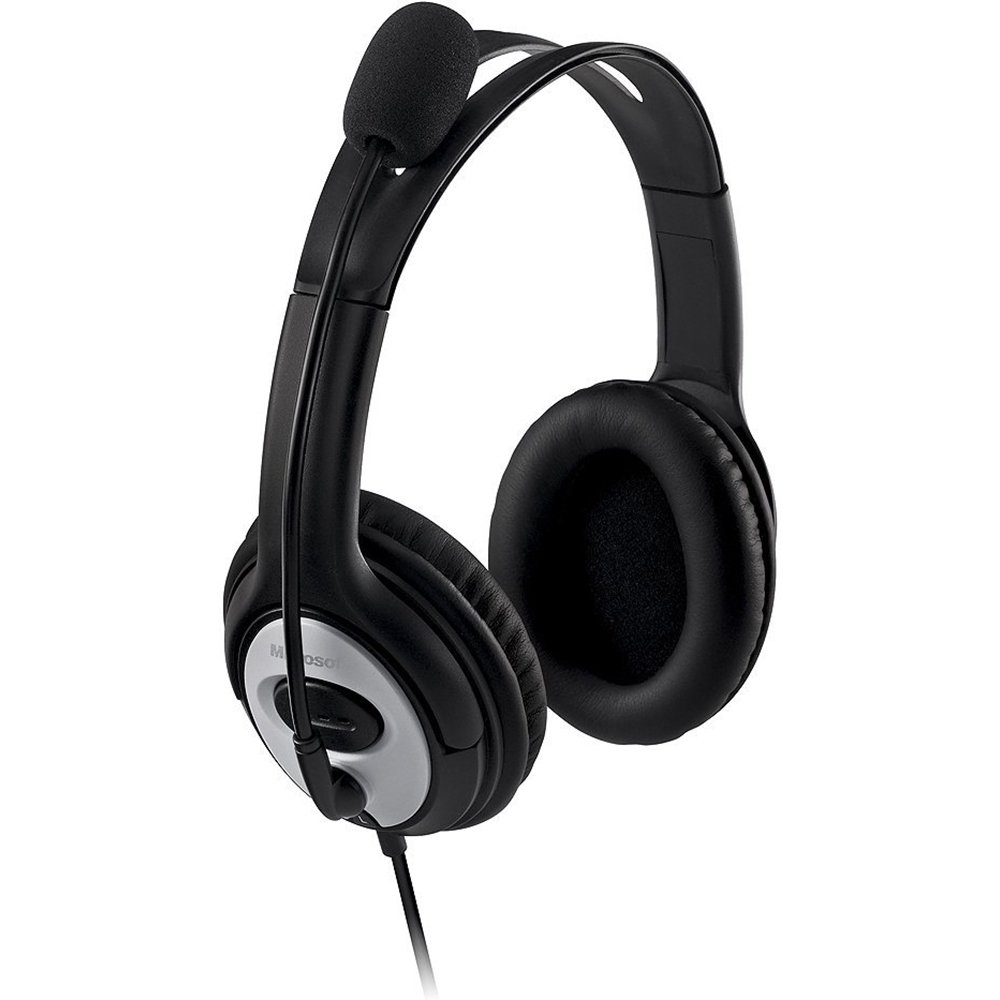
Figure 1: Microsoft LifeChat LX-3000 Headset with microphone and in-line controls.
2. Opstelling
The Microsoft LifeChat LX-3000 Headset features a simple Plug and Play USB connection, making setup straightforward. Follow these steps to begin using your headset:
- Stelselvereistes: Ensure your PC meets the minimum operating system requirements: Microsoft Windows 10, Windows 8.1, Windows 8, or Windows 7.
- Koppel die oorfone: Locate an available USB port on your computer. Insert the USB connector of the headset firmly into the USB port.
- Bestuurder installasie: Your operating system should automatically detect the headset and install the necessary drivers. This process may take a few moments.
- Verifieer verbinding: Once installed, the headset should appear as an audio device in your computer's sound settings. You may need to select it as the default playback and recording device.

Figure 2: Close-up of the USB connector for the headset.
3. Bedryfsinstruksies
The LifeChat LX-3000 Headset is designed for ease of use with integrated controls and a flexible microphone.
3.1. Verstel van die Headset
- Kopbandverstelling: The headband is adjustable to fit various head sizes. Gently extend or retract the earcups until the headset sits comfortably over your ears.
- Mikrofoonposisionering: The pivoting boom microphone offers 180-degree movement. Position the microphone approximately one inch from your mouth for optimal voice clarity.
3.2. Using In-Line Controls
The headset features an in-line control module for quick access to essential functions:
- Volumebeheer: Use the volume up (+) and volume down (-) buttons to adjust the listening volume.
- Mikrofoondemp: Press the mute button (often indicated by a microphone icon) to temporarily disable or enable the microphone. An indicator light on the control module may show the mute status.

Figure 3: In-line control module for volume and microphone mute.
3.3. Noise-Cancelling Microphone
The integrated noise-cancelling microphone helps reduce background noise, ensuring your voice is heard clearly during calls and recordings.
4. Onderhoud
Proper care and maintenance will extend the life of your Microsoft LifeChat LX-3000 Headset.
- Cleaning Ear Pads: The leatherette ear pads can be gently wiped with a soft, damp lap. Vermy die gebruik van harde chemikalieë of skuur skoonmakers.
- Kabelversorging: Avoid sharp bends or excessive pulling on the flexible 6-foot cable to prevent damage. Store the cable neatly when not in use.
- Berging: Bêre die oorfone op 'n skoon, droë plek weg van uiterste temperature en direkte sonlig.
5. Probleemoplossing
If you encounter issues with your headset, try the following solutions:
| Probleem | Oplossing |
|---|---|
| Geen klank van die oorfone nie |
|
| Mikrofoon werk nie |
|
| Swak klank kwaliteit |
|
6. Spesifikasies
Key technical specifications for the Microsoft LifeChat LX-3000 Headset:
| Kenmerk | Detail |
|---|---|
| Handelsmerk | Microsoft |
| Modelnommer | JUG-00013 |
| Verbindingstegnologie | Bedraad (USB) |
| Oorplasing | Oor Oor |
| Mikrofoon | Noise-cancelling, Pivoting Boom (180-degree movement) |
| Kontroles | In-line Volume Control, Microphone Mute |
| Kabellengte | Flexible 6-foot cable |
| Oorkussenmateriaal | Faux leer |
| Frekwensiereeks | 20 Hz - 20 000 Hz |
| Versoenbare bedryfstelsels | Microsoft Windows 10, Windows 8.1, Windows 8, Windows 7 |
| Item gewig | 8.32 onse |
7. Waarborg en ondersteuning
7.1. Waarborginligting
The Microsoft LifeChat LX-3000 Headset (JUG-00013) comes with a 3-jaar beperkte hardewarewaarborg. This warranty covers defects in materials and workmanship under normal use. For specific terms and conditions, please refer to the warranty documentation included with your product or visit the official Microsoft support webwebwerf.
7.2. Kliëntediens
For further assistance, technical support, or warranty claims, please contact Microsoft Customer Support through their official website or the contact information provided in your product packaging. You can find additional resources and FAQs on the Microsoft Ondersteuning webwebwerf.