
1. Opstelling
1.1 Uitpak en Aanvanklike Inspeksie
Carefully remove all components from the packaging. Verify that all items listed in the 'What's in the box' section are present and undamaged.
- ASUS 32GB Transformer Pad TF300T 10.1-Inch Tablet
- Kragtoevoer
- 1-jaar waarborgkaart

Image: The ASUS Transformer Pad TF300T tablet alongside its retail packaging.
1.2 Laai die toestel
Before first use, connect the tablet to the power supply and charge it fully. The charging port is located on the bottom edge of the tablet. A full charge ensures optimal performance and battery calibration.
1.3 Aan-/afskakel
- Om aan te skakel: Press and hold the power button, located on the top edge of the tablet, until the ASUS logo appears on the screen.
- Om af te skakel: Press and hold the power button until a menu appears. Select 'Power off' and confirm.
- Om weer te begin: Kies 'Herbegin' vanaf die kragkieslys.
1.4 Aanvanklike Opstellingsassistent
Wanneer die tablet vir die eerste keer aangeskakel word, sal dit jou deur 'n aanvanklike opstellingsproses lei. Dit sluit in:
- Taalkeuse: Kies die taal wat u verkies.
- Wi-Fi-verbinding: Connect to an available Wi-Fi network to enable internet access.
- Google-rekeningopstelling: Sign in with an existing Google account or create a new one. This is essential for accessing the Google Play Store and other Google services.
- Datum en tyd instellings: Configure the correct date and time.
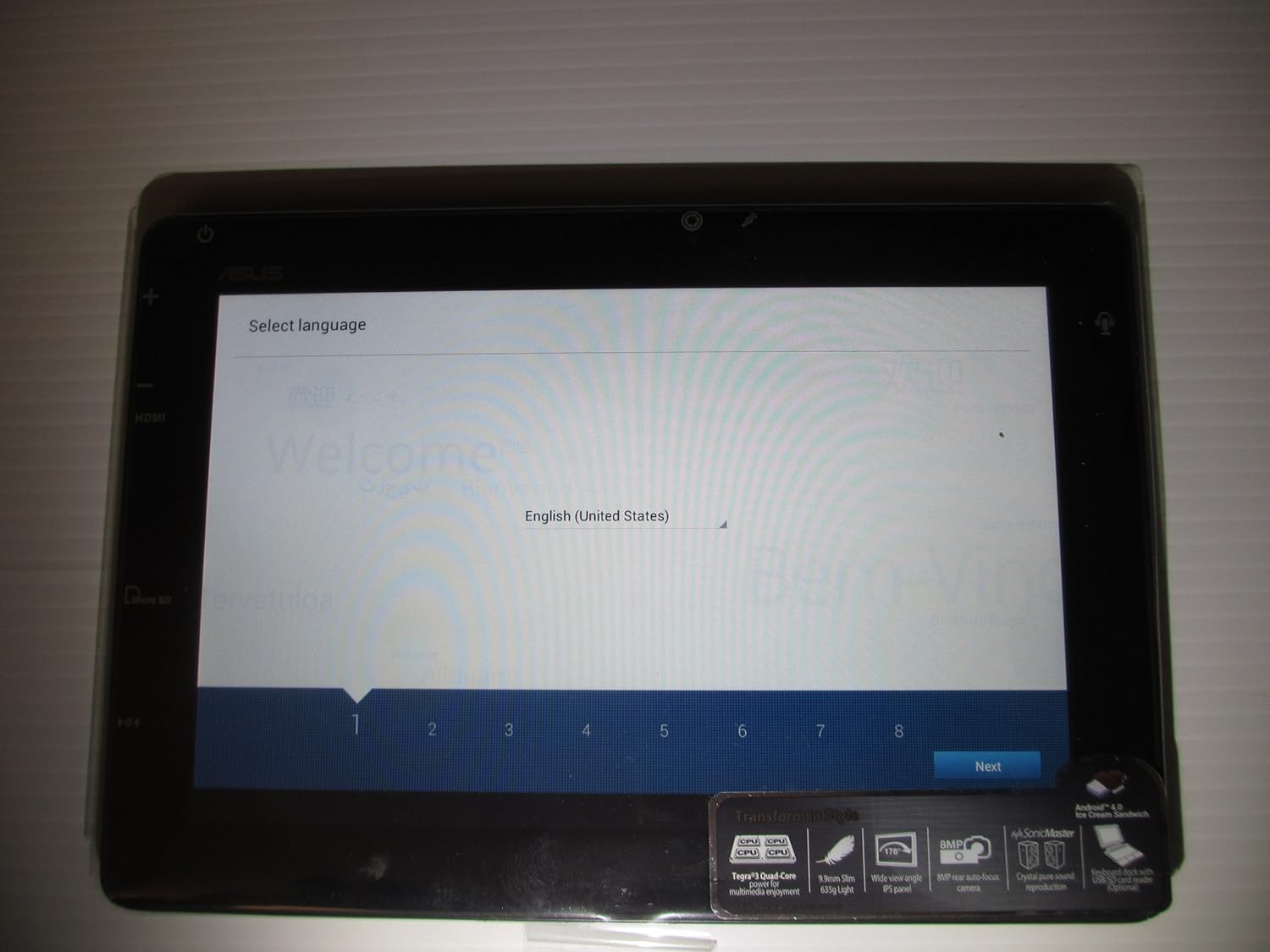
Image: The ASUS Transformer Pad TF300T screen showing the 'Select Language' prompt, with 'English (United States)' highlighted.
2. Bedryfsinstruksies
2.1 Basic Navigation and Touchscreen Gestures
The ASUS Transformer Pad TF300T utilizes a multi-touch display for interaction. Common gestures include:
- Tik: Kies 'n item of maak 'n toepassing oop.
- Tik en hou: Kry toegang tot kontekstuele spyskaarte of skuif ikone.
- Swiep: Navigate through home screens, lists, or web bladsye.
- Knyp-om-te-Zoem: Enlarge or reduce content size (e.g., photos, web bladsye).
2.2 Android 4.0 (Ice Cream Sandwich) Overview
The tablet runs on Android 4.0, providing a user-friendly interface. Key features include:
- Tuisskerms: Customizable screens for app shortcuts and widgets.
- Notifications Bar: Located at the top, displays alerts and quick settings.
- App-laai: Access to all installed applications.
- Onlangse toepassings: Button to quickly switch between recently used applications.
2.3 Konnektiwiteit
The TF300T supports various connectivity options:
- Wi-Fi (802.11bgn): Connect to wireless networks for internet access. Configure via Settings > Wi-Fi.
- Bluetooth 3.0: Pair with compatible devices such as headphones, speakers, or keyboards. Configure via Settings > Bluetooth.
- GPS: Integrated Global Positioning System for location services and navigation.
2.4 Poorts en gleuwe
The tablet features several ports for expanded functionality:
- Mikro HDMI: Koppel aan eksterne skerms of TV's.
- Docking Port: For connecting to the optional keyboard dock.
- 3.5mm Koptelefoon/Mikrofoonaansluiting: Vir klankuitvoer en -invoer.
- Micro SD -kaartgleuf: Expand storage capacity with a Micro SD card.
2.5 Kameragebruik
The TF300T is equipped with two cameras:
- Voorkamera (1.2 MP): Suitable for video calls and self-portraits.
- Rear Camera (8 MP): Vir die neem van foto's en video's.
Access the camera application from the home screen or app drawer to take pictures or record videos.
2.6 Optional Keyboard Dock
The ASUS Transformer Pad TF300T is compatible with an optional keyboard dock (sold separately). This dock provides:
- Fisiese sleutelbord: For enhanced typing experience.
- Additional Battery: Extends the tablet's battery life.
- USB-poort: Vir die koppeling van USB-toestelle.
- SD-kaartgleuf: For additional storage expansion.

Beeld: 'n Nabyskoot view of the ASUS Transformer Pad TF300T, highlighting key features such as the NVIDIA Tegra 3 processor, IPS panel, 8MP camera, SonicMaster audio, and Android 4.0 Ice Cream Sandwich operating system.
3. Onderhoud
3.1 Die skoonmaak van die toestel
- Skerm: Gebruik 'n sagte, pluisvrye lap, effens gedrupampened with water or a screen cleaner, to gently wipe the display. Avoid harsh chemicals.
- Liggaam: Wipe the tablet's body with a soft, dry cloth. Keep liquids away from ports and openings.
3.2 Sagteware-opdaterings
Regularly check for and install software updates to ensure optimal performance, security, and access to new features. Updates can typically be found in Settings > About tablet > System updates.
3.3 Bergingbestuur
The tablet comes with 32GB of internal storage. To manage storage effectively:
- Delete Unused Apps: Uninstall applications you no longer need.
- Vee kas uit: Regularly clear the cache of applications.
- Use Micro SD Card: Store photos, videos, and documents on an external Micro SD card to free up internal space.
4. Probleemoplossing
4.1 Algemene kwessies en oplossings
| Kwessie | Moontlike Oplossing |
|---|---|
| Tablet is unresponsive or frozen | Druk en hou die aan/af-knoppie vir 10-15 sekondes in om 'n herbegin te forseer. |
| Wi-Fi-verbindingskwessies | Ensure Wi-Fi is enabled in settings. Restart the tablet and your Wi-Fi router. Forget and reconnect to the network. |
| Slow performance or lag | Close unused applications. Clear app caches. Check for system updates. Consider a factory reset if issues persist. |
| Battery raak vinnig leeg | Reduce screen brightness. Disable Wi-Fi/Bluetooth/GPS when not in use. Close background apps. Check battery usage in settings to identify power-hungry apps. |
| Apps crashing or not installing | Ensure sufficient storage space. Clear Google Play Store cache. Restart the tablet. |
4.2 Fabrieksterugstelling
If persistent issues occur, a factory reset can restore the tablet to its original state. Warning: This will erase all data on the tablet. Back up important data before proceeding.
- Go to Settings > Backup & reset.
- Select 'Factory data reset'.
- Confirm the action. The tablet will restart and erase all data.
5. Spesifikasies
Detailed technical specifications for the ASUS Transformer Pad TF300T-B1-BL:
| Kenmerk | Spesifikasie |
|---|---|
| Handelsmerk | ASUS |
| Model Naam | Transformer Pad |
| Modelnommer | TF300T-B1-BL |
| Bedryfstelsel | Android 4.0 (Ice Cream Sandwich) |
| Verwerker | NVIDIA Tegra 3 Quad-Core (1.2 GHz) |
| Grafiese medeverwerker | Nvidia Tegra 3 |
| Skerm grootte | 10.1 duim |
| Vertoon resolusie | 1280 x 800 Pixels (WXGA IPS Touch Panel) |
| RAM geheue | 1 GB DDR3 |
| Berging kapasiteit | 32 GB Flash Memory (SSD) |
| Uitbreidbare berging | Mikro SD kaartgleuf |
| Voorste kamera | 1.2 MP |
| Agterste kamera | 8 MP |
| Draadlose konneksie | 802.11bgn Wi-Fi, Bluetooth 3.0, GPS |
| Hawens | 1x Micro HDMI, 1x Docking, 1x 3.5mm Headphone/Microphone |
| Batterylewe | Up to 10 Hours (22W/h Lithium Polymer) |
| Sensors | G-Sensor, E-Compass, Light Sensor, Gyroscope |
| Item gewig | 1.4 pond |
| UPC | 886227185054 |
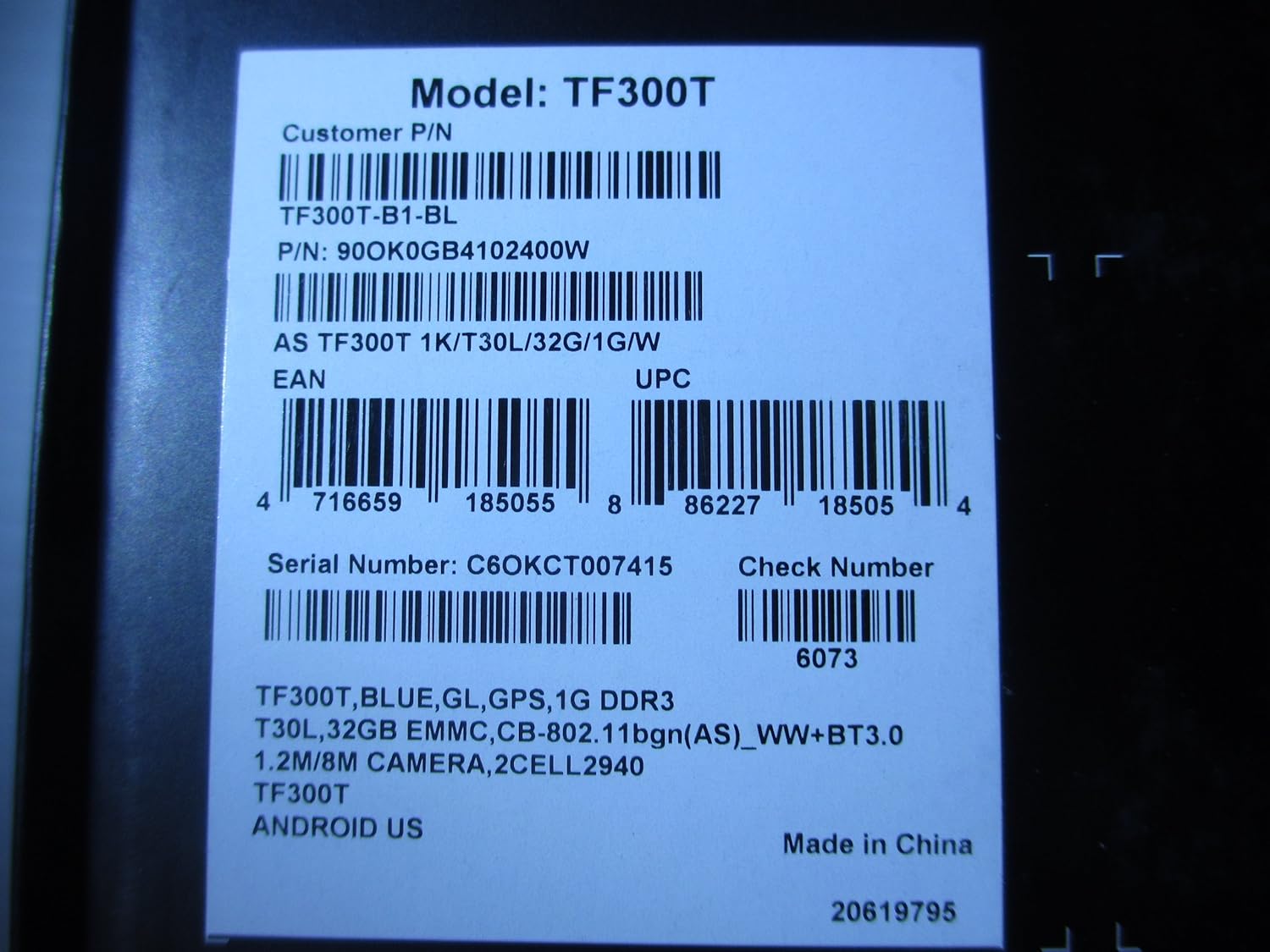
Image: A product label displaying the model number TF300T, part number TF300T-B1-BL, serial number C6OKCT007415, and UPC 886227185054.
6. Waarborg en Ondersteuning
6.1 Waarborginligting
The ASUS Transformer Pad TF300T comes with a 1-Year North American Warranty. This warranty covers manufacturing defects under normal use conditions. Please refer to the warranty card included in your product packaging for full terms and conditions.
6.2 Kliëntediens
For technical assistance, troubleshooting beyond this manual, or warranty claims, please contact ASUS customer support. You can find contact information and additional resources on the official ASUS webwebwerf:
- Besoek die ASUS Winkel op Amazon vir produkinligting.
- Refer to the official ASUS support website for service centers and contact details.