
Inleiding
This manual provides instructions for the setup, operation, and maintenance of your Microsoft Wireless Comfort Desktop 5000. This product combines a wireless keyboard and a wireless mouse designed for comfortable and efficient computer interaction.
The Microsoft Wireless Comfort Desktop 5000 features an ergonomically designed Comfort Curve keyboard and a mouse utilizing BlueTrack Technology for versatile surface tracking. It operates on a 2.4 GHz wireless connection, offering a reliable connection with a range of up to 30 feet.
Opstelgids
Wat is in die boks
- Microsoft Wireless Comfort Desktop 5000 Keyboard
- Microsoft Wireless Comfort Desktop 5000 Mouse
- USB Mini-Transceiver
- 2 AA Alkaline Batteries (for keyboard)
- 1 AA Alkaline Battery (for mouse)
Stelselvereistes
- Bedryfstelsel: Windows 8, Windows 7, Windows Vista, Windows XP (excluding Windows XP 64-bit)
- Hardeskyf: 100 MB free space
- Poort: USB-poort
Battery installasie
The keyboard requires two AA alkaline batteries, and the mouse requires one AA alkaline battery. Batteries are included with the product.
- Vind die batterykompartement aan die onderkant van die sleutelbord en muis.
- Maak die batteryvakdeksel oop.
- Plaas die AA-batterye in en maak seker dat die polariteit (+/-) korrek is.
- Maak die batterykompartement se deksel stewig toe.
Connecting the Wireless Transceiver
The wireless desktop set connects to your computer via a USB mini-transceiver.
- Locate the USB mini-transceiver. It may be stored in the mouse's battery compartment for transport.
- Insert the USB mini-transceiver into an available USB port on your computer.
- Jou rekenaar behoort outomaties die nodige drywers op te spoor en te installeer. Hierdie proses kan 'n paar oomblikke neem.
- Once drivers are installed, the keyboard and mouse should be ready for use.

Figure 1: The compact USB mini-transceiver for wireless connection.

Figure 2: The underside of the mouse showing the storage slot for the USB mini-transceiver.
Bedryfsinstruksies
Sleutelbord Kenmerke

Figuur 3: Bo-na-onder view of the Comfort Curve keyboard layout.
- Comfort Curve Design: The keyboard features an ergonomist-approved Comfort Curve design that encourages a natural wrist posture, reducing strain during extended use.
- Quiet Touch Keys: Experience comfortable typing with low-profile, quiet-touch keys.
- Palmrus: A soft-touch palm rest is integrated to provide additional comfort and support for your wrists.
- Removable Feet: Adjustable feet on the underside allow you to set the keyboard at a preferred angle for a more comfortable wrist posture.
- Taskbar Favorites for Windows 7: Easily access programs pinned to the Windows Taskbar using dedicated shortcut keys. The keys automatically adapt if you rearrange icons in the Taskbar.
- Media Center Controls: Control media playback directly from your keyboard using dedicated media keys (e.g., play/pause, volume up/down, mute).

Figuur 4: Hoekig view highlighting the integrated palm rest and Comfort Curve design.
Muis funksies

Figuur 5: Hoekig view of the wireless mouse.
- BlueTrack Tegnologie: The mouse utilizes Microsoft's BlueTrack Technology, combining the power of optical with the precision of laser for remarkable tracking on virtually any surface, including granite, carpet, and wood.
- Vierrigting-blaai: The tilt wheel allows for four-way scrolling (up, down, left, and right), enhancing efficiency and comfort when navigating documents or web bladsye.
- Aanpasbare knoppies: The mouse buttons can be customized for quick access to programs, files, media, and webpages you use most often. Refer to your operating system's mouse settings for customization options.
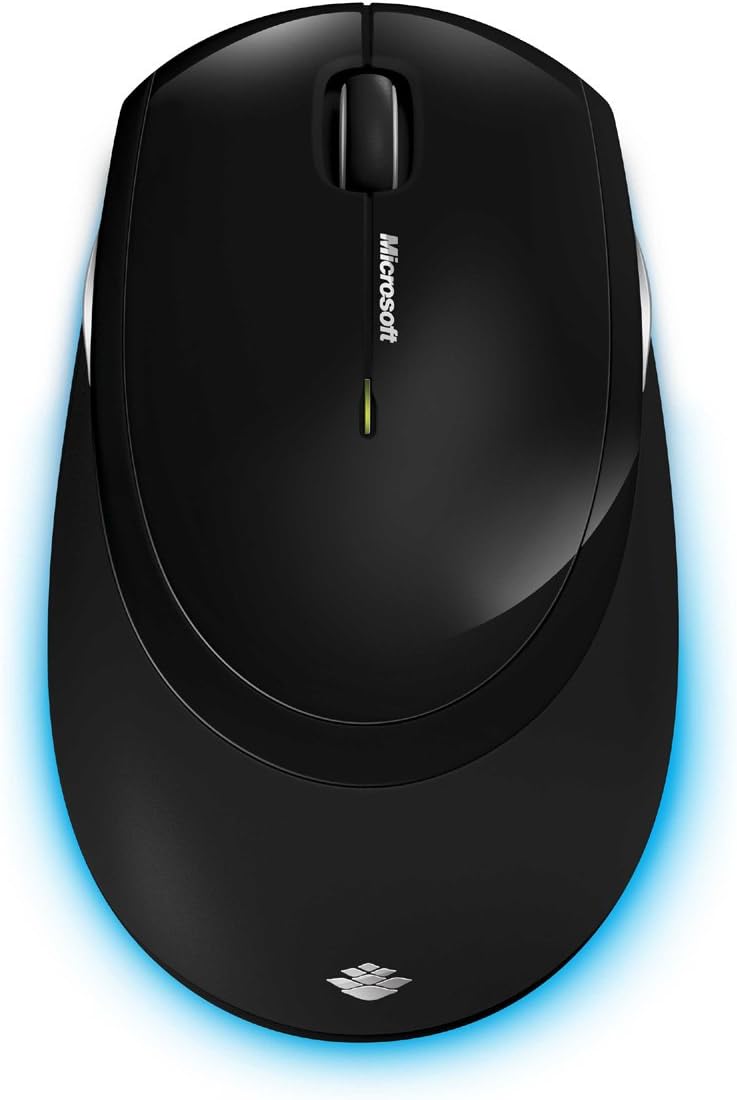
Figuur 6: Bo-na-onder view of the wireless mouse.
Onderhoud
Skoonmaak
To maintain the performance and appearance of your Microsoft Wireless Comfort Desktop 5000, follow these cleaning guidelines:
- Disconnect the USB transceiver from your computer before cleaning.
- Gebruik 'n sagte, pluisvrye lap effens dampeindig met water of 'n ligte skoonmaakoplossing.
- Avoid using harsh chemicals, abrasive cleaners, or solvents, as these can damage the surfaces.
- Vir die sleutelbord kan jy saamgeperste lug gebruik om stof en puin tussen die sleutels te verwyder.
- For the mouse, gently wipe the optical sensor area on the bottom to ensure optimal tracking performance.
Battery vervanging
When the batteries are low, the indicator light on the keyboard or mouse may flash. Replace the batteries as described in the "Battery Installation" section under Setup Guide.
- Always use new, high-quality AA alkaline batteries.
- Gooi gebruikte batterye weg volgens plaaslike regulasies.
Probleemoplossing
Verbindingskwessies
- No response from keyboard/mouse:
- Ensure the USB mini-transceiver is securely plugged into a working USB port on your computer.
- Check if the batteries in the keyboard and mouse are correctly installed and have sufficient charge. Replace if necessary.
- Try plugging the transceiver into a different USB port.
- Herbegin jou rekenaar.
- Inmenging:
- The 2.4 GHz wireless technology can be affected by other wireless devices. Move the transceiver closer to the keyboard and mouse, or move other wireless devices away.
- Avoid placing the transceiver near large metal objects, which can block the wireless signal.
Probleme met muisopsporing
- Erratic or no tracking:
- Ensure the BlueTrack sensor on the bottom of the mouse is clean and free of debris.
- Try using the mouse on a different surface. While BlueTrack is versatile, highly reflective or transparent surfaces (like clear glass) may still cause issues.
Spesifikasies
| Kenmerk | Detail |
|---|---|
| Handelsmerk | Microsoft |
| Modelnommer | CSD-00001 |
| Verbindingstegnologie | Wireless (USB Transceiver) |
| Draadlose tipe | 2.4 GHz radiofrekwensie |
| Versoenbare toestelle | Persoonlike rekenaar |
| Bedryfstelselversoenbaarheid | Windows 8, Windows 7, Windows Vista, Windows XP (excluding Windows XP 64-bit) |
| Kleur | Swart |
| Item gewig | 2.9 pond |
| Produkafmetings (LxBxH) | 8.7 x 2.9 x 18.54 duim |
| Kragbron | Battery aangedrewe |
| Batterye benodig | 3 AA-batterye (2 vir sleutelbord, 1 vir muis) |
| Eerste Beskikbare Datum | 29 Julie 2009 |
Waarborg inligting
Specific warranty details for the Microsoft Wireless Comfort Desktop 5000 are not provided within this manual. For comprehensive warranty information, including terms, conditions, and duration, please refer to the official Microsoft webwebwerf of die waarborgkaart wat by u produkverpakking ingesluit is.
Ondersteuning
For further assistance, technical support, or to download the latest drivers and software for your Microsoft Wireless Comfort Desktop 5000, please visit the official Microsoft support webwebwerf:
You can also visit the Microsoft Store on Amazon for product information and related accessories:
Belangrike inligting
Regsvrywaring
Please note that the "Legal Disclaimer" provided with the product pertains to sales terms and conditions, such as return policies and shipping details, and is separate from the operational instructions in this user manual. For specific product usage and safety guidelines, please refer to the relevant sections of this manual.