
1. Inleiding
This manual provides detailed instructions for the setup, operation, and maintenance of your Sharp VC-H965U 4-Head Hi-Fi VCR. The VC-H965U is designed for recording and playback of VHS videocassettes, offering features such as a 4-head design for clear still-frame and slow-motion playback, hi-fi stereo sound, and Sharp Super Picture technology for enhanced image details. Please read this manual thoroughly before using your VCR to ensure proper operation and to maximize its performance.
2. Belangrike veiligheidsinligting
Neem die volgende veiligheidsmaatreëls in ag om elektriese skok, brand of skade aan die eenheid te voorkom.
- Risiko van elektriese skok: Do not open the VCR casing. Verwys alle diens na gekwalifiseerde dienspersoneel.
- Kragbron: Connect the VCR only to an AC 120V, 60Hz power supply.
- Ventilasie: Verseker voldoende ventilasie rondom die eenheid. Moenie ventilasie-openinge blokkeer nie.
- Vog: Do not expose the VCR to rain or moisture.
- Analog Broadcast Tuner: This television receiver has only an analog broadcast tuner. After February 17, 2009, it requires a converter box to receive over-the-air broadcasts with an antenna due to the U.S. transition to digital broadcasting. Analog-only TVs should continue to work as before with cable and satellite TV services, gaming consoles, VCRs, and DVD players.
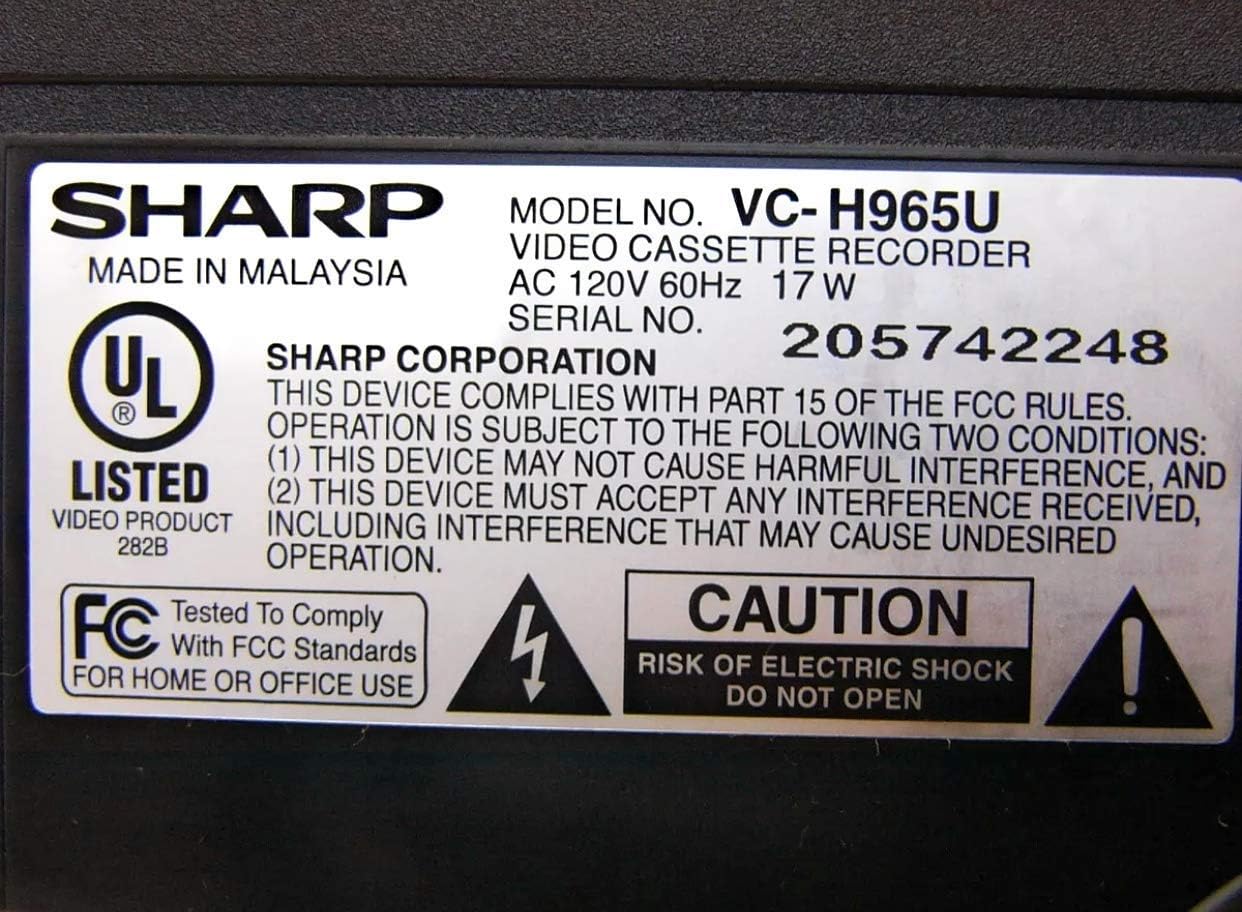
Figure 2.1: Product label with safety warnings and specifications.
3. Opstelling
3.1 Uitpak en plasing
Carefully remove the VCR from its packaging. Place the unit on a stable, flat surface, ensuring proper ventilation around all sides.

Figure 3.1: Front panel of the Sharp VC-H965U VCR.
3.2 Connecting to a Television and Other Devices
Connect the VCR to your television using appropriate audio/video cables. For optimal sound, use the stereo audio outputs to an AV receiver if available. The VCR also features front-panel AV inputs for easy connection of camcorders or gaming consoles.
- Videoverbinding: Connect the yellow VIDEO OUT jack on the VCR to the VIDEO IN jack on your TV.
- Klankverbinding: Connect the white AUDIO L OUT and red AUDIO R OUT jacks on the VCR to the corresponding AUDIO IN jacks on your TV or AV receiver.
- Antenna/kabelverbinding: Connect your antenna or cable TV line to the VHF/UHF/CATV IN jack on the VCR. Then, connect the VHF/UHF/CATV OUT jack on the VCR to the antenna input on your TV.
- Front AV Inputs: For temporary connections like a camcorder, use the yellow VIDEO IN, white AUDIO L IN, and red AUDIO R IN jacks located on the front panel.

Figure 3.2: Rear panel connections of the Sharp VC-H965U VCR.

Figuur 3.3: Gedetailleerd view of rear AV and antenna connections.
3.3 Initial Setup and Channel Tuning (EZ Set Up)
The VC-H965U features an "EZ Set Up" function that automatically tunes and stores available channels. Follow these steps:
- Ensure the VCR is connected to your antenna or cable source.
- Turn on the VCR and your television.
- Access the VCR's menu system (refer to your remote control for the "MENU" button).
- Select the "EZ Set Up" or "Auto Channel Search" option.
- The VCR will automatically scan and store all available air and cable channels, and set the clock.
Let wel: If you experience issues with picture loss after setting up cable channels, especially if you have a live signal on channel 3, consult the troubleshooting section or contact customer support for specific guidance.
4. Bedryfsinstruksies
4.1 Basiese Terugspeel
- Insert a VHS videocassette into the VCR.
- Druk die SPEEL knoppie op die videorecorder of afstandbeheerder.
- Druk op die om die afspeel te stop STOP knoppie.
- Om afspeel te onderbreek, druk die POUSE/STIL knoppie. Druk weer om te hervat.
4.2 Opnameprogramme
- Insert a recordable VHS videocassette.
- Tune the VCR to the desired channel.
- Druk die REC knoppie om opname te begin. Druk STOP opname te beëindig.
- For timed recordings, use the VCR's timer programming function (refer to the remote control and on-screen menu for detailed steps).
4.3 Gevorderde terugspeelfunksies
- Slow-Motion Playback: The 4-head design allows for smooth slow-motion playback in both forward and reverse. Use the POUSE/STIL knoppie en dan die FF or REW buttons to adjust speed.
- Clear Still-Frame: Achieve clear still images by pressing the POUSE/STIL knoppie tydens afspeel.
- Slaan soektog oor: Tydens afspeel, druk die SLAAN SOEK OOR button (if available on remote) to advance the tape in 30-second intervals, useful for bypassing commercials.
- Onmiddellike herhaling: Druk die ONMIDDELLIKE HERSPEL button (if available on remote) to quickly rewind the tape in 20-second intervals and then resume playback.
- Fast Rewind/Forward: The VCR rewinds a T-120 tape in approximately 54 seconds. Note that rewind speed may vary for other tape lengths.
5. Onderhoud
5.1 Skoonmaak van die videorecorder
Om optimale prestasie en voorkoms te handhaaf:
- Wipe the exterior of the VCR with a soft, dry cloth.
- Do not use liquid or aerosol cleaners, as they may damage the finish or internal components.
- Avoid inserting cleaning tapes frequently, as some can cause excessive wear on the video heads. Use only when necessary and follow the cleaning tape manufacturer's instructions.
5.2 Bandversorging
Store videocassettes in their cases, away from direct sunlight, extreme temperatures, and magnetic fields, to preserve tape quality.
6. Probleemoplossing
If you encounter problems with your VCR, refer to the following common issues and solutions before seeking service.
| Probleem | Moontlike oorsaak/oplossing |
|---|---|
| Geen krag nie | Ensure the power cord is securely plugged into the VCR and a working electrical outlet. |
| Geen beeld of klank nie |
|
| Poor picture quality (noisy, ghosty, dark) |
|
| VCR is noisy during rewind | This model may exhibit a slightly louder rewind function compared to some other VCRs. This is generally normal operation. |
| Picture loss after cable channel setup | If you have a live signal on channel 3, this can sometimes interfere with the auto-set process. Refer to the manual's specific section on channel tuning or contact Sharp customer service for assistance. |
7. Spesifikasies
- Handelsmerk: Skerp
- Modelnommer: VC-H965U (Internal Model: VCA965U)
- Tipe: 4-Head Hi-Fi VCR
- Kragtoevoer: AC 120V, 60Hz, 17W
- Item gewig: Ongeveer 5 pond
- Pakket afmetings: Ongeveer 14.1 x 8.3 x 3.6 duim
- Rewind Speed (T-120 tape): Ongeveer 54 sekondes
- Kenmerke: Sharp Super Picture, 19 Micron Exact-Track heads, EZ Set Up, Skip Search, Instant Replay, Front-panel AV inputs.
- ASIN: B00006FXF5
- Eerste datum beskikbaar: 29 September 2005
8. Waarborg en Ondersteuning
For warranty information, please refer to the documentation included with your purchase or visit the official Sharp website. If you require technical assistance or have questions not covered in this manual, please contact Sharp customer service. Previous users have noted the customer service staff to be very polite and helpful.
Jy kan gewoonlik ondersteuningskontakbesonderhede op die vervaardiger se amptelike webwerf vind. website or by searching for "Sharp customer support" online.